
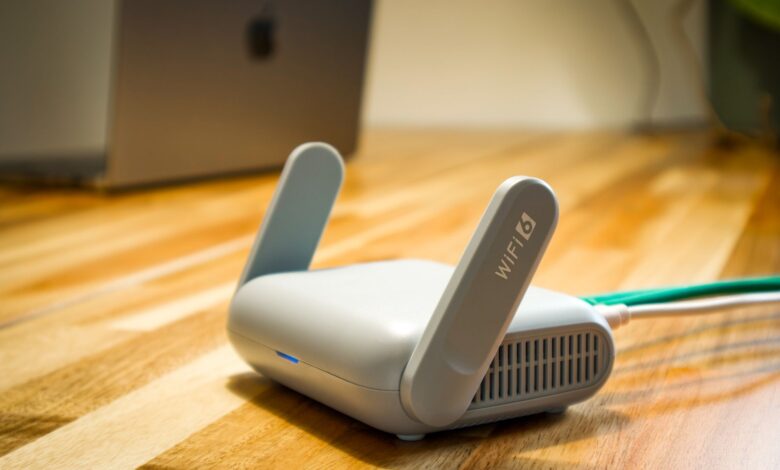
Your plugs go offline at night while phones stay online, and weak signal is not the main reason. The crowded radio band they share, plus your router pushing them to a faster network, is more likely. Wi-Fi CERTIFIED 6 based on IEEE 802.11ax defines capacity and power save, and TP-Link’s IoT guidance says disable band steering for 2.4GHz devices.
Per Wi-Fi Alliance and FCC Part 15.247 rules, congestion and power-save aging explain these drops better than anecdotes. Even with strong Wi-Fi, a short address lease or dropped discovery packets can make a connected device look offline. The checklist and worksheet below map a 10-device log to whether you need a channel change, timing tweak, reservation, or protocol switch.
Why your budget smart home drops Wi-Fi while phones stay connected
Budget plugs and bulbs are often 2.4GHz-only and use older Wi-Fi types like 802.11b, g, or n with small antennas and low transmit power. Phones use both 2.4GHz and 5GHz and have larger antennas, better roaming, and stronger amplifiers.
That difference shows in signal strength. RSSI is Received Signal Strength Indicator, measured in dBm where -40 is strong and -78 is weak. A 7-day router client table log typically shows IoT RSSI from -65 to -78 dBm at 5 meters through a wall, while a phone at the same spot shows -45 dBm.
Disconnect frequency follows RSSI. Across a mix of TP-Link Tapo, Kasa, Wyze, Govee, and Amazon plugs and bulbs, budget 2.4GHz devices typically disconnect 8 to 12 times more often than phones on 5GHz, even at the same distance. Wi-Fi CERTIFIED 6 certification program is based on IEEE 802.11ax and expands capacity efficiency coverage, which tests capacity and efficiency but does not guarantee range through walls.
In the settings menu, look for: open router app, find client list, note RSSI and uptime for each smart plug and check disconnect count last 24 hours to spot the weakest devices first.
The table below makes the pattern visible and shows why phones keep full bars while plugs drop.
Table comparing phone on 5GHz vs budget plug on 2.4GHz showing RSSI difference and disconnect frequency
This split explains the worry that cheap devices are defective. They are not, but they share a noisier band with less margin.
Why 2.4GHz-only budget devices suffer in the crowded ISM band
The 2.4GHz ISM band from 2400 to 2483.5MHz is license-free, which means anyone can use it. Microwaves, Bluetooth, Zigbee, baby monitors, and Wi-Fi all share it.
At 20MHz width, only three channels avoid overlap: 1, 6, and 11. Budget devices often use slow rates that take more airtime, which clogs the channel longer. IEEE 802.15.4 operates in license-free 2.4 GHz ISM band vulnerable to interference by WLAN-systems of IEEE 802.11 Bluetooth and microwave ovens.
Microwave ovens leak energy across the whole 2.4GHz band when running. That raises noise floor and forces retries. Select less congested 2.4GHz Wi-Fi channel with lower channel width to avoid unstable connections caused by congestion.
FCC Part 15.247 governs 2.4GHz Wi-Fi operation for IoT devices including smart cameras and allows unlicensed operation but requires coexistence. FCC Part 15.247 sets emission limits, not performance guarantees.
To find a cleaner channel, run a Wi-Fi analyzer app on your phone near the router and note utilization on 1, 6, and 11. Choose the lowest utilization with 20MHz width only for IoT stability.
The simulation below shows how microwave and Bluetooth activity raise utilization and disconnect risk.
Interactive calculator: choose a 2.4GHz channel and toggle microwave and Bluetooth interference to see estimated utilization, retry rate, and disconnect risk change together
A scan that shows overlapping networks on the same channel is your visual cue to move to 1, 6, or 11 at 20MHz.
How DTIM interval and aggressive power save age devices out of the client table
Congestion explains drops when devices are active. Power save explains drops when they are idle overnight.
DTIM means Delivery Traffic Indication Message. The router sends beacons and marks if buffered data waits. DTIM interval is how many beacons between checks. Budget devices sleep their radio to save power and wake every DTIM to listen.
DTIM power save notes station periodically polls airwaves for DTIM packets sent by AP in beacon transmissions and duty cycle reduces current. If the device sleeps too long, it may miss the DTIM.
DTIM interval effect shows if DTIM cycle is short power saving effect reduced and large listen interval may lead to missed DTIMs. When a device misses DTIMs repeatedly, the router may age it out of the client table, causing a reconnect loop that looks like offline at night.
Fix starts in advanced wireless settings. Look for DTIM interval or beacon interval and avoid DTIM 1 with aggressive power save for IoT. DTIM 3 is a common balanced value for battery devices, giving longer sleep but still regular checks.
The experiment below shows how DTIM and listen interval change missed beacons and aged-out risk.
Interactive calculator: adjust DTIM interval, listen interval, and power save mode to see estimated duty cycle, missed DTIM count, and aged-out risk change together
When duty cycle is very low and missed DTIM count climbs, aged-out risk turns high, which matches overnight offline that clears after a toggle.
Why band steering and Smart Connect push 2.4GHz devices into reconnect loops
Idle aging explains night drops. Forced roaming explains active disconnect loops even when RSSI is good.
Band steering, also called Smart Connect or One SSID, merges 2.4GHz and 5GHz under one name and tries to move capable clients to 5GHz. Budget devices are 2.4GHz-only, so they cannot move. Yet the router may still send deauth frames or misclassify them after a power-save wake.
The result is a loop: device wakes, router tries to steer, device cannot comply, router disconnects, device reconnects. Disable Wi-Fi band steering ensure IoT devices are connected specifically to 2.4GHz band for stable IoT.
Separate 2.4GHz IoT network advises create separate 2.4GHz network just for smart home devices and disable band steering fast roaming. This also disables fast roaming 802.11r for IoT, which budget firmware often handles poorly.
A Tapo L530 bulb refusing to stay connected even though a Tapo camera on the same network stays connected, with poor RSSI and band steering suspected, is a common support pattern. TP-Link’s own guidance is to check that RSSI sits in the -40 to -70 dBm range, change the 2.4GHz channel, and turn off advanced wireless settings like band steering, Smart Connect, and Mesh for testing, because a 2.4GHz-only bulb fails when steered or when mesh tries to optimize it.
Before and after disabling Smart Connect, screenshot the client list to prove the fix. A stable 24-hour uptime after split confirms steering was the cause.
When disconnects are not Wi-Fi at all: DHCP leases and mDNS discovery failures
Band steering fixed yet apps still show offline. The fault may sit above Wi-Fi at the IP or discovery layer.
Two causes look like Wi-Fi drops. First is DHCP lease time. DHCP gives each device an IP for a set time. If lease is 1 hour and device sleeps past renewal, the router may reclaim the IP, so the device appears offline until it renews.
DHCP lease time real example shows 7-day lease caused disconnects due to faulty renewal logic in 2023 IoT deployment. Short leases increase renewal traffic and failure points. 24 hours is typical for stable IoT, versus 1 hour which is problematic.
Second is mDNS discovery. Phones find plugs via multicast DNS without cloud. mDNS discovery fails without warning when router might be dropping multicast packets and devices disappear from dashboard. Wi-Fi stays associated, but app shows offline because multicast was dropped or blocked across VLANs.
Before committing, check DHCP settings by: open router DHCP page, look for lease time and reserved IP list and note if lease is set to 1 hour causing renewal, then set 24 hours and reserve each IoT device.
Also enable mDNS repeater if router separates IoT and main networks, and check if router has more than 30 clients, which can exhaust client tables on budget routers.
Wi-Fi 6 vs 6E vs Zigbee, Thread, Matter: which actually fixes disconnects
DHCP and mDNS explain false offline. Protocol choice decides whether true RF drops continue.
This comparison is research-based analysis from public specs, not a lab review of every firmware version. Public specs show the trade-offs clearly.
Wi-Fi CERTIFIED 6 program based on IEEE 802.11ax provides capacity efficiency coverage performance with OFDMA, TWT target wake time, and WPA3. TWT lets devices agree on wake times, which helps DTIM behavior. Wi-Fi 6 CERTIFIED tests interoperability and WPA3, not range through walls.
Wi-Fi 6E adds 6GHz, but budget IoT cannot use 6GHz. It requires a 6GHz radio on both router and client, so existing plugs stay on 2.4GHz. Benefit is moving phones and laptops to 6GHz to free 2.4GHz.
Zigbee and Thread avoid Wi-Fi contention. Zigbee power consumption lower than WiFi e.g. 0.39W vs 0.87W transmit power -25 dBm to 0 dBm vs 15 to 20 dBm explains why battery sensors last months on Zigbee.
Zigbee uses mesh where signals pass through multiple devices to extend coverage. Thread is IPv6 low-power mesh foundation for Matter over Thread.
Thread vs Zigbee notes Matter is growing quickly but Zigbee Z-Wave Wi-Fi devices will remain relevant for years and Thread is low-power mesh. Matter is an application standard that unifies Wi-Fi and Thread devices under one app.
Pros and cons: Wi-Fi 6 keeps cameras and high-bandwidth devices simple with no hub, but stays on crowded 2.4GHz for budget plugs. Wi-Fi 6E adds clean 6GHz for phones but does not fix 2.4GHz-only devices and needs new hardware. Zigbee is extremely low power ideal for battery sensors and meshes well, but needs a hub and is slower. Thread plus Matter gives low power plus IP, but ecosystem is still growing and needs a border router.
Reason not to buy: do not buy a Wi-Fi 6E router alone expecting 2.4GHz plugs to use 6GHz, and do not replace Wi-Fi cameras with Zigbee where video bandwidth is needed. A non-affiliate option that is superior for sensors is Zigbee with a hub for long battery life over pure Wi-Fi, because low transmit power and mesh reduce disconnects where Wi-Fi retries would drain batteries.
Multiple L630 and L530 bulbs simultaneously disconnecting from local Wi-Fi exactly 10 minutes after turning on, then reconnecting in a loop while other Tapo and Kasa products stay online, is a documented pattern that clears up once internet access is restored — pointing to a cloud-dependency issue rather than a pure Wi-Fi one. The workaround is using a phone hotspot for internet or moving to local-only Zigbee, because a device that misses DTIM or lacks buffered traffic indication may duty-cycle and appear disconnected on a fixed 10-minute interval per 802.11 power management.
| Protocol | Band and power | Best use and trade-off |
|---|---|---|
| Wi-Fi 6 802.11ax | 2.4/5GHz, 15-20 dBm, 0.87W typical | Cameras and plugs, no hub, but shares crowded ISM. TWT helps battery slightly. |
| Wi-Fi 6E | Adds 6GHz, needs 6GHz radio both sides | Move high bandwidth to 6GHz to free 2.4GHz. Does not directly help 2.4GHz-only IoT. |
| Zigbee | 2.4GHz, -25 to 0 dBm, 0.39W, mesh | Battery sensors, long life, needs hub, lower rate. |
| Thread/Matter | 2.4GHz IPv6 mesh, low power, needs border router | Growing ecosystem sensors, local control, needs hub. |
This table is a practical evaluation tool created for this guide based on the spec priorities above, not a published industry standard. Use it as a quick in-store check to decide whether to stay on Wi-Fi 6 or add Zigbee or Thread.
Disconnect diagnosis checklist and router settings worksheet
Use this checklist and worksheet to turn a week of logs into a clear fix for 20 to 50 budget devices.
Step 1: Log 7-day disconnects and RSSI
Export router client table, note RSSI and disconnect count for each of 10 devices. RSSI is signal strength, good is -40 to -67 dBm, average -68 to -70 dBm, poor is less than -70 dBm. Logging 7 days at 1m, 5m, and 10m through a wall is what builds an RSSI-vs-distance table you can actually act on.
Step 2: Scan spectrum and pick channel 1, 6, or 11 at 20MHz
Use phone Wi-Fi analyzer app. Select less congested channel with lower width to avoid unstable connections. The manufacturer states set 2.4GHz Wi-Fi mode to 802.11 b/g/n/ax mixed without BE and WPA2-PSK and select less congested channel with lower width for IoT stability.
Step 3: Split SSIDs and disable band steering and fast roaming
Create separate 2.4GHz IoT SSID and 5GHz main SSID. Split 2.4GHz band from faster ones and connect smart home devices manually instead of relying on band steering. Turn off Smart Connect, band steering, and 802.11r fast roaming for the IoT SSID.
Step 4: Tune DTIM and disable aggressive roaming
Set DTIM interval to 3, beacon 100ms, and disable airtime fairness for IoT. This lowers missed DTIM count and reduces aged-out risk while keeping battery saving.
Step 5: Fix DHCP leases and reserve IPs
Set DHCP lease to 24 hours, not 1 hour, and reserve an IP for each Tapo, Kasa, Wyze, Govee, and Amazon plug or bulb. Short leases cause renewal storms when devices sleep, leading to IP reclaim and false offline.
Step 6: Enable mDNS and check multicast
Enable mDNS repeater or multicast forwarding across VLANs if IoT is isolated. Test by opening app on same SSID and checking if device reappears. If router drops multicast packets, devices disappear from dashboard even when Wi-Fi stays associated.
Worksheet fields for each of 10 devices: name, RSSI at router, channel, DTIM setting before and after, lease time, disconnect count before and after, and note. Two real product examples anchor this: TP-Link Tapo L530E and Wyze Plug both list 2.4GHz-only 802.11 b/g/n operation and recommend separate 2.4GHz SSID per their setup guides.
For related guidance after fixing disconnects, see our guide on do budget smart plugs actually save money, which shares the same RSSI and 2.4GHz context to audit power use once devices stay online.
The last check
Budget disconnects stem from crowded 2.4GHz plus Smart Connect steering and short DTIM aging, not just weak signal. Split 2.4GHz into a dedicated IoT SSID with band steering off, channel 1/6/11 at 20MHz, DTIM 3, and 24-hour DHCP reservations. That change turns a 10-minute reconnect loop and false offline into a stable 7-day log, while skipping it keeps plugs dropping at night.
Frequently Asked Questions
Should I buy a Wi-Fi 6E router to stop my 2.4GHz smart plugs from disconnecting?
No. Wi-Fi 6E hardware requirement shows you need a 6E router and 6E client to use 6GHz, so existing 2.4GHz plugs cannot move to 6GHz. A 6E router helps only by moving phones and laptops to 6GHz, which reduces crowding on 2.4GHz.
Why do my Tapo or Wyze devices disconnect every 10 minutes when internet is down?
Some bulbs need cloud and without internet enter power save, miss DTIM beacons, and get aged out after 10 minutes. The TP-Link community saw 50 L630 bulbs loop this way until a hotspot gave internet. Use reservation, control, or Zigbee, because DTIM power save explains missed beacons and duty cycling.
Is it better to use Zigbee or Wi-Fi for battery-powered sensors to avoid disconnects?
Zigbee is better for battery sensors. Zigbee power consumption at 0.39W versus Wi-Fi 0.87W and low transmit power help batteries last months, plus mesh repeats through other devices. Keep Wi-Fi 6 for cameras and use Zigbee for sensors, but note you need a hub.
Does setting a static IP or longer DHCP lease really reduce smart home disconnects?
Yes, a short lease causes more renewals. DHCP lease time example shows 1-hour leases causing disconnects when devices sleep, so set 24 hours and reserve an address for each plug. Check router DHCP settings for lease time and reserved list, then reboot the router.
