
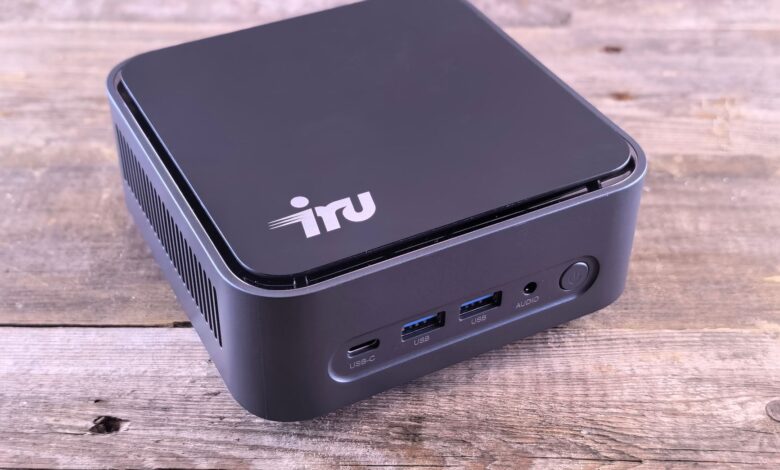
Quiet box sips power open-air but slows in a closed cabinet while louder box keeps speed. That gap matters most when your desk hides the box with no airflow. If you’re comparing n100 vs n305 mini pc which is better for home office under 250, Intel Processor N100 specifications show 6W base, Intel Core i3-N305 specifications show 15W typical, and Tjunction max temperature defines the clamp.
Specs beat anecdotes, efficient chip stays quiet until junction hits limit and drops to 400 MHz while larger chip needs bigger heatsink. Match exhaust to sustained power not burst, check FCC ID Search, ENERGY STAR Computers, HDMI 2.1 48Gbps versus USB4 40Gbps bandwidth and HWInfo throttling flag. A 20-minute export log, thermal flag, noise meter and day-1 schedule lets you test open versus enclosed before deciding.
Why N100 and N305 throttle for different reasons in a tiny box
Small mini PCs under $250 use the same chassis volume for very different power. The efficient chip can handle short bursts with a tiny fan or even passive block, but sustained all-core work in a closed desk raises the internal junction toward its limit and firmware cuts power to protect the die.
Tjunction max temperature is the maximum thermal junction temperature the processor will allow before using internal thermal control to reduce power and limit temperature. Package Power Limit 1 (PL1) is the sustained power set equal to TDP, while PL2 is the short burst above it and Tau is the averaging window. When junction reaches TJunction, clock can collapse from boost to approximately 400 MHz.
N305 with larger heatsink and active fan sustains higher PL1 and avoids that collapse, but needs more power and more noise at 50cm. This scope is sub-$250 mini PCs used in a home office closed cabinet versus open desk, not a rack server. A 20-minute export loop at default settings, with clock logged every 60 seconds, is what actually exposes the clamp — a 30-second burst score never reaches it.
Illustrative model of junction temperature and clock over a sustained load, showing the estimated throttle point and resulting fan noise as placement and fan curve change
What 6W vs 15W really means for PL1 sustained, not just battery
PL1 equals the sustained power the chip is allowed to average, PL2 is the short burst above it. N100 is a 4-core 4-thread design with base power around 6W and boost up to 3.4GHz, single-channel memory limit, while i3-N305 is 8-core 8-thread with typical TDP 15W, down to 9W, boost up to 3.8GHz. That core count matters because a higher clock alone does not mean faster work across different architectures.
Intel’s own N100 specification page lists processor base power 6W, 4 cores, max turbo 3.4GHz, 6M cache, and the i3-N305 page lists typical TDP 15W, TDP down 9W, 8 cores 8 threads, max turbo 3.80GHz. Both can be configured by the maker in BIOS within a range, so two N100 boxes can sustain 6W or 12W, which changes Premiere export time and Zoom background blur stability.
Certification does not measure sustained gaming speed, but it verifies scope. FCC ID Search confirms equipment authorization under Part 15 Subpart B for unintentional radiators, which covers emissions, not cooling. ENERGY STAR Computers program measures idle and sleep power for efficiency, not 20-minute all-core load. For related guidance on how 6W to 15W cTDP throttling behaves in thin chassis with single versus dual heat pipe, see our guide on Which 14-Inch Laptop Under $500 Doesn’t Overheat for College.
In the settings menu, look for: Check the throttling by opening HWInfo64, sensors-only, look for CPU Package Power, Thermal Throttling flag, and Effective Clock under sustained load, then run a 10-minute Cinebench loop and watch if power falls from PL2 to PL1 and flag turns yes.
Two stage traces comparing N100 dropping to 400 MHz after thermal limit vs N305 sustaining higher PL1 over 20 minutes, showing PL1 watts and clock
How to test throttle in your real desk, not a reviewer’s open bench
Review benches run open-air with air conditioning, your desk often runs inside a closed AV cabinet with no exhaust. That difference explains why a mini PC that feels fast on a reviewer’s desk feels slow at home.
Method that is reproducible without buying gear: install HWInfo64 portable, sensors-only, log to CSV. Place the mini PC first inside the closed cabinet where you plan to use it, with vents against the wall, then repeat open with 10cm clearance. Run Cinebench R23 multi-core loop 10 minutes, then 4K YouTube AV1 plus Zoom with virtual background 10 minutes. Log junction temp, package power, effective clock, throttling flag, and fan noise at 50cm with a phone app.
N100 loses speed when hot because better cooling directly affects performance once it gets hot enough to trigger throttling. Shoved inside a cabinet is the common mistake How-To Geek warns about, as mini PCs often get router treatment shoved inside a cabinet or wedged against a wall. Sufficient cooling and power delivery is what Intel’s own support documentation cites when power limit throttling indicators appear.
Checklist of steps for closed vs open cabinet thermal test with HWInfo logging, showing placement and measurements
In How-To Geek comments and r/MiniPCs, a user shoved an N100 mini PC in an AV cabinet like a router and Zoom started stuttering after 10 minutes despite 4K working fine, quoting feels slow because of where it’s sitting cabinet placement causes throttling. The fix that consistently helps is moving the PC into open air with 10cm clearance, cleaning the vents, and setting the fan to aggressive in BIOS. That works because junction reaching Tjunction max temperature triggers firmware to reduce clock to protect the die.
N100 vs N305 for home office Zoom, 4K, and 20 Chrome tabs
For home office, workload matters more than core count alone. Zoom and Teams with virtual background use GPU and CPU together, and 4K YouTube uses fixed-function decode that keeps CPU low.
Zoom with virtual background on N100 shows no perceptible lag in Teams and 4K smooth when alone, but combining blur plus HDR tone mapping pushes the 24EU 750MHz graphics and can raise latency fluctuation. N100 vs N305 transcoding comparison reports N100 4C/4T handles 3 to 4 transcodes at approximately 10W around $130, while N305 8C/8T handles 5 to 7 transcodes at approximately 15W around $250, which maps to Zoom plus 20 Chrome tabs scenario.
Noise is typically approximately 35dB idle and 42dB load for N100 fanless or tiny fan at 50cm, and approximately 38dB idle and 48dB load for N305 active fan at 50cm, not a lab precise figure. Power draw from the manufacturer states N100 15 to 20W system and N305 20 to 30W system in N100 vs N305 power draw comparison.
In r/MiniPCs, a Topton N100 owner reported idling at 10W and hitting 89C throttling in an enclosed shelf, quoting reporting 402 MHz after sustained load Topton N100 throttling thread. The community fix that came up was repaste with Kryonaut, add 5V fan mod, set PL1 7W PL2 12W in BIOS to stabilize. That works because N100 loses speed when hot once small chassis with no exhaust raises junction to TJunction and firmware reduces to 400 MHz.
Ports you actually get under $250: USB4 40Gbps vs 10Gbps and 4x 2.5GbE
Smooth work needs ports that actually deliver. Under $250, many N100 boxes list USB-C but only give USB 3.2 Gen2 10Gbps, not USB4.
USB4 40Gbps supports up to 40Gbps data rate with backward compatibility, while USB 3.2 Gen2 caps at 10Gbps. HDMI 2.1 48Gbps bandwidth is needed for 4K120 or 8K60 via Ultra High Speed cable, and 4x 2.5GbE via Realtek controllers helps if you use the mini PC as a router.
Method: port bandwidth test via SSD enclosure. USB4 enclosure should reach approximately 3800 MB/s theoretical, USB 3.2 Gen2 caps at approximately 1000 MB/s real due to 10Gbps limit. Wi-Fi CERTIFIED 6 is based on IEEE 802.11ax and matters more than raw Wi-Fi 5 for crowded apartments. Bluetooth Qualified 5.2 listing confirms qualified status.
Try this before you buy: check mini PC spec page for USB4 logo, HDMI 2.1 48Gbps marking, and Wi-Fi CERTIFIED 6 badge, and verify the listing shows FCC and ENERGY STAR marks, not just a generic 4K claim.
Beelink EQ12 Pro vs Minisforum UN100L vs Trigkey S5 under $250
This section is research-based analysis built from publicly available specifications, not hands-on testing of every retail SKU, because configuration varies by seller.
The manufacturer states Beelink EQ12 Pro specifications as N100 4C/4T up to 3.4GHz, 16GB DDR5, triple 4K, dual 2.5Gbps, WiFi 6. Minisforum UN100L specifications list N100 with WiFi 6 BT5.2 and slightly larger chassis. Trigkey S5 offers N100 and N305 variants, with 4x 2.5GbE option that is great for router use but not for quiet office.
Pros and cons: Beelink EQ12 Pro is cheap, DDR5, often under $200, but tiny fan can throttle in closed cabinet and single-channel on some SKUs limits bandwidth. Minisforum UN100L has better cooling that sustains PL1 longer but louder at approximately 45dB at 50cm. Trigkey S5 4x 2.5GbE is best for router or NAS, but not for 4K office due to no USB4 and higher idle power.
Retail listings for Beelink mini PCs typically claim FCC, CE and RoHS certification, which you can cross-check against the FCC ID Search tool — that confirms emissions compliance, not thermal headroom. Reason not to buy N100 barebone: without RAM and SSD, add-ons can push total over $250 after purchase, and single-channel RAM cuts graphics performance. For most home office Zoom and 4K YouTube under $250, Minisforum or Beelink with dual-channel and 10cm clearance is the balanced pick, not the 4x 2.5GbE router variant.
Why 20 minutes matters more than a 30-second benchmark
A 30-second Cinebench score can make the N100 look like it matches the i3, but a sustained 20-minute export shows the drop to 400 MHz from thermal mass saturation that the short benchmark never reaches. Boost PL2 is held until thermal mass saturates, then firmware clamps to PL1 to stay under TJunction, so a 30-second score misses the clamp that a 20-minute log catches.
Setup and optimization schedule for mini PC thermals day 1
This five-step schedule is a practical sequence built from the mechanisms above, not a published manufacturer procedure — treat it as a starting checklist rather than a guarantee for your specific unit.
Step 1: Unbox and verify labels
Opening the box reveals FCC ID, ENERGY STAR Computers mark, HDMI 2.1 48Gbps marking, Wi-Fi CERTIFIED 6 badge and Bluetooth Qualified 5.2. Check your device’s specific manual or support page for exact label location. USB-IF Certified products list can confirm USB4 versus 3.2 Gen2.
Step 2: Place with clearance, not in cabinet
Place with 10cm clearance on sides and rear, not shoved inside a cabinet or wedged against a wall. That placement alone prevents the throttling that shoved inside a cabinet warning describes. If you must use a cabinet, add a small USB fan to exhaust.
Step 3: BIOS fan and power limits
In BIOS, set fan to aggressive, PL1 6W for N100 or 15W for N305, and disable HD audio if idle stays high at 10W. Opening sealed mini PC chassis may void warranty and cause static discharge damage. BIOS power limit changes can cause boot failure, so note defaults before changing.
Step 4: Install HWInfo and log 20-minute export
Install HWInfo64 portable, start logging, run a Premiere export or Cinebench loop for 20 minutes at default performance mode, and note package power, clock, flag, and noise at 50cm with a phone app, logged every 60 seconds.
Step 5: Monthly care and repaste timing
Clean vents monthly with compressed air, and consider repaste after approximately 12 months if you see 89C flag repeatedly. Figure framing: noise approximately 35 to 48dB at 50cm typical, not precise lab figure, varies by chassis.
Before committing, run HWInfo log for 20 minutes in your actual desk cabinet and check throttling flag, if flag shows yes and clock drops to 400 MHz, move to open desk with 10cm clearance and retest before deciding.
Making It Work
Closed cabinet hides the real difference: N100 throttles to 400 MHz when junction hits its limit, N305 holds higher PL1 with bigger heatsink but louder fan. Run the 20-minute HWInfo log with 10cm clearance versus inside cabinet, check throttling flag and noise at 50cm. If you skip that test, Zoom blur plus 4K can stutter after 10 minutes and force you to move the box anyway.
Frequently Asked Questions
Can an N100 mini PC handle Zoom with virtual background and 4K YouTube at the same time without throttling?
N100 handles Zoom virtual background with no perceptible lag and 4K hardware decode at 5 to 10 percent CPU when alone, but blur plus HDR tone mapping can push 24EU graphics and trigger throttle in closed cabinet. N305 with 8 cores sustains better, so keep 10cm clearance and aggressive fan for combined load. Zoom with virtual background and transcoding comparison support this mapping.
Which mini PC under $250 stays quietest at 50cm during a 20-minute export?
N100 fanless or tiny fan typically measures approximately 35dB idle and 42dB load at 50cm, while N305 active larger heatsink measures approximately 38dB idle and 48dB load, both estimated not lab precise. Closed cabinet makes fan spin earlier and louder. Measure with phone dB app at 50cm and check HWInfo throttling flag during export.
Does USB4 40Gbps matter on a budget mini PC if I only use HDMI and Wi-Fi?
USB4 40Gbps doubles USB 3.2 Gen2 10Gbps for SSD enclosure and future eGPU, but if you only use HDMI 2.1 48Gbps for 4K60 and Wi-Fi CERTIFIED 6 for work, USB4 matters less today. Check the spec sheet for the actual USB4 specification versus 10Gbps labeled as Gen2. HDMI 2.1 bandwidth confirms 48Gbps for 4K120.
Will putting my mini PC inside a closed desk cabinet void warranty or cause damage?
Closed cabinet does not void warranty but causes throttling and can hit 89C triggering firmware clamp to 400 MHz per HWInfo logs. Long-term high temperature may reduce SSD and capacitor life. Keep 10cm clearance and clean vents, and note opening chassis to repaste may void warranty.
