
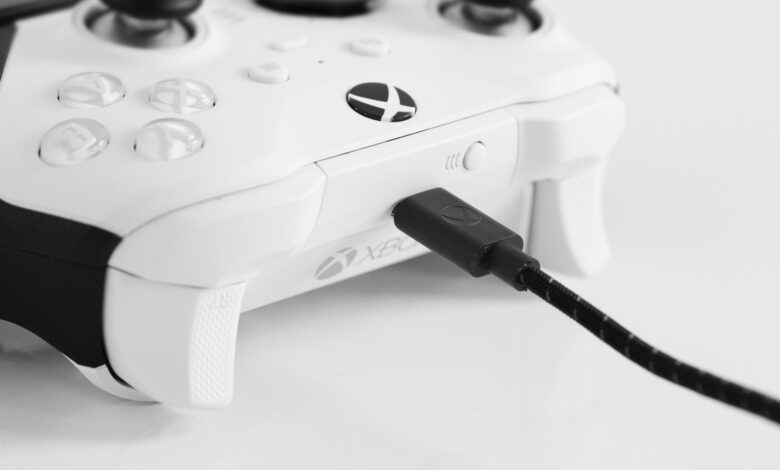
There are three ways to connect an Xbox controller to a computer: cable, Bluetooth, or Microsoft’s wireless adapter. Many people mistakenly assume that one of the three connection types has failed. Turn to Xbox’s official PC connection guide to get information about setting, menus and limitations for USB, Xbox Wireless Adapter and Bluetooth.
When attempting to troubleshoot why your Xbox controller isn’t connecting to your Windows PC it’s best to initially think of it in diagnostic terms and repair secondarily. Initially write down some basic information that will help identify which type of connection you are using. Updating the controller over Bluetooth is not supported.
Identify the controller, symptom, and connection path before changing anything
The phrase “My Xbox controller won’t connect to my PC” can indicate a multitude of different issues, at least six or more. Spend two minutes recording these details before you touch a setting:
- Controller: Xbox One-era, Xbox Series X|S, Elite Series 2, or Adaptive. Write down the model label inside the battery compartment if it’s readable.
- Connector: micro-USB on Xbox One-era controllers or USB-C on newer ones. Xbox’s connection guide lists which models use which port.
- Path you’re trying: USB cable, Bluetooth, or Xbox Wireless (the adapter, or Xbox Wireless built into some PCs).
- Exact symptom: no power, vibrates but isn’t detected, missing from the Bluetooth list, appears but won’t pair, says connected but does nothing, or drops out.
- Where else it works: a console, a phone, or another PC.
- Last change: a Windows update, a controller firmware update, or a new Bluetooth card.
For starters, many Xbox One controllers do not support Bluetooth. If your Xbox One controller doesn’t have Bluetooth, please check your controller model’s specifications before troubleshooting on that path. The only way to tell which model of Xbox One controller you have is by checking what plastic surrounds the Xbox button. If there is no plastic around it, the controller does not support Bluetooth. For Bluetooth capable Xbox One controllers, the plastic surrounding the Xbox button is part of the faceplate. For Xbox One models that do not have Bluetooth capability, the plastic around the Xbox button belongs to the top section of the controller (the bumpers sit on top of this).
Next, eliminate power as a source of the issue. The Xbox won’t-connect checklist begins with fresh batteries and a power reset: press and hold the Xbox button for 5 to 10 seconds until the controller powers off, then wait and turn it back on. Another factor to consider is your version of Windows. Free Windows 10 support ended 10/14/2025, so the Windows 10 menu paths used in this guide may have changed to Windows 11 labels after October 6, 2026.
Use this map to match what you see to the section that handles it:
| What you see | What it narrows down | Go to |
|---|---|---|
| Vibrates on a cable, but Windows ignores it | Cable carries power but maybe not data | Wired branch |
| Missing from the Bluetooth list | Compatibility, pairing mode, or discovery | Bluetooth discovery |
| Listed, but pairing fails | Stale pairing or PC Bluetooth problem | Pairing failure |
| Adapter dark or won’t bind | Adapter driver, port, or placement | Adapter branch |
| “Connected,” but games ignore it | Windows input versus game settings | No-input checkpoint |
| Works, then drops | Power, range, or interference | Disconnect checklist |
The ranked fix ladder
Follow this list of steps in order until you encounter a step that produces a definitive result. This list is an editorial synthesis of Xbox and Microsoft procedures and provides a logical order for going through these checks from the most easily reversible to the least easily reversible.
- Power: Use fresh batteries or a charged pack, then power cycle the controller.
- USB control test: Connect a known data-capable cable directly to the PC and check input in Windows.
- Failed branch only: Follow only the branch for the path that failed: the wired, Bluetooth, or adapter section.
- Input checkpoint: Use the Windows controller test to tell a Windows problem from a game problem.
- Updates: Update Windows, the controller’s firmware over a supported connection, and the driver for the failed path only.
- Stability: For drop-outs, recheck power, range, and placement.
- Escalation: Firmware reversion, a driver rollback, or replacement, and only when a specific trigger matches.
Use a known-good USB data cable as the first isolation test
The use of the cable test does not affect your computer and it will quickly divide your issue in half. The Xbox instructs you to use a data-capable cable. Some cables are only for charging and as a result, a cable that only provides power may allow your controller to light up or vibrate without ever being recognized by Windows. You should use a cable that you have previously used to transfer data, such as one that has synced your phone or was an active connection with some other USB device, and plug it directly into a USB port on your computer.
Then check whether Windows is actually receiving input. Press Windows + R, type joy.cpl, and press Enter. That command opens Joystick Properties, Windows’ game controller panel. Select the controller, choose Properties, and press buttons and move the sticks on the Test tab, as a Microsoft Q&A responder described for a similar case.
| USB test result | What it suggests | Next step |
|---|---|---|
| Listed, and the Test tab responds | Controller and USB path work | Go back to your wireless branch |
| Listed, but no response | Windows sees it but gets no input | No-input checkpoint |
| Powers or vibrates, never listed | Cable, port, or detection issue | Wired branch |
| Fails on another device too | Points toward the controller itself | Escalation section |
When you have achieved a clean result testing USB, it does not confirm whether or not Bluetooth or the adapter is functioning. Therefore, the results imply that a Bluetooth malfunction is more likely with the path that is wireless than with the buttons or sticks on the controller. This statement is an inference only; not proof.
Xbox controller won’t connect to PC wired: follow the USB detection branch
When it comes to using an Xbox controller with a computer through a USB connection, users often find that their controllers vibrate when connected, yet do not appear in Windows Device Manager. The following steps outline how users can troubleshoot their issues by working through the list of steps and discontinuing the process as soon as they find success.
Step 1: Change to another known good USB data cable. Users should understand that while a USB cable labeled “data cable” will allow you to power a device, there are still possibilities that it may not transmit data properly. An example of this is an Xbox controller that was vibrating, however, the controller did light up, was not detected in Windows Device Manager, and when the cable from a Logitech G502 mouse was used, it worked without issue (according to a Steam Community member on 09/26/2025). Microsoft Q&A received one report of a controller vibrating with no green light being displayed in Device Manager, and once the owner swapped cables, the controller appeared in Device Manager. These reports of a bad data cable does not indicate how common of a problem this is, however, the example provides a reason why even though the cable is able to charge or vibrate the Xbox controller, it is essential to do a thorough data test as described in step one.
Step 2: Use a different USB port on your computer (do not use a USB hub, monitor ports or front-panel USB extension for this test – use only the controller, cable and PC port).
Use the controller on different devices (Xbox troubleshooting flow suggests testing controllers on multiple USB cables, ports and devices). If the controller functions properly on another device, the issue is likely related to your PC.
Reinstall the device entry for the controller. Launch the Device Manager and plug in the controller, paying attention to any entry that may appear or contain an error. When following Microsoft’s directions, right-click the entry, click the “Uninstall Device” option, and then reinstall the driver by restarting Windows. A User in the earlier example had success using this method while swapping cables.
Microsoft also advises against installing drivers from any other location than that of the manufacturer. This means that using a third-party driver utility should not be your first method to resolve this issue.
Xbox controller won’t connect to PC Bluetooth: check compatibility and discovery
Most often, if you cannot pair your Xbox controller to a PC via Bluetooth and it does not show on a PC’s Bluetooth device list, there are likely other reasons (other than broken drivers) that your Xbox controller will not sync with your PC. Check each one:
- The controller supports Bluetooth. Use the faceplate check from the first section. A controller without Bluetooth needs a cable or the Xbox Wireless Adapter instead.
- The PC has Bluetooth turned on. Microsoft notes that some devices don’t have Bluetooth at all, and some laptops have a physical Bluetooth switch.
- The controller is in pairing mode. Turn it on, then hold the Pair button until the Xbox button flashes rapidly.
- You picked the right menu. Microsoft’s Bluetooth steps use Add device, then Bluetooth. The adapter and built-in Xbox Wireless use Add device, then Everything else. If you choose the wrong one, the controller may never appear.
- Windows is showing all device types. Go to Settings > Bluetooth & devices > Devices and set Bluetooth devices discovery to Advanced, which shows all types of Bluetooth devices.
- Range and interference. Keep the controller close. Microsoft notes that unshielded devices near a USB 3.0 port can interfere with Bluetooth.
If you have checked the above items and verified that the PC Does indeed have workable Bluetooth, then you would want to check the pairing ability of the Xbox Controller with another mobile phone or computer. If the Xbox Controller pairs successfully to any other Bluetooth-enabled device, then it indicates the issue points back at your PC’s Bluetooth configuration. This can provide some level of indication as to the issue and is not a confirmation of a defect in the Xbox Controller.
If Windows finds the controller but pairing fails
This section discusses a controller that can be added under “Add device” but will hang and/or fail to connect sometimes stating “Please try to connect again”. A user on Windows 11 posted regarding this issue in a Microsoft Q&A forum from September 29, 2025, and mentioned experiencing this problem after performing a firmware update. There are several solutions posted within the thread; no solutions listed were confirmed as the solution for all users. It is best to go through the steps below and pair your controller after each one.
Step 1 – Delete the prior pairing. If you have previously paired the controller more than once, and the controller still shows in your “Device” list under Settings > Bluetooth & devices > Devices, remove this entry. Switch Bluetooth off, then back on again, then try to pair your device again using the steps provided for connecting Xbox Bluetooth Controllers.
Step 2 – Use the Bluetooth troubleshooter for Windows. Microsoft encourages Windows 11 users to go to the link for the Bluetooth troubleshooter in Get Help or, find it by going to Settings > System > Troubleshoot > Other Troubleshooters > Bluetooth.
Step 3 – Download the PC’s Bluetooth Adapter Driver. To do this, open Device Manager, select Bluetooth, right-click on the Bluetooth adapter (where its name contains “radio”) > Update Driver > Search automatically. If Windows is not able to find a driver via this method, you can download it from the manufacturer of your computer.
Step 4 – Uninstall and Reinstall the Bluetooth Adapter. Microsoft recommends uninstalling the Bluetooth adapter | in Device Manager, turning off your computer, turning it on again; Windows will reinstall the adapter.
In some community threads, people have suggested manually assigning firmware-update drivers and manually deleting registry keys. Microsoft’s guidelines on Bluetooth do not include these steps, as they are just headaches and make the Windows recovery process more difficult than necessary. So I recommend leaving both steps out unless instructed otherwise by Microsoft Support.
If the Xbox Wireless Adapter does not install, light up, or pair
Unlike Bluetooth dongles, the Xbox Wireless Adapter for Windows does not use Bluetooth and cannot be repaired using Bluetooth Fixes. According to Xbox, the Windows 10 and Windows 11 versions of Xbox Wireless Adapters are pre-installed with all necessary drivers [built into Windows 10 and 11]; they should be automatically installed when you connect your adapter. The Xbox Wireless Adapter for Windows will be located in the Device Manager under Network adapters.
| Adapter symptom | First checks |
|---|---|
| Won’t install or respond | Run Windows Update, restart, and try another USB port |
| Listed with an error | Uninstall it under Network adapters, then restart |
| Installs, but the controller won’t bind | Press the adapter’s Pair button, then the controller’s |
| Binds, then drops | Use the extender and get a clear line of sight |
The location of Windows Update is in Settings>, Windows Updates, and Check for Updates in the Settings app. When prompted, please complete any required reboot. Do not reinstall other network devices; only uninstall the Xbox Wireless Adapter for Windows when you are reinstalling the device.
Besides drivers, the positioning of your Xbox Wireless Adapter has an equally important impact on connectivity. On the Xbox website, if your USB port is not pointing directly at the controller (i.e., if there is metal between your USB port and controller), then use the included USB extender to prevent interference and provide a clear line of sight to your controller. A typical example of this is using a rear USB port on a desktop, which is blocked by the metal case. For additional information about how the position of your receiver affects wireless peripherals, see the article on a dedicated receiver versus Bluetooth.
If the controller says connected but games receive no input
Bluetooth settings that show “Connected” between your PC and controller mean they were able to discover one another. They do not mean that any button presses you make in the game should be registered by your PC. For example, in a Microsoft Q&A report from 05/08/2026, both Windows and Steam recognized an Xbox Series controller to have been connected via Bluetooth but provided no feedback to the user. It should be noted that the same controller successfully connected to that PC with a wired USB cable and through Bluetooth with other devices.
The joy.cpl test separates the two possibilities:
- The Test tab shows no input: the problem sits at the Windows connection or driver level. Go back to the Bluetooth pairing or adapter branch, and run the USB control test for comparison.
- The Test tab shows input, but the game doesn’t respond: the remaining fault more likely sits in the game, the launcher, or a remapping layer such as Steam’s controller settings. That’s an inference from the test result, not a certainty.
In some cases, connectivity has nothing to do with the connection; rather, certain features will not work due to limitations or restrictions based on design. According to Xbox, controllers with accessories and audio cannot be used via Bluetooth. So it is expected that when using Bluetooth, you would not hear audio from a headset connected to your Xbox controller. If you wish to use the features mentioned above, Xbox recommends either using a series USB cable or an adapter. The Bluetooth setup page says that controller-attached accessories and audio aren’t supported.
Update the controller, Windows, and only the driver for the failed path
When performing an update, wait until the physical checks have been done. After that, you can update only the matching part of the failure. In addition, you are dealing with three different layers, each using a different way of connecting to the controller.
Controller firmware. Use the Xbox Accessories app with the controller connected by USB or the Xbox Wireless Adapter. Xbox says the app runs only on Windows 10/11, that updating over Bluetooth isn’t supported, and that you shouldn’t disconnect the controller during an update. The app also doesn’t support Xbox 360 or non-Xbox controllers, and most of its features don’t work over Bluetooth. If the app can’t see a Bluetooth-connected controller, switch connection methods before deciding anything is broken.
Windows- You need to check for Windows updates and complete the restart of any pending updates. Microsoft claims that Windows will automatically download and install drivers for many types of hardware via the Windows Update service, automatically through Windows Update.
The driver for the failed path. Update or reinstall only the device that matches your failure:
- The Bluetooth adapter, for Bluetooth failures.
- Xbox Wireless Adapter for Windows, for adapter failures.
- The controller’s own entry, for USB detection failures.
Updating drivers for devices that are not related to this problem will add additional variables to your testing process and may confuse the issue further. If your issues started immediately following a driver update, utilize the Roll Back Driver feature for the particular device in the device properties, under the Driver Tab, and you will need to log in as an administrator.
If the controller connects and then keeps disconnecting
A problematic disconnect after having established good connectivity is not the same as a problem connecting altogether. Check them by connection type:
- Any path: Swap in fresh batteries or recharge the pack. Xbox lists low batteries as a cause of connection problems.
- USB: Repeat the cable and direct-port swaps. A cable that loosens or wears can drop out when you move.
- Bluetooth: Move closer and keep unshielded devices away from USB 3.0 ports, following Microsoft’s interference note. If several controllers share Bluetooth, Xbox says that may be possible, but performance can vary, and recommends one at a time. That’s a recommendation, not a hard Windows limit.
- Xbox Wireless Adapter: Use the extender to bring the adapter closer, keep a clear line of sight, and keep it away from metal.
If drop-outs occur following the completion of these tasks or steps, examine the section of the path that is dropping out again. If you experience intermittent drop-outs on Bluetooth while USB is solidly connected, your investigation will now focus on Bluetooth.
Reserve firmware reversion, repair, or replacement for a confirmed last step
Each solution requires that you specifically trigger each step, not any generic frustrating event.
Because the method to revert firmware is the narrowest of the three options outlined above, Xbox advises owners of their controllers to only use Firmware Reversion if the controller has frequent connection problems with non-Xbox devices and continuously lost Bluetooth connections to a non-Xbox device on more than one occasion and a device that is more than a year old may not even provide you with the option. To access this method, you must first go through an Xbox Console by selecting Profile & System -> Xbox Support -> Get Help, and then selecting the message related to connectivity issue post-firmware update, which will bring you to the Reversion page of the Xbox Accessories app. If your problem started at the time of the firmware update rather than prior to it, the issue with the controller would not be connected to the software upgrade. Follow the steps for troubleshooting against cable/port/device as outlined below to ensure that neither of these is causing connectivity issues before continuing with this process.
A Driver Roll Back is applicable only if a driver update aligns with your controller failure, as outlined in the Update section above.
If all of the troubleshooting steps above have been followed and the controller still does not work properly, you should reach out to Xbox Support for replacement or repair. When doing so, keep in mind that if a Bluetooth adapter that has failed works with the controller connected via USB, the adapter likely caused the issue. Please contact Xbox Support prior to purchasing any replacement parts. You should document the model of your controller, the path of the connection, and the findings of each of the above items, including a different data cable, a different port, and a different device, prior to entering your conversation with Xbox Support.
Start With the Connection Path
Most of these failures come down to one path (cable, Bluetooth, or the Xbox Wireless Adapter) failing in a way you can identify. The single most useful first step is a known data cable plugged directly into the PC, followed by the joy.cpl test. Go in that order and you’ll change only the layer that actually failed. Skip it and you can end up reinstalling drivers or replacing a controller that was never the problem.
Frequently Asked Questions
Can I connect more than one Xbox controller to a PC over Bluetooth?
With connecting multiple controllers via Bluetooth, Xbox has stated that it is likely possible, but users may experience varied performance based on how many controllers they are attempting to connect. Xbox recommends only connecting one controller at a time. If you have multiple players, an Xbox wireless adapter or USB wired connections are options that do not restrict the number of connections available.
Does an Xbox 360 controller work with these steps?
No, the Xbox Accessories app does not currently support Xbox 360 controllers; it covers only Xbox wireless controllers, which means you must use the Xbox 360 controller’s specific pairing instructions. Pairing an Xbox 360 controller using an Xbox wireless adapter or Bluetooth is significantly different; therefore, it is recommended that you refer to the Xbox website for proper pairing steps.
Can I still follow this guide on Windows 10?
Generally, they are the same, except the names of a couple of menus have changed. The final date for free Windows 10 support was listed as 10/14/2025. When pairing on Windows 10, the pairing menu is referred to as “Add Bluetooth or other device“, rather than “Add Device”.
