
While setting up and using OBS with your console, it’s important to note that there are two separate paths for the TV and the computer to receive the game. When you follow the setup by checking each route in order, you will avoid confusion with regard to what needs adjustment versus what does not need to be adjusted randomly. Adding a capture card to OBS is done through the “Add Video Capture Source” option. Elgato describes this as: “Passthrough is what you see on the TV, and Capture is what your audience sees; therefore, if you can see it on your TV, only half of that path is confirmed to work.”
The name of the menu items, the supported resolutions and the audio settings will vary with respect to the OS you have installed, the version of OBS, and the type of capture card you have; hence, there is no single “preset” that can be used with every capture card used with OBS, as confirmed by a post by the owner of a r/obs. For example, the picture is visible on his monitor, but the card isn’t listed as a source option in OBS. Always start with the cables you are using in your setup since every option available in OBS is based on the signals being sent to the computer via the cables.
Build the capture path before opening OBS
With a capture card, you can connect and use three devices. Each one will have a different function. Connect them in this order, and check the port labels against your card’s manual:
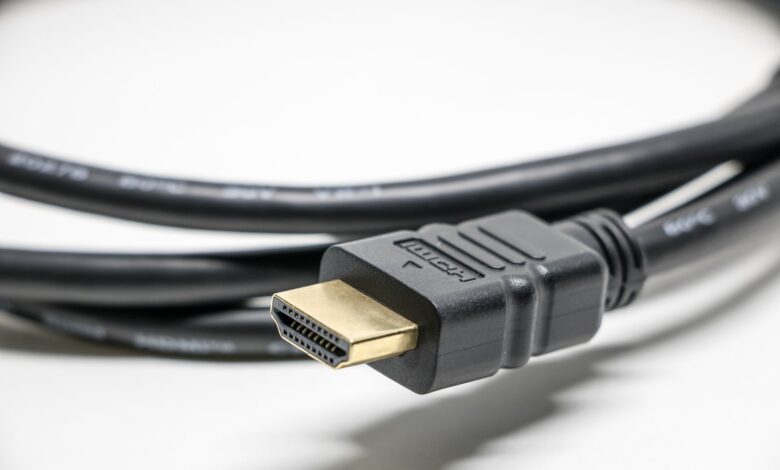
- Source to card. The console or camera’s HDMI output goes into the card’s HDMI In port. Elgato’s no-signal guide says the source goes to HDMI In and the TV or monitor goes to HDMI Out.
- Card to display (optional). If your card has an HDMI Out port, connect it to the TV or monitor you play on. Elgato describes passthrough as a forwarded signal with no encoding, which lets you play without watching the delayed OBS preview.
- Card to computer. Use the connection your manual specifies. StarTech, for example, says its xxHDCAP series needs a USB 3.0 port. That’s a rule for those models, not for every card. Internal PCIe cards like the ones in Elgato’s PCIe OBS guide sit inside the PC and have no external USB leg at all.
Make sure to double-check that all sources you have connected to the card are working correctly before determining if any issue lies within the capture card itself. The manufacturer of the capture card recommends connecting the game console directly into your television or monitor first to ensure that it’s able to output an image. Additionally, if you have not recently reseated (reconnected) your HDMI cables, do this as well. The manufacturer’s guide also states that if you are going to be using a high-bandwidth signal, such as a 4K60 HDR signal, you will need to use a Premium High Speed HDMI cable, rated for a minimum of 18 Gbps. The guide also cautions against using HDMI cables rated for HDMI 2.0 that are longer than 6 feet (1.8 meters).
What a working passthrough picture does—and does not—confirm
Once you have confirmed that your television is displaying gameplay through the capture card, that confirms what your source console is outputting and that the HDMI In and HDMI Out ports are functional. If the card is functioning correctly, then OBS must still recognize the capture card and must also receive the video signal from the card. As noted by the manufacturer, the process of capturing video involves compressing the signal and sending it over USB or PCIe, and passthrough skips that step entirely. That is also why the passthrough specifications of a capture card and the specifications used for capturing video can differ. In addition to that, StarTech comments that using USB 2.0 where USB 3.0 is required can cause limitations or no video, even if the device appears in OBS. Having a good television picture through the passthrough connection is one step of many toward having a successful setup; however, unless OBS can find the card and receive video from it, then you still do not have a complete setup.
Add the card in OBS and match the source mode
According to the OBS documentation for video capture (October 06, 2026), the most recent public release listed on the OBS Blog was OBS Studio v32.2. Go to Help > About to see what version you have installed. For this version, the previous method of selecting a source (Add Source) has been changed to using a dialog box, replacing the add-source dropdown with a new dialog; therefore, screenshots based on earlier versions will not look the same as what you see now.
Step 1: Add the right source type. Click + under Sources. On Windows and macOS, choose Video Capture Device. On Linux, choose Video Capture Device (V4L2). Blackmagic cards have their own Blackmagic Device source, which OBS says uses Blackmagic’s developer SDK. On Windows, OBS says a device’s drivers need to support DirectShow, and that all major capture cards do. On a Mac, open the OBS Studio menu → Review App Permissions and turn on Camera for capture cards and Microphone for audio devices, according to OBS’s macOS permissions guide.
Step 2: Pick the card from the Device list. Open the source’s properties and select your card. The name isn’t always obvious: StarTech says its devices may show up by model name or by chipset name, such as “EM28281.”
_Make the Windows Device Default._ When you start OBS on Windows, it will automatically default to Device Default as the Resolution / FPS Type. OBS states that if you attempt to use a custom resolution and frame rate type that your device cannot support, the source will not display any video. Therefore, you should leave the Device Default option for now, and only switch to Custom if your video is still working but is showing in an incorrect resolution or frame rate, at which time you can select a resolution or frame rate that is supported by your graphics card. The source mode is not the same as the “canvas” in OBS. According to Elgato’s setup guide, the Settings → Video menu contains both a Base (Canvas) Resolution and an Output (Scaled) Resolution. The Output Resolution controls what is recorded and streamed.
Step 4: Route the audio for your system. On Windows, the Capture Only audio mode records the card’s sound but you won’t hear it without Audio Monitoring. Use custom audio device links a separately chosen audio input to the source. StarTech tells USB3HDCAP owners to turn it on and select the card’s own audio device, but that’s model-specific advice, not a default for every card. Mac menus can differ. In a 2020 thread, a MacBook Air owner had video but no sound and fixed it by adding a separate audio input capture source. Afterward, watch the mixer meters. OBS’s Quick Start Guide says that if they don’t move, you should select the devices manually under Settings → Audio.
When to change buffering, color range, or format
Each of these settings fixes a specific symptom, and none of them is a general quality boost. OBS says turning Buffering on can help with stuttering, while turning it off can help with delay. It defaults to Auto-Detect on Windows. Elgato tells owners of its PCIe cards to leave buffering disabled, which is guidance for those cards, not a rule for every brand. The same Elgato guide says the wrong Color Range can make video look too contrasty or washed out. It suggests Full for PC sources and Default or Partial for consoles. Video Format only matters if your card offers more than one format.
As you shop for a capture card to use with OBS for live streaming, you may come across products that bear the “Certified for OBS” label. OBS maintains a certification page listing devices that have been tested and certified according to its specifications. Examples of these specifications include a maximum average latency of less than 80 ms and audio sync for a minimum of 4 hours; these are the minimum specifications needed to receive certification and may not necessarily represent the performance of your own card when using it in conjunction with OBS software.
Use the symptom to find the failing link
Always start from the earliest failure. When you alter the audio, if the card is not included on the OBS source list it masks the true issue. This order combines OBS’s source behavior with Elgato’s and StarTech’s checks and is a diagnostic sequence, not a manufacturer’s official flow:
| Symptom | Check first | What it tells you |
|---|---|---|
| Card not in Device list | Computer connection, drivers, macOS Camera permission | Problem is before OBS gets the video |
| Listed, but preview black | Source, HDMI In, HDCP, selected mode | Signal or mode isn’t reaching OBS |
| Picture wrong or stuttering | Transform, color range, buffering | Video arrives but is handled wrong |
| No sound | Audio mode, custom device, mixer meter | Audio route isn’t set |
| Sound out of sync | Selected audio device, monitoring, test clip | Timing problem in the audio path |
Once you identify the first matching row, ensure it works, then proceed down the list.
Card missing or preview black
If the card is not listed anywhere, check your computer connection first. According to the owner of r/obs as of March 2025, the card did appear anywhere in Windows device manager which indicates that there is a problem with the connection or hardware, rather than an OBS configuration problem. Vendor applications have been known to block a device as well. The Elgato PCIe guide requires that Elgato Studio is closed when running OBS; if no signal is being received from the card, the procedure for establishing a connection through OBS is to deactivate, wait 10 seconds, reactivate, and if unsuccessful, delete and recreate the source. The no-signal routine is to click Deactivate, wait 10 seconds, click Activate, and if that fails, delete and recreate the source.
When a particular card is recognized and yet there is a dark preview, there may be copy protection applied to the card. According to Elgato, their capture devices [can’t capture HDMI signals with HDCP enabled]. As for the PlayStation 5, HDCP is enabled by default on the console and this setting can be changed by going to Settings → System → HDMI. Any streaming application (like Netflix) instantly enables HDCP on their content which will not allow you to capture that type of content. In addition, ensure that the source device isn’t sending a mode that your capture card cannot accept: e.g., an unsupported resolution or frame rate will create a No Signal issue. For capture cards that allow configuring the video input, the Configure Video setting will display what input the capture card is receiving. StarTech models that have multiple inputs have the Configure Video settings used for [pick the input that matches your cable]. When setting up capture cards for streaming on consoles, the most important thing to rule out first is the PS5 HDCP settings.
Picture wrong, soft, or stuttering
If the video doesn’t fill the scene, right-click the source and choose Transform → Reset Transform or Stretch to Screen. Also make sure no other source is covering it, since StarTech notes that source order decides what sits on top. If the image looks soft, the card may be running at a lower resolution. Elgato’s fix is to set Resolution/FPS Type to Custom and pick your source’s real resolution. If colors look washed out with an HDR source on the 4K60 Pro MK.2 or 4K Pro, Elgato says the card converts HDR to SDR for OBS, but only while Elgato Studio is closed. For stutter, try enabling buffering, keeping in mind OBS’s trade-off: smoother playback in exchange for possible delay.
No sound, or sound out of sync
If the audio mixer meter for the video capture card does not move, that indicates that OBS is not receiving any audio from the video capture device. In that case, review the audio settings from Step 4. If the meter moves but you do not hear any sound, it indicates that OBS is capturing the audio but it is not being monitored. Please note that in OBS 32.2, mute and monitor are handled separately, in the new Audio Mixer, and the “Monitor Only” function in the Advanced Audio Properties has been removed.
Before making adjustments to the offset for sync issues, it is essential to determine the active audio device selected in the OBS software. A Windows 10 user with a 4K60 Pro MK.2 reported experiencing a delay of 0.3-0.5 seconds and found that his custom audio device was set to the stream mix of his GoXLR. After setting it to the card itself, he confirmed that “most of the delay is gone now.” Another user reported that his 2021 guide on this subject found additional delays created by monitoring the same device that OBS was capturing as desktop audio. He measured the remaining offset by capturing a clip and counting frames and found a -333 ms offset for his own PS5 and Elgato configuration, but that number only applies to his configuration. In addition, you may want to review your sample rate; Elgato states that its products operate at a native sample rate of 48 kHz and the use of 44.1 kHz could cause audio to drift out of sync.
If you still have not resolved your issue after following these recommendations, begin gathering evidence. The OBS forums request that you provide the log file from a session in which you experienced the synchronization issue. The log can be found by going to Help > Log Files.
Run a final OBS capture-path check
Even if the preview looks good, it could have sound problems or instability. OBS strongly encourages a test of a few minutes before your first stream or recording, as indicated in the audio mixer guide that advises recording a session, then hearing it again before going live. Run through this OBS capture card checklist in order:
- [ ] The source shows a picture when connected directly to a display.
- [ ] The source cable goes into HDMI In, and the optional display into HDMI Out.
- [ ] The card uses the computer port type its manual specifies.
- [ ] The card appears by name (or chipset name) in the source’s Device list.
- [ ] The OBS preview shows moving video, not a still or black frame.
- [ ] Resolution/FPS is on Device Default, or on a custom mode the card supports.
- [ ] The card’s audio meter moves in the mixer while the game plays sound.
- [ ] A recording of a few minutes plays back with the right picture, sound, and sync.
If any box fails, please write down your OS version, OBS version, exact card model and revision, source device, cable and port setup, selected mode, audio route, and the first box to fail. These details are what OBS support and manufacturer support will ask for when you reach out for assistance. Remember: a clean local recording only verifies the path from your source to the recorded file. It does not indicate the health of your internet connection, nor does it guarantee how a streaming platform will process your stream.
The OBS Setup That Works
In order for a working setup to perform correctly all checkpoints must be completed in the following sequence: source signal ⇒ Card HDMI In ⇒ Connection to Computer ⇒ OBS Device List ⇒ Preview ⇒ Audio Meter ⇒ Playback Recording. If one of these checkpoints fails, troubleshoot and fix the first failure point first before proceeding any further; an error or problem in an earlier section cannot be resolved by an adjustment or fix in a later section. Only make one adjustment at a time to the setup and produce a new video clip after each adjustment, then run the full check after any adjustments made to cables, Cards, OBS software.
Frequently Asked Questions
Do I need a display connected to the HDMI Out port?
This section does not cover setup steps for HDMI Out (the output port that allows playback of content with no preview lag in OBS) or the differences in how OBS accepts video data from the computer via the card. Whether a card has built-in support for monitoring (playing back) through a computer display will depend entirely on the card — consult the user manual to see if the manufacturer has documentation regarding your specific model.
Why can’t I find Video Capture Device on Linux?
On Linux, OBS describes each video capture card as a Video Capture Device (also known as V4L2). All Blackmagic products support this device type, regardless of which operating system is used.
Does my card need to be Certified for OBS?
If a card has been tested against certain standards established by the OBS team, OBS displays a marker next to the card’s certification indicating that it has passed those tests. If you use Windows and have a card that uses a DirectShow driver, you may use OBS’s Video Capture Device source to capture video from the card; thus, certification is meant to provide assurance, but not mandated by the software.
