
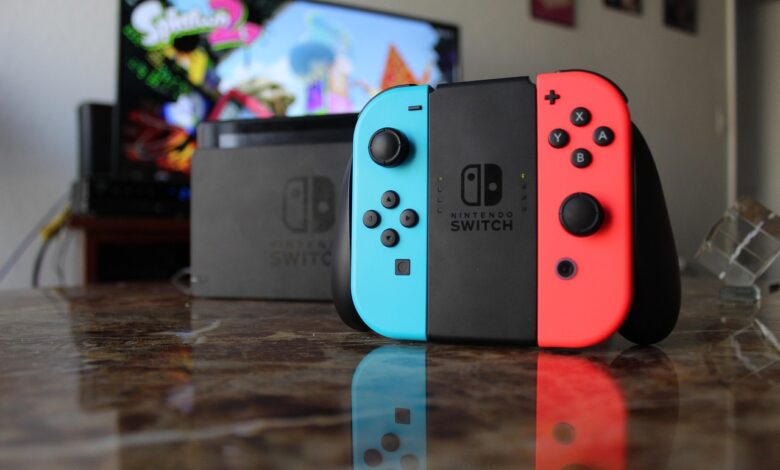
For a capture card to function properly with a Nintendo Switch, the console must be positioned in its dock and connected to a power source. This is why it is much more important to consider which model of the Switch you own compared to which model of the capture card you buy, as Nintendo limits the Switch Lite’s ability to send video out of its USB-C port to just charging purposes, as Nintendo says its only port is used for charging.
Once you know that your model of Switch qualifies, the selection process becomes much easier, despite how complicated the packaging may seem. The maximum resolution offered by the original Switch through an HDMI connection is 1080p when it is connected to a TV. Therefore, any “4K” label on a Nintendo Switch-compatible capture card usually refers to the resolution that the capture card will output to the TV rather than what the Switch itself will provide to the capture card. Another point that should be understood is that you should never play games on the game window on your PC; always use the game window on the television. Follow these steps to make sure everything is in place before making any purchases.
Does your Switch model support capture through a dock?
Only the original Nintendo Switch and Switch OLED Model can capture gameplay through a dock. This can only be done while playing in TV mode. According to Nintendo’s US specifications page, both models support 1080p via HDMI when playing in TV mode. The built-in screen will only be used when the Switch is being played in handheld or tabletop mode. There is no TV output available on the Nintendo Switch Lite.
According to the OBS console capture FAQ, it is important to note that both types of console capture devices work with a Switch when it is docked. The Switch Lite, however, is NOT compatible since it cannot be docked. The following table shows a portion of the compatibility matrix that graphs the actual capability of each model to send data to a capture device, according to Nintendo.
| Your console and how it’s set up | Video output Nintendo lists | Can a capture card receive it? |
|---|---|---|
| Nintendo Switch (HAC-001(-01)) in a powered dock | Up to 1080p via HDMI in TV mode | Yes. The dock’s HDMI port feeds the card |
| Nintendo Switch – OLED Model in a powered dock | Up to 1080p via HDMI in TV mode | Yes. Same dock-to-card path |
| Either of the above in handheld or tabletop mode | Up to 720p on the built-in screen only | No. There’s no HDMI signal leaving the console |
| Nintendo Switch Lite (HDH-001) | No TV-mode output listed; USB-C “used for charging only” | No. It can’t be docked, so there’s nothing to capture |
| Nintendo Switch 2 (a different console) | Up to 4K at 60 fps, 120 fps at 1080p or 1440p, HDR10 | Yes, but the card requirements are different; see below |
The row title that confuses users is for the Switch Lite. Although the USB-C port on the Switch Lite appears identical to the one on the regular Switch model, Nintendo clearly states that both connectors have different purposes. The connector on the original Switch and OLED Switch models allows for charging and video output to the Nintendo dock. The USB-C port on the Switch Lite only provides charging capabilities; therefore, no cable or adapter will ever work to allow the Switch Lite to connect to a Nintendo dock.
In addition to the differences in charging/connector types, there is also a specific definition of “docked” when it comes to the Nintendo Switch. Nintendo identifies the required power source (official AC adapter HAC-002), as well as the support for the attached dock (HAC-007 or HEG-007) when troubleshooting problems with the TV mode. If a user connects an unofficial adapter to the Nintendo Switch, an error will be triggered and will prevent the system from entering TV mode. Therefore, if the dock has no power, it cannot be used as a video source. Of the two docks, the HEG-007 has an Ethernet port, while both docks have an HDMI port, and either dock will work for capturing gameplay video. Nintendo’s spec page lists an HDMI port on both docks.
The Nintendo Switch 2 is not included in the recommendations in this guide. Its US spec sheet states that the Switch 2 has the potential to support up to 4K at 60 frames per second (fps) and supports an additional 120 fps at either 1080p or 1440p in HDR10 format. This is a completely different category of performance than that of the original Nintendo Switch, which only supports a maximum resolution of 1080p. These specifications can only be found on Nintendo’s United States spec page. People who purchased the Nintendo Switch 2 from a different country should refer to the Nintendo Spec Page for that specific country rather than presuming that the United States spec page applies to them.
Which capture-card specifications matter for a Nintendo Switch?
You need to consider four specifications for an original Switch or OLED model. The first specification is that the video card must capture 1080p resolution at 60 frames per second, which is the highest resolution that will be transmitted through the Nintendo Switch’s docking station to your television. The second specification is that the video card’s passthrough must be compatible with the resolution of your television. The third specification is that the video card must connect via USB to your computer’s USB ports. The fourth specification is that the video card has to function with the OBS program on your computer’s operating system. Having a video card that has a maximum headline resolution higher than what your Nintendo Switch console is able to use does not provide any added value for capture.
The primary distinction between capture and passthrough is frequently overlooked. Most times, listings placed side-by-side only illustrate the two different specifications without elaborating further. Capture refers to the actual video file the video card transmits to your computer to be recorded and/or streamed. Passthrough refers to the duplicate signal that the video card transmits to a television or monitor through its HDMI output. An example of how Elgato separates these two specifications on their HD60 X specifications page demonstrates that passthrough specifies a maximum resolution of 2160p at 60 frames per second, while the capture modes indicate a maximum of either 2160p at 30 frames per second or 1080p at 60 frames per second, which in this specific case makes the term “4K” a reference to passthrough only and not capture.
The matrix in the second section of this document compares two specific cards field to field. The cards compared are not recommendations; however, they exhibit two unique configurations that illustrate which of the specifications change between cards. For comparison purposes, each column lists the figures that were provided in the original manufacturer documentation, which is either Elgato or AVerMedia. Therefore, the figures identified in each column should be viewed as the manufacturer’s advertised specifications and not necessarily as independently tested results.
| What to check | What an original Switch needs | Elgato HD60 X (per Elgato) | AVerMedia GC311 (per AVerMedia) |
|---|---|---|---|
| Capture to your computer | 1080p60, the dock’s maximum | Includes 1080p60, plus 1440p60 and 2160p30 | Records up to 1080p60 |
| Passthrough to your TV | Whatever your TV needs; the Switch sends up to 1080p | Up to 2160p60, 1440p120, 1080p240, VRR, HDR | Up to 1080p60 |
| Connection to your computer | A port your computer actually has | USB 3.0 (5Gbps) Type-C | USB 2.0 (Micro USB) |
| Software and operating system | OBS on your system | OBS Studio on Windows and macOS | UVC; Windows 10/11; macOS 11 or later, except macOS 12 |
Both capture cards have the ability to record at 1080p and 60fps from the Nintendo Switch source, but beyond that, the differences are found elsewhere. The HD60 X has an additional passthrough and HDR range, which will be beneficial for consumers who connect a current console to a high-refresh-rate display through this card. The downside of the HD60 X is that Elgato’s Switch setup guide requires that a computer have a USB 3.0 port to set up the Switch with the HD60 X. The Gen 2 AVerMedia GC311 can capture 1080p and 60fps from the Nintendo Switch via USB 2.0, which demonstrates that just because a card supports newer USB technology does not mean it supports high resolution capture. On the other hand, AVerMedia also says that their capture device does not support capturing at 4K, HDR, wide-angle or high-refresh rate resolutions and is not compatible with macOS 12.
It is very helpful to check with your operating system to see if it supports UVC (USB Video Class) for your capture device. UVC is a standard that allows the operating system to automatically recognize the capture device without needing to install a separate driver. OBS recommends UVC devices for the best compatibility with Mac and Linux platforms. For Windows platforms, OBS says a device’s driver has to support DirectShow output; the majority of modern capture devices provide this capability.
Be cautious about latency claims made in product listings. The HD60 X has been advertised by Elgato as having a “lag-free” passthrough while AVerMedia promises a “100% zero latency Full HD pass-through.” These claims by the manufacturers refer specifically to their respective HDMI output paths and do not provide any information about the overall latency that a user will experience when using OBS on their computer. This will be covered further in the next section.
Will a capture card add input lag to Switch gameplay?
When capturing gaming footage via use of a capture card, keeping the captured video on display through the card’s HDMI Out port will not add extra delay (input lag) to the user’s gaming experience. The lag only occurs when using the OBS preview while playing video games, as the video feed goes through many layers of processing before being displayed on the monitor, and the time required to process the video feed will vary depending on the hardware configuration (i.e., computer specifications) used to process the video.
Different ports on the capture card have different purposes. According to Elgato’s description, the HDMI In port connects the console to the capture card, while the HDMI Out port allows the user to play games with a TV or monitor while seeing the video feed from the capture card (note: the HDMI Out does not record the video from the HDMI In). The USB port transfers the recorded video to the computer and is the only means of recording video from a capture card.
This exact scenario occurred recently on Super User for a user who owned a Nintendo Switch. This user did not have a TV located near where they placed their Nintendo Switch on the desk (within reach) and could not abandon the use of two monitors, therefore they were asking if they could use the Nintendo Switch as an input source only and view it in a small window. The answer is yes, you can. The only disadvantage of doing this is that there will be a delay with the video being displayed on a small window.
In 2019, EposVox released the most thorough publicly available account of that slow path in his Capture Card Documentation. He used the Leo Bodnar lag tester to measure HDMI input to full-screen software preview delay for a 1080p60 signal using OBS Studio 23.0.2 on one workstation running Windows 10 (Version 1809) built around the Intel Core i9-7980XE. He removed the monitor’s latency to isolate the capture card, and he tested passthrough as well; he found that all the cards he tested had real-time passthrough capabilities.
While his findings are important, they should be interpreted with caution. EposVox noted that “preview latency can be very different depending on how an individual setup is built and how they use it.” He limited himself to one system and one set of drivers, and because “the measurements were not static, I didn’t provide fixed values.” When commenting on the fastest preview latency recorded in his tests, he stated, “While I would recommend using these measurements to give you an idea of what to expect, I would not recommend playing anything where correct timing is critical on a preview that has more than a 63 ms additional latency.” EposVox’s testing of a single system is only as valuable as a 2019 snapshot and should not be viewed as a definitive volume on current models.
Thus, this is why your choice in a capture card for streaming Nintendo Switch gameplay must incorporate HDMI Out to be effective. Play through the passthrough display, use the OBS preview only to verify the framing and levels. If you’re experiencing a delay on the preview feed, turning Buffering off in the source’s properties can reduce it (although stutter may be introduced on some machines), though it can help if you’re seeing a delay.
How do you connect a Nintendo Switch capture card to OBS?
Connect the cables according to the path of the signal: from the dock’s HDMI port into the card’s HDMI In; from the card’s HDMI Out to the television; and from the card’s USB connection to the computer. After connecting the card to OBS, select it as a Video Capture Device and leave its resolution on its device default settings. Below are the instructions provided in Elgato’s official documentation for connecting the Switch Console to a Capture Card, modified slightly for any ‘UVC Style Capture Card’.
There seems to be a misconception among some consumers that a plain old HDMI cable will perform this function. One OBS Forums poster on the OBS Forums asked if there was a way to connect a Switch to a Computer using either an HDMI-to-USB converter or an AV-to-USB converter. In response, the user mentioned they were viewing a black screen with a capture device that they found, stating “It’s only really for SD analog video.” The response indicated that the user needed an HDMI capture card for the Switch (that the Switch must remain enclosed inside the Dock to be able to transmit video output at all). The user indicated he had attempted to connect the console to the PC via a USB-C cable, but it didn’t work.
- Set the Switch’s TV output. Go to System Settings > TV Settings. Nintendo lists TV Resolution options of Automatic, 480p, 720p, and 1080p. For the HD60 X, Elgato recommends 1080p or 720p, TV Sound set to Stereo, and Match TV Power State turned off. On other cards, use a mode the card’s spec sheet lists.
- Power the dock. Use Nintendo’s AC adapter and plug it into the wall. The dock only outputs video in TV mode.
- Connect the dock to the card. Run one HDMI cable from the dock’s HDMI port to the card’s HDMI In.
- Connect the card to your display. Run a second HDMI cable from the card’s HDMI Out to the TV or monitor you’ll play on.
- Connect the card to your computer. Use the card’s USB cable and a port that matches its spec. The HD60 X needs USB 3.0; the GC311 uses USB 2.0.
- Add the source in OBS. Under Sources, add a Video Capture Device (Windows and macOS) and pick the card from the Device drop-down. OBS documents a separate V4L2 version of this source for Linux. Leave Resolution/FPS Type on Device Default to start.
- Route the game sound. On Windows, OBS’s Audio Output Mode setting has a Capture Only option, which records the sound but won’t let you hear it unless you turn on audio monitoring. If your card shows up as a separate audio device, check Use custom audio device and select it.
- Confirm before going live. Watch the source’s meters in the Audio Mixer. Then follow OBS’s advice to record a test session and listen back to the file.
Once you get the Switch working properly, any source connected through HDMI will be usable with the same Video Capture Device setup, and the user can consult an OBS Setup Guide for further assistance with getting the most out of their Video Capture Device.
What should you check when OBS shows a black screen or no audio?
It is advisable to confirm the signal path in order of operation rather than making random adjustments to the OBS settings. Initially, validate that the console has capability to send video output, next confirm the image is reaching through to the television, and also check that cables are properly connected in the correct direction. After that you have validated these steps, ensure that the computer recognizes the capture card and that the obs settings reflect the options supported by the capture card. Lastly, verify sound is also functional through separate checks from the video path confirmation process listed here.
When the video is black or the card doesn’t show up
- Confirm the console and mode. A Switch Lite, or a standard or OLED console that’s out of the dock, has no HDMI signal to capture. Go back to the matrix in the first section.
- Take the card out of the chain. Connect the dock directly to a TV, as Nintendo’s no-picture troubleshooting describes. Nintendo specifically says to temporarily remove extra devices such as “a video adapter.” If you still get no picture, Nintendo suggests lowering the TV Resolution setting, trying another HDMI cable or port, and updating the firmware if you have the dock with the LAN port. A problem at this stage isn’t a capture-card problem.
- Check cable direction. The dock goes to HDMI In and HDMI Out goes to your display. If the two are swapped, the card isn’t receiving anything.
- Check that the computer recognizes the card. If the card isn’t listed in the Device drop-down, OBS can’t use it. On Windows, the driver has to support DirectShow. On Mac and Linux, OBS recommends UVC devices.
- Reset the OBS properties. OBS’s documentation says that if a device doesn’t support the resolution or frame rate you’ve chosen, “the source will not display anything.” Switch Resolution/FPS Type back to Device Default, or pick a custom mode that’s on the card’s spec sheet.
When the picture works but there’s no sound
- Unplug headphones from the Switch. Elgato says the Switch “will not output game sound over HDMI if headphones are plugged into the headphone port.” Elgato’s alternatives are to plug headphones into the TV or monitor, use its Chat Link cable, or play the sound through software on the PC.
- Check whether the meters move. If the source’s meters in the OBS Audio Mixer stay still, the sound isn’t reaching OBS. Check Audio Output Mode and the custom audio device setting. If the meters move but you can’t hear anything, the sound is being recorded and the issue is monitoring. In Advanced Audio Properties, set the card to Monitor and Output. Elgato notes this “will have slightly higher latency,” and suggests Monitor Only (Mute Output) or muting desktop audio if you hear an echo.
- Try unplugging and reconnecting. In one OBS Forums thread about a Switch with video but no audio, the original poster said moving the card to a different USB port fixed it. A later reply in the same thread said that didn’t work for them. It’s a quick thing to try, but it’s not a guaranteed fix.
- Read firmware notes before updating. AVerMedia’s GC311 page lists a firmware update that fixes video without audio, but it says “This version is only for Nintendo Switch 2 users.” Don’t install a fix meant for another console just because the symptom sounds the same.
The Docking Detail That Changes Everything
This manual is contingent on one requirement: an official Switch or OLED console in a powered dock with HDMI output. If you don’t have an HDMI output, no cards have anything to record. Once you have an HDMI output from the Switch, all you will need to do is find a card that will support capturing 60 frames per second (fps) at 1080P resolution.
Prior to making any purchases, connect the dock from the Switch directly to your television using Nintendo’s power adapter and ensure that it works well. Then, go to the specifications of the card you are considering and verify three things: that it supports 1080P 60fps capture mode, that it has a USB interface supported by your computer, and that it supports OBS for your operating system. Once you have established all these points, you can display the output from the dock on the screen connected to HDMI Out, while using the OBS window solely as a feedback mechanism to monitor your stream. This will allow you to accurately reflect “lag-free” while you are actually playing.
Frequently Asked Questions
Can I save a Switch clip without buying a capture card?
The Capture Button saves up to 30 seconds of recent gameplay in games that support it. The Lite also supports this feature.
Will a 1080p60 card still work if I upgrade to Switch 2?
Only for some of its modes. Switch 2 outputs up to 4K60 and 120 fps, while a card like the GC311 lists no 4K, HDR, or high-refresh support. Check the card maker’s Switch 2 compatibility notes before relying on it.
Does the OLED dock with the LAN port work with capture cards?
Yes. Nintendo specifies that the dock with LAN port has an HDMI port in addition to a LAN port, and there are two from Nintendo that can be used with the TV mode. If you experience a lack of video output from your Switch 2 to the TV, Nintendo’s troubleshooting steps provide suggestions for updating your dock’s firmware.
Can I use a Nintendo Switch capture card with a Mac?
In many instances, yes. You can use OBS’s Video Capture Device source, which runs on macOS, and OBS recommends using USB/UVC-based capture cards for doing so. However, remember to check the compatibility of the specific card you want to use to ensure it supports your version of macOS; for example, AVerMedia’s GC311 card does not work with macOS 12.
