
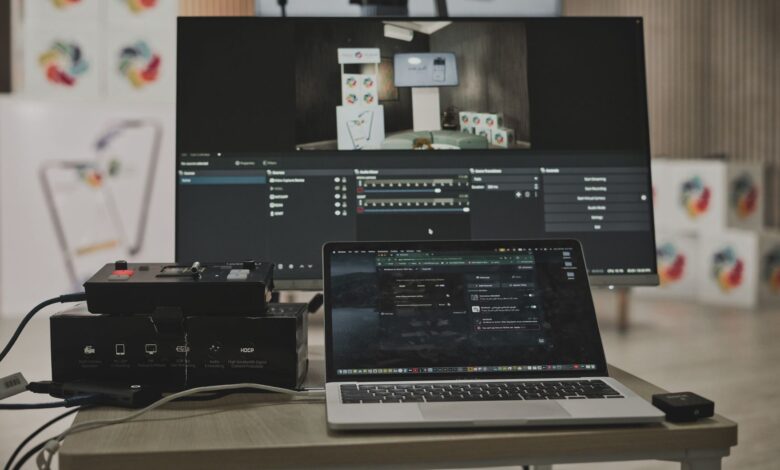
When streaming PS5 gameplay, the console outputs two signals, with one signal going directly to your display (TV or monitor) and the other going to a device that performs the stream (your PC). If one of the signals appears on the screen, you know that the signal path is functioning properly, and the other one is the area where the problem is located. This does not indicate that the capture card itself is malfunctioning; it only indicates where to concentrate troubleshooting. With a passthrough capture card, the HDMI cable coming from the console is connected to the capture card; the HDMI OUT connection of the capture card is connected to your display; and an additional USB cable carries the same image file to the OBS software, as explained in Elgato’s setup guide.
This split matters before you buy a capture card for PS5 streaming, because one card can have different limits for passthrough and for capture. AVerMedia’s GC553G2 page lists passthrough modes up to 1080p at 360 Hz, but capture tops out at 2160p144 on Windows and 2160p60 on macOS. Capturing gameplay also means turning off the PS5’s HDCP setting, which is how Sony supports external HDMI capture devices. Start by learning which picture to play from and which one to leave alone.
Understand passthrough, capture, and preview before choosing a card
A Passthrough Capture Card provides 3 separate images with their individual limitations and their individual failure states.
The Passthrough image is the one on which you will be playing. Elgato’s guide (for Game Capture Neo) describes the HDMI Out on the capture card as sending the signal to your television/display in real-time – ‘Play your game normally.’ The Capture Feed is the copy sent to the computer via USB-C (USB 3.0). The OBS Preview is the copy that you see on your computer after it has traveled through the capture card, USB cable, drivers, and OBS Software.
The third image is one you should be cautious with. EposVox (Adam Taylor), a YouTuber, published a capture-card latency study in 2019 that measured the latency between HDMI input and the software preview of a capture card. He used a 1080p60 Signal Tester, a high-end Windows 10 PC, and OBS 23.0.2. He subtracted the latency from the used monitor for each reading. He stated in this study that he ‘would not advise attempting to play any game with timing-dependent events using a preview with latencies of 63 ms or greater,’ and he also noted that he had not found any capture cards that had HDMI passthroughs that did not produce a real-time image. The numbers in this study are from 2019 and came from one computer; thus they are not valid for today’s PS5 Capture Cards. Although the latency measurement is the useful takeaway from this study, it is crucial to understand what path the latency was measured over, and under what conditions the measurement was taken.
Elgato’s setup guide states that there is no added latency for the Game Capture 4K S and Game Capture 4K X passthrough. The guide describes the display path for Elgato’s products, so it does not guarantee anything else, like the preview on the OBS encoder, or what the user will see.
What to compare on a spec sheet
When shopping for capture devices, the term “4K supported” is not sufficient on its own. Check each route against what you actually plan to do:
| What you want | Spec field to find | Why it’s separate |
|---|---|---|
| Play at your display’s best mode | Max passthrough resolution and refresh rate | This route feeds your TV or monitor, not OBS |
| Stream or record at a given mode | Max capture resolution and frame rate, by operating system | The captured copy can have a lower ceiling than passthrough |
| A computer that can take the feed | Connection type and required USB speed | A USB-C plug shape doesn’t tell you the port’s speed |
| Software that works on your OS | Supported apps and operating systems | Capture limits can depend on the app and OS |
Let’s say that you would like to use a high-refresh rate display with your monitor, but you plan to stream at a lower frame rate of 60 fps. In such a case, you would refer to the passthrough column to determine your options for a high refresh rate monitor, and then refer to the capture column to determine your options for streaming at 60 fps. AVerMedia’s GC553G2 lists these two specifications separately as separate specification fields, and due to differences in specifications between the two platforms, the capture ceiling listed for Windows is different from the capture ceiling listed for macOS. Therefore, while it does not directly address the limitations of other capture cards, it does provide an example of why you should consult both columns when researching capture devices.
The platform you plan to stream on also matters. According to OBS’s console capture FAQ, the best compatibility for OBS users with Mac or Linux operating systems is available from devices that follow the USB video device class (UVC) specification. There is not a universal best capture card for the PlayStation 5; instead, you should look for the capture card that has published specifications that match your display, your streaming target frame rates, and your personal computer configuration.
Connect the PS5, capture card, display, and PC
HDMI connections on capture cards are directional, which means that they cannot be switched from one port to another without breaking the connection. The following instructions will walk you through connecting an Elgato capture card to your PS5 using the external card layout documented by Elgato for its PS5 setup. Make sure to check the manual that came with your card for any variations.
Step 1: Turn off HDCP with the PS5 plugged straight into the TV
According to Elgato’s HDCP instructions, before you connect your PS5 to your capture card, you need to first connect it directly to your TV or monitor. In your PS5’s Settings menu, select System > HDMI and then switch Enable HDCP to Off. Elgato states that HDCP is enabled on the PS5 by default and that capture cards cannot capture an HDMI signal while HDCP is active.
Step 2: Run the PS5’s HDMI out to the card’s HDMI IN
To connect your capture card to your PS5, use one HDMI cable from the console to the HDMI In port on your capture card. According to Elgato’s no signal checklist, the most common cause of no signal is a reversed HDMI connection.
Step 3: Run the card’s HDMI OUT to your TV or monitor
Next, use a second HDMI cable from the HDMI Out port on your capture card to connect to your display device. If your PS5 is turned on, you should see the PS5’s video output. This confirms that the HDMI output from your capture card is functioning properly. Note that this does not confirm that your PC is receiving any signal from your capture card.
Step 4: Connect the card to the computer with the cable the manual specifies
According to Elgato’s guide, if you are using the Game Capture 4K S, you should connect to your computer’s USB 3.0 port (5 Gbps), whereas if you are using the Game Capture 4K X, you can connect to your computer’s USB 3.2 Gen 2 port (10 Gbps). Your own model may have different requirements, so be sure to refer to its manual for specifics.
Step 5: Add the card in OBS as a Video Capture Device
To add a source to OBS for your capture card, open the Sources panel in the OBS and click the Plus (+) button. Select Video Capture Device and choose your capture card from the list of devices. The Windows and macOS versions of OBS contain source documentation for video capture devices and Linux has a separate V4L2 source type documentation. Elgato’s 4K S walkthrough shows this process.
One public example shows why a connected cable doesn’t mean the setup is done. In a July 2024 OBS forum thread, a poster had the PS5 going into the card’s HDMI IN, the card’s HDMI OUT going to a gaming monitor, USB-C running to a laptop, and HDCP already off. They picked “Game Capture” in OBS and saw nothing. A reply pointed them to Video Capture Device, but the only devices listed there were their two cameras. The thread ended without a fix, so the takeaway is just that a working display picture and a card showing up in OBS are two separate checks.
Here is the physical half of the wiring and settings map:
| Connection | Destination | What you should see | Model-dependent catch |
|---|---|---|---|
| PS5 HDMI out | Card HDMI IN | Nothing yet | A swapped cable gives no picture anywhere |
| Card HDMI OUT | TV or monitor | Normal PS5 picture | Only on cards that have passthrough |
| Card USB | Computer port | Card appears as a device | Required USB speed varies by model |
| OBS source | Video Capture Device | Live PS5 picture in preview | Source type and menus vary by OS |
Elgato’s Game Capture 4K Pro and AVerMedia Live Gamer 4K capture cards have different designs and are not compatible with one another. The Elgato Game Capture 4K Pro is a PCIe card that connects inside of a desktop PC through a PCIe x4 slot while the Live Gamer 4K is a USB-connected device. For any Elgato card that does not provide HDMI output, you will need to refer to the instructions provided in the manufacturer’s manual to configure your connecting cables to connect it to your gaming display. As supported by the previous preview-latency-testing example, other than in specific instances, do not use the OBS preview to play games because of the inherent latency created by capturing an HDMI signal through an external device.
Match PS5 output, card capability, USB path, and OBS source
Correct wiring only gets the signal to each device. The console, the card, the cable, the USB link, and OBS still have to agree on a resolution and frame rate, and any one of them can block the picture.
According to Sony, the PS5 console detects the capabilities of the display it has been connected to. When you set the console Resolution option to Automatic, it will pick the maximum resolution supported by the display. The capture device (the capture card) is part of the chain and will therefore affect the information the console receives regarding the resolution, refresh rate, and audio format. Every capture card has EDID data (Extended Display Identification Data), which tells the source device (in this case, the console) the resolutions, refresh rates, and audio formats it supports. Elgato’s no-signal guide explains that every capture card has EDID data, which tells the source which resolutions, refresh rates, and audio formats the card can accept. Sony’s video output guide puts it under Settings > Screen and Video > Video Output, where Current Video Output Signal shows the connected device’s resolution, VRR, and HDR.
High refresh rates typically have more conditions than other options associated with them. Sony has a checklist for the conditions that must be met for a PS5 to send a 4K 120 Hz signal through a capture device. This checklist includes checking to see if the display supports the signal and if the firmware is updated, checking to see if the HDMI cable meets Ultra High Speed specifications, checking to see if any “intermediary” equipment may be interfering with sending the signal, setting the console’s Resolution option to Auto or 2160p, and checking to make sure the console’s Video Transfer Rate setting is set to Auto. If there is an issue with your monitor or other display, you may also want to try turning off 120 Hz output. If your display supports 1440p, there is an option in the video output guide for testing the 1440p output.
Then compare this signal to the information provided in your card’s published table. Elgato has indicated that if a card attempts to receive a mode that is unsupported, it may represent this mode as “No Signal.” Elgato has also provided supported-resolution lists for all of their models. For 4K60 HDR, 1440p144, and 1080p240, Elgato recommends using Premium High Speed HDMI cables rated for 18 Gbps. Elgato does NOT recommend using HDMI 2.0 cables longer than 6 feet (1.8 m).
Then check the USB connection. Elgato’s FAQ on no signal says USB 2.0 ports don’t provide enough bandwidth and suggests a port wired directly to the motherboard instead of a hub. AVerMedia’s USB detection steps add a few more checks:
- Find the card in Device Manager under “sound, video, and game controllers” on Windows, or in the USB section of System Report on a Mac.
- Try a different port without adapters. AVerMedia notes that front-panel PC ports may not supply enough power.
- Spread out other USB devices, since devices sharing one internal hub or controller can run short of bandwidth.
- Turn on Camera access in Windows Privacy & Security if the card appears in Device Manager but can’t be selected in your software.
At last, you can ensure OBS and the device match. OBS provides a default setting for its Video Capture Device property reference for resolution and frame rate (FPS) as detected from the device itself. If those detected values are not functioning correctly, change the Resolution/FPS Type default to “Custom“. OBS also provides a warning: If the device does not support the resolution or frame rate that you have selected, than “no video source will be shown on the screen”. Only change one setting at a time so that you understand what setting is causing the issue to resolve.
Here is the settings half of the map, checked against the sources above as of 10/06/2026:
| Checkpoint | Where to look | Match it against |
|---|---|---|
| PS5 HDCP | Settings > System > HDMI | Off for gameplay capture |
| PS5 actual signal | Screen and Video > Video Output > Current Video Output Signal | Your card’s supported input and capture modes |
| HDMI cable | Cable rating and length | The cable speed your mode needs |
| USB port | Device Manager or System Report, plus your card’s manual | The model’s required port speed |
| OBS source | Sources > + > Video Capture Device | Your card listed under Device |
| OBS mode | Resolution/FPS Type, Resolution, FPS | A mode your card lists as supported |
Work down the table from the top. Each row depends on the ones above it, so a mismatch near the top can make everything below it look broken too.
Route game audio, party chat, and your microphone
Audio has its own separate processing from video. Therefore, if you want to ensure your game’s audio, fellow players’ audio, and your own voice comes through clearly while streaming on YouTube, then you must check the audio settings individually. Just because you see a clear image from OBS does not mean that you have good audio coming through.
The first common cause of this issue is headsets that have been connected directly to your controller. According to Elgato’s Neo guide, the PS5 “does not provide end-user game audio via HDMI when headsets are plugged in either the console or the controller.” According to Elgato’s 4K S guide, if an analog headset is plugged into the controller, all audio output from the PS5 (game and voice) is sent through the controller so the capture card will not pick up any audio signal. The audio settings for the PS5 can be located in the Settings > Sound > Audio Output section. Within this section, you will find the sections for Output Device, Switch Output Device Automatically and Output to Headphones.
There are a few documented ways around it, and which one fits depends on your hardware:
- Plug your headset into the computer. Elgato calls this the simplest option. You listen to game audio through Elgato Studio or the OBS preview, and the full HDMI audio stays in your recording.
- Use an adapter cable that carries party chat. Elgato recommends its Chat Link Pro for capturing full party chat. The Neo guide notes that it can’t plug into the Neo because that card has no analog port. On a desktop, it can go into a line-in port instead. Elgato says laptops usually only have headphone jacks and aren’t compatible.
- Use a card with built-in headset jacks. AVerMedia’s party chat setup for the GC553G2 has you plug the headset into the card’s headset jack, run a 3.5 mm AUX cable from the controller to the card’s controller jack, and set the PS5’s audio output to Controller Headset. In OBS, you then add an Audio Input Capture source that selects the card. AVerMedia says buzzing can come from a ground loop when the controller is charging, and suggests using it fully charged or adding a ground loop isolator.
A post made in a community thread at Micro Center illustrates the importance of audio connections. In a thread dedicated to new PS5 streamers using Streamlabs OBS, a new user described using a 4K60 capture card with a chat cable connected to the PC line-in, a USB microphone, and a wired headset. They stated they could hear no audio from the game chat and no one could hear their voice in the chat. To date, no one has provided a solution for this issue, so treat this example as an example of a potential problem.
OBS offers two settings that can cause problems for you on the computer side. Video Capture Device’s Audio Output Mode (Capture Only) means that unless you have Audio Monitoring enabled, you will not hear audio from your capture card. The audio source guide in OBS warns that if you are using an Audio Input/Output Capture source and also select the same device under Settings > Audio, the audio coming from the device could have an echo, so make sure you disable the global device before adding it to any scene. If the PS5 microphone is muted upon starting a party, make sure you select Microphone Status When Starting Voice Chat or Broadcast in the PS5 console’s microphone settings.
Before going live, record a short video privately. Record yourself saying a line, have someone else speak in a party, and play a few seconds of the game. You should be able to see each of these sources’ meters move on the OBS mixer while recording. It is good etiquette to inform your party that their voices will be cut out of the stream.
Troubleshoot black screen, no signal, stutter, lag, or missing audio by signal path
To determine which part of the video capture chain has the failure point, one must determine which of the four possible locations–the TV, the OBS device list, the OBS Preview window, or the recorded audio–indicates the faulty source of input video. The table below summarizes the checks from the sources in this article:
| What you see | Path that failed | First checks |
|---|---|---|
| No picture on the TV | Passthrough | HDMI IN/OUT direction, cable reseat, cable speed and length |
| TV works, card missing in OBS | USB link | Device Manager or System Report, a different direct port, Windows camera access |
| Card listed, black OBS preview | Capture mode or HDCP | HDCP off, a supported resolution and FPS, a Custom OBS mode |
| TV smooth, OBS stutters | Computer or preview | Buffering, GPU mode, VRR on the source |
| Picture fine, no game sound | Audio route | Headset location, PS5 Output Device, OBS meters |
Black screen or no signal
If the OBS Preview window comes up black, the first location to check would be you should verify that your HDCP settings are disabled. According to Elgato’s setup FAQ, HDCP on PlayStation 5 is the “most frequently encountered problem with capturing on PlayStation 5”. All content protected under HDCP will always remain blocked, regardless of the settings that you may attempt to configure. AVerMedia states in its HDCP FAQ that media apps such as Netflix and Disney+ will cause the HDCP setting to enable. When you close those apps, HDCP is supposed to disable, however, AVerMedia suggests restarting the PlayStation 5 if HDCP was inadvertently enabled. Elgato’s HDCP support page states that no cards from Elgato will be able to record streamed content from these services. Therefore, this option on Elgato cards is strictly for capturing gameplay and not circumventing content protection.
If the HDCP setting is off and the capture card is still not receiving a signal, refer to Elgato’s no signal checklist. Try connecting the console directly to a monitor/TV and check for an output signal; reseat both ends of the HDMI cable connecting the capture card and the PlayStation; utilize the HDMI cable bundled with the capture card; and finally, unplug both ends of the capture card (PS5/PC) and wait one minute before reconnecting. Once you have modified an Elgato card’s EDID, it is recommended that you disconnect and reconnect the HDMI IN cable to allow the console to detect the updated settings. If you are using a PCIe capture card, a complete power-off restart of the computer may be necessary to allow a pending firmware update to complete.
Stutter or lag in OBS only
If the TV displays a smooth image while OBS does not, it’s likely that there is an issue somewhere between the card and the preview that needs to be fixed in order to make them both appear the same way on your monitor. When prompted about the buffering property of OBS, it states that using the buffering feature is “a tradeoff,” in that enabling buffering “can help if you are having issues with stuttering” while disabling the buffering feature “may help with experiencing delay” on a device. AVerMedia suggests some additional tips for improving the smoothness of an AVerMedia preview by ensuring the graphics card being used is dedicated and meets all minimum requirements for the system, ensuring the software is set to operate in High Performance Mode (dedicated GPU), ensuring the graphics card’s drivers are updated, and turning off all VRR settings on the source you are playing back from in order to test whether this improves performance. AVerMedia’s preview smoothness tips.
Not every case gets fixed this way. In an OBS forum post, an HD60 X owner said their PS5 game ran “like butter” on the monitor but stuttered in OBS. A second card showed the same thing, and PS3 footage didn’t stutter at all. They had already tried other cables, a direct connection, many OBS settings, and turning HDCP, VRR, and HDR on and off. The thread doesn’t show a fix. It’s still a good example of keeping a smooth monitor and a choppy recording in separate columns while you troubleshoot.
If OBS seems to lag while you play games, take a look at which display you are watching from your device. Use the display output directly from your capture device to play the game and only check the preview window in OBS to see if you’ve captured the image correctly.
Missing audio
If you’ve confirmed there is visual on the recording but no sound, check the headset again in Audio setup above. A headset that is connected to the controller should produce game audio via HDMI. Use the OBS software to ensure that PS5 is your output and check each meter in OBS.
Before You Blame the Capture Card
The PS5 Capture Setup consists of three branches of the same chain: the video that you see while you play the game, the video that OBS receives to record the game, and how audio is routed from your Controller to your computer. Before sending any images back to the PS5, you should test the “Current Video Output Signal” from the PS5 against the supported modes of your card. You can do this by making short recordings of each of the audio resources being tested. If you change any cable, port, mode, or position of your headset, and the issue disappears, you have avoided having to replace your card and narrowed down which connection is likely causing the problem. If the problem has followed the same pattern through all these checks, you will have specific evidence to give the manufacturer when you contact them for support.
Frequently Asked Questions
Can I stream from a PS5 without a capture card?
The Elgato website has a PS5 to OBS guide, which shows that you can stream from your PS5 to Twitch or YouTube using the Create Button, but that there are fewer options than you would have when using OBS to stream. Also, you can use OBS to record the PS Remote Play using Window Capture Via a good network between your PS5 and PC.
Does a capture card add input lag?
Elgato also states that using the passthrough feature with their 4K S and 4K X products does not result in any delay with your TV display. The preview when you stream to OBS is on a different path, therefore it shows delays before what you are actually doing. For example, you should be able to watch your game on the passthrough display.
Can I capture Netflix or Blu-ray with HDCP turned off?
No, Elgato states that due to the HDCP (High Def Copy Protection) a streaming app like Netflix or Disney+ or any movie DVDs, is always going to be enabled, and therefore an Elgato capture card would not be able to record content off of those sources. The capture option from the PS5 allows capturing gameplay only.
Will a PS5 capture card work with a Mac?
Yes, it depends on which model you own. OBS provides Video Capture Device support for Mac and suggests that you use cards that are UVC compatible for use on Mac and Linux. You may also be limited in what your OS can handle when capturing video. For example, the GC553G2 model offers capture resolution up to 2160p60 on Mac OS.
Can I use a laptop as the capture PC?
Yes, as long as the laptop is equipped with the proper ports. Elgato indicates the 4K S requires a USB 3.0 port, while the 4K X requires a USB 3.2 Gen 2 port. Additionally, if your port is USB 2.0, it does not provide enough bandwidth. Be sure to know the requirements for your model.
