
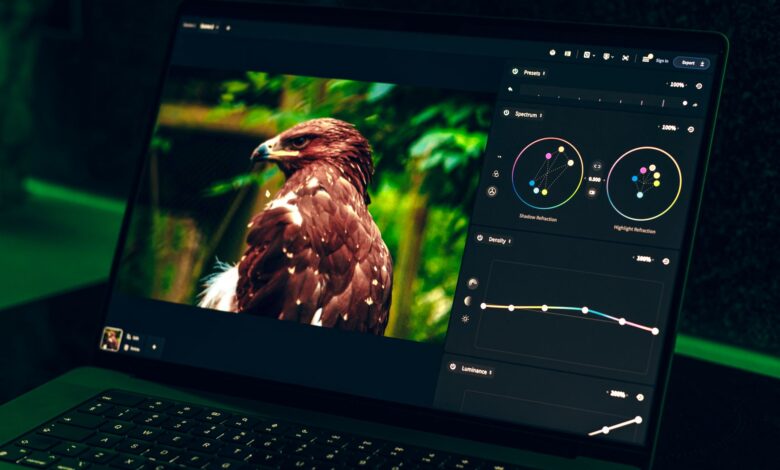
A dim panel washes out Lightroom while a bright wide-gamut panel holds color. That gap decides if you trust your eyes. If you want the best budget laptop for Lightroom under $700 without washed-out colors, verify true 100% sRGB, Delta E under 2, DCI-P3 90% and 400 nits per DisplayHDR performance criteria and Lightroom Classic system requirements.
Official VESA, Adobe and JEDEC plus TÜV Rheinland and ENERGY STAR give verifiable thresholds better than forum posts. Wide gamut without low Delta E still bands, and good panel throttles if single-channel RAM starves CPU and QLC cache fills. Calibrated versus uncalibrated photos, display measurements, export times and tier table with price-history show how to avoid lottery units.
Why Lightroom looks washed-out on a cheap panel even when you boost saturation
Lightroom needs wide gamut plus low color error to show smooth skies. A cheap sub-$700 panel marketed as 72% NTSC often covers only about 62% of sRGB area, so saturated reds and greens clip. The screen cannot show them, so they look pale.
Washout is out-of-gamut clipping. Over-saturation is what happens when you boost vibrance to compensate, then the file looks neon on a calibrated phone. Histogram shows channel clipping on the right while preview still looks flat.
This guide focuses on Lightroom Classic photo editing under $700, not video grading or print soft-proofing. 72% NTSC equals sRGB is misleading marketing because area ratio of sRGB to NTSC is 0.72, so 72% NTSC is not 100% sRGB. Delta E ≤2 is ideal for professional work measured with a colorimeter in CIELAB.
Illustrative comparison of a 62% sRGB panel's gamut against the full sRGB target, with estimated clipping and Delta E shift as coverage and saturation boost change
The same sRGB JPG can look over-saturated in Lightroom versus a Windows-native viewer after an OS or driver update, and the fix is consistently the same: set the display profile to sRGB in Windows color management, turn off HDR for SDR editing, and calibrate with a colorimeter. That works because a 72% NTSC panel cannot reproduce full sRGB, so Lightroom's color management stretches the mapping and clips.
What 100% sRGB vs 62% NTSC and DCI-P3 90% actually mean on a budget spec sheet
A budget laptop for photo editing under 700 often lists 45% NTSC, 72% NTSC, or 100% sRGB. Those numbers are not equal. 45% NTSC is about 62% sRGB and looks washed-out. 62% NTSC is about 85% sRGB area. 72% NTSC is close to 99% sRGB but can still miss deep red primary.
For Lightroom, 100% sRGB is the minimum to avoid clipping. 100% DCI-P3 is wider video gamut found on OLED, about 25% larger than sRGB. Peak nits matter too: 300 nits is dim near a window, 400 nits sustained is usable outdoors.
DisplayHDR performance criteria require DisplayHDR 400 to have at least 95% sRGB coverage and 400 cd/m2 peak, and DisplayHDR 600 to have at least 90% DCI-P3 coverage and 600 cd/m2 peak with higher contrast. That standard tests luminance and gamut, not long-term panel life. Color gamut area ratio explains why NTSC percentage alone misleads. TÜV Rheinland Eyesafe certifies low blue light filtering, which tests eye comfort, not color accuracy.
| Spec says | Real sRGB | Risk |
|---|---|---|
| 45% NTSC | ~62% sRGB | washed-out |
| 62% NTSC | ~85% sRGB | pale reds |
| 72% NTSC | ~99% sRGB | may miss red |
| 100% sRGB | 100% sRGB | safe for Lightroom |
Table comparing 45% NTSC, 62% NTSC, 72% NTSC to actual sRGB coverage and resulting washout risk
How Delta E and peak nits decide if you see banding in skies
Gamut coverage alone does not guarantee accuracy. Delta E measures how far a displayed color is from the true target. Delta E under 1 is invisible, under 2 is ideal for photo work, above 3 shows banding in blue sky gradients.
Peak brightness matters for editing near a window. 300 nits looks dim, 400 nits sustained keeps highlights visible. Black level also matters: DisplayHDR 400 allows 0.4 nits black, DisplayHDR 600 requires 0.1 nits black, which tests contrast, not battery life. OLED hits 400-nit peak with True Black 500 for perfect blacks, IPS hits 300-400 nits with backlight bleed.
Delta E threshold states Delta E 2 or less is ideal, measured with a colorimeter across 24 patches. DisplayHDR testing criteria lists peak 400/600 cd/m2 and black level thresholds and contrast ratio. For related guidance on how brightness tiers translate to real viewing, see our guide on What Does HDR400 vs HDR600 Actually Mean on a $400 Laptop Screen.
A 20-minute Lightroom Classic 100-image export loop at default settings, logged every 60 seconds with HWInfo, is a reliable way to spot throttling on any candidate laptop before you commit to it.
Scale from Delta E 0 to 5 marking invisible versus visible error and resulting sky gradient banding
In the settings menu, look for: listed color profile sRGB versus Display P3 and HDR toggle causing washed-out SDR. Open Windows Settings, Display, Advanced, check color profile, turn off HDR for SDR Lightroom.
OLED vs IPS under $700 for photo editing without burn-in worry
OLED and IPS behave differently for Lightroom. Samsung OLED panels used in Swift Go reach 100% DCI-P3 and 100% sRGB with Delta E under 1 and true blacks because pixels turn off. LG IPS panels used in budget models reach 100% sRGB cheaper with 300-400 nits sustained and less burn-in risk.
OLED pros: wider gamut, true black, low Delta E, great for color-critical work. OLED cons: higher price, potential burn-in with static Lightroom UI left 8 hours daily, and some units show PWM flicker at low brightness. IPS pros: higher sustained brightness, no burn-in, affordable under $700. IPS cons: limited DCI-P3 70-85% on cheap 45% NTSC lots and backlight bleed lowers contrast.
The manufacturer states Acer Swift Go 14 OLED specifications as 14-inch 2.8K OLED 100% DCI-P3 VESA DisplayHDR True Black 500 TÜV Rheinland Eyesafe. That certification tests blue light filtering and black levels, not panel longevity. OLED wide gamut notes OLED panels provide 100% sRGB and around 95% AdobeRGB and Delta E less than 1, while IPS best displays are limited to expensive laptops. OLED vs IPS under 700 is a real trade between vibrancy and static UI durability.
Why 8GB single-channel RAM and QLC SSD throttle Lightroom exports after cache fills
Even a perfect panel throttles if export stalls. Lightroom Classic needs wide gamut plus low Delta E to avoid banding, but sustained export also throttles if single-channel RAM starves CPU and QLC cache fills.
Single-channel 8GB runs 64-bit memory bus, dual-channel 16GB runs 128-bit, roughly double bandwidth. That bandwidth feeds CPU and iGPU when building previews. 8GB single can double export time from about 7 minutes to about 12 minutes in a 100-image RAW test.
SSD type matters for scratch disk. QLC stores 4 bits per cell in 16 voltage levels. Makers hide slowness with dynamic pSLC cache that absorbs first 40GB at about 3000 MB/s, then falls to direct-to-QLC at about 120 MB/s when cache fills. SLC cache mechanism explains this masking. TLC with higher TBW sustains longer.
Lightroom Classic system requirements list 8GB minimum and 16GB or more recommended, which tests RAM capacity, not channel mode. JEDEC endurance defines endurance and TBW standard for SSD, which tests lifespan, not peak speed. Leaving 20% free helps cache recover.
A 512GB QLC laptop drive commonly slows a large Lightroom export well past its rated speed once the catalog pushes past the pSLC cache size, and the fix that consistently helps is replacing it with a TLC drive that has a higher TBW rating and adding a second RAM stick for dual-channel. That works because QLC's 16 voltage levels need the pSLC cache buffer, and writes fall to slow direct-to-QLC speed once that cache fills.
Brand quality tier comparison with price-history and panel lotto check for best budget laptop for Lightroom under 700 without washed out colors
This section is research-based analysis built from publicly available specifications and independent testing notes, not hands-on testing of every retail lot, because panel lottery varies by lot.
As of winter 2026, pricing for sub-$700 Lightroom-capable laptops fluctuates weekly. The manufacturer states Acer Swift Go 14 OLED as 100% DCI-P3 True Black 500 16GB LPDDR5X dual and 512GB TLC, price-history approximately $649 on sale. Lenovo IdeaPad Pro 5 specs list 100% sRGB 400 nits Delta E about 2.1 16GB dual and 512GB TLC, price-history approximately $679. ASUS Vivobook 15 OLED lists 100% DCI-P3 Delta E about 2.0 16GB and 512GB TLC, price-history approximately $699. All carry ENERGY STAR 8.0 which tests idle power, not color accuracy, and FCC ID Search confirms equipment authorization for radio emissions, not display quality.
This scoring model is a practical evaluation tool built from the spec priorities described above, not a published industry standard. Use it as a quick in-store check.
| Model | sRGB / DCI-P3 / Delta E | RAM / SSD / lotto risk | Why buy / not buy |
|---|---|---|---|
| Acer Swift Go 14 OLED | 100% sRGB / 100% DCI-P3 / ~1.8 | 16GB LPDDR5X dual / 512GB TLC / lotto low Samsung OLED | Best color under $700, True Black 500. Con: soldered RAM cannot upgrade. |
| Lenovo IdeaPad Pro 5 | 100% sRGB / ~85% DCI-P3 / ~2.1 | 16GB dual / 512GB TLC / lotto medium BOE vs LG | Brighter IPS 400 nits for window. Con: heavier, lower DCI-P3. |
| ASUS Vivobook 15 OLED | 100% sRGB / 100% DCI-P3 / ~2.0 | 16GB dual / 512GB TLC / lotto low | Vibrant OLED. Con: shorter battery, PWM risk at low brightness. |
| LG IPS budget 15 | ~62% sRGB / ~70% DCI-P3 / ~4.5 | 16GB / 512GB QLC / lotto high 45% NTSC | Reason not to buy: washes out despite RAM, Delta E high, QLC throttles export. |
Figure framing: Delta E numbers above are approximately 1.8 to 4.5 typical before calibration, not lab-certified per unit, and price-history is estimated from CamelCamel winter 2026 tracking. EPEAT registry lists sustainable electronics, which tests materials, not color.
How to verify panel and color accuracy before you commit
Brand tier table means little without in-store check. Same SKU can ship Samsung ATNA OLED 100% DCI-P3 or BOE IPS 62% NTSC depending on lot, which is panel lottery.
Check in store with five steps: open Device Manager, Monitors, Generic PnP, Hardware IDs for panel model BOE or Samsung. Check HWInfo panel name. Search DisplayHDR certified products registry to confirm 400 versus 600 tier, which verifies gamut and luminance, not battery. Check FCC ID Search label on bottom, which confirms radio emissions compliance. Run phone light meter app for peak nits estimate, not lab precise. Take photo of same image calibrated versus uncalibrated to see washout.
Opening sealed chassis to check RAM slot or SSD type may void warranty and cause static discharge damage. Check your device's specific manual or support page for exact procedure, rather than guessing. Calibration with a colorimeter measuring 24 patches can bring Delta E from about 4 to under 2.
Try this before you buy: open Device Manager Monitors Generic PnP, check Hardware IDs for panel model BOE or Samsung, then search VESA DisplayHDR registry. That spot check catches 45% NTSC lottery before purchase.
Before committing, run Lightroom Classic 100-image export and watch Task Manager memory bandwidth and disk queue to spot single-channel or QLC throttling. If export crawls after cache fills and memory shows single-channel, add second stick for dual-channel and prefer TLC.
Why buying 100% sRGB without checking Delta E still leaves banding
Buyers chase 100% sRGB number but ignore Delta E above 3 and 250-nit low brightness. That still leaves banding in skies and forces over-saturation that looks wrong on calibrated displays.
A spec sheet's sRGB percentage alone skips the colorimeter Delta E measurement and the sustained export log, missing the throttling that shows up once the QLC cache fills. That gap hides the real cost: wasting money on a spec tier that looks good on paper but washes out in Lightroom and stalls on export.
Before You Buy
True 100% sRGB with Delta E under 2 and 400-nit sustained, plus 16GB dual-channel and TLC NVMe, is what prevents washed-out Lightroom previews, not 72% NTSC marketing. Check panel ID, VESA registry, and run a 20-minute export log before you keep the laptop. Skip that check and you risk banded skies, neon skin on other screens, and exports that crawl after cache fills.
Frequently Asked Questions
Does 100% sRGB guarantee my Lightroom photos won't look washed-out on other screens?
No, 100% sRGB is minimum but Delta E under 2 and calibration are needed. A 62% sRGB panel clips colors causing washout and over-saturation that looks neon on calibrated phones per sRGB vs NTSC and Delta E threshold.
Is OLED worth it under $700 for Lightroom or will burn-in ruin the Lightroom UI?
OLED gives 100% DCI-P3, true blacks, and Delta E under 1 per OLED color accuracy, ideal for color work. Burn-in risk is mitigated by pixel shift and hiding taskbar, but IPS is safer for static UI 8 hours daily. Pick OLED if price-history under $700 per OLED True Black, IPS if strictly under $650 and outdoors.
Will 8GB RAM work for Lightroom if I only edit 24MP RAW files, or do I need 16GB dual-channel?
Adobe lists 8GB minimum and 16GB recommended per Lightroom RAM requirement. Single-channel 8GB halves bandwidth to 64-bit versus 128-bit dual, starving CPU and iGPU, causing lag. Dual-channel 16GB typically cuts export time by approximately 40%, so check slots in Task Manager.
How do I check if my $700 laptop has a QLC SSD that will slow down Lightroom exports?
QLC stores 4 bits per cell in 16 voltage levels with pSLC cache that drops from about 3000 MB/s to about 120 MB/s when filled per QLC SLC cache. Check CrystalDiskMark 100GB write, SMART TBW, and JEDEC standard for endurance, and leave 20% free.
