
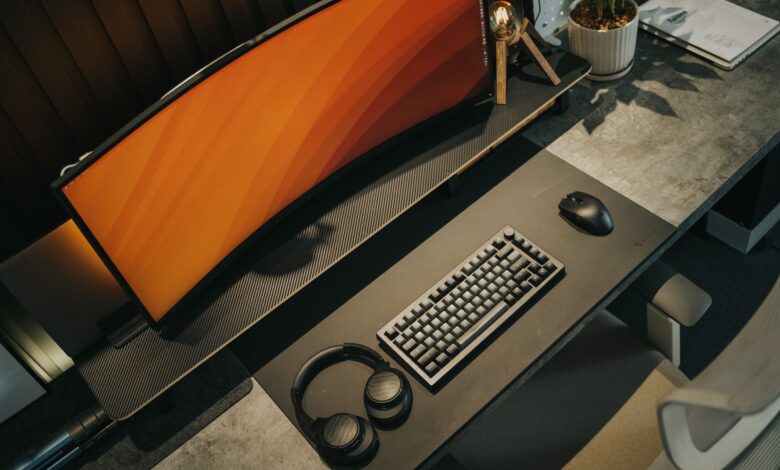
A stable, cool $500 esports corner comes down to three checks most setup photos never show you: depth and bracing, clamp fit for thin tops, and the safety marks on your power strip. Skip any one of the three and a desk that looks clean in a photo will wobble on every mouse flick or trap heat behind the tower.
FCC Part 15 Subpart B Class B limits provide reasonable protection in homes, and IEC 62368-1 is hazard-based for heat and overload. Official databases beat marketing. Desks pass weight yet shake on flicks, strips list 1875W yet run hot, so the blueprint below shows depth, clamp range, load sheet, and when a $60 top needs a plate.
Why small desks wobble and overheat in a corner
Small desks do not fail because your PC is too heavy. They fail because dynamic load — the side force when you flick or lean — momentarily exceeds the stable limit. That creates racking, which is side-to-side shear, and front-to-back sway.
Cheap particleboard legs with no cross-bracing amplify racking. A steel frame with cross-bracing resists that side-to-side shear far better than plain particleboard legs, which is why dynamic load from a mouse flick can exceed a desk’s stable limit even when its static weight rating looks generous. In a small room your eyes sit closer, so you notice shake more.
Heat traps add a second failure. IEC 62368-1 is hazard-based using a three-block model and Fire Triangle concept, requiring safeguards for heat. That standard tests that a device keeps heat away from fuel and oxygen. A corner blocks exhaust, so intake temperature can rise approximately 8 to 12C, which can throttle performance and warm a power strip.
Interactive calculator — adjust desk width, leg type and flick load to see estimated racking risk
How to measure your corner and pick a 120×60 desk that stays stable
A 120 by 60 centimeter top is the floor for esports in a small room. Lagkapten 120×60 cm is 47 1/4 x 23 5/8 inches, which leaves about 15 inches eye distance after a monitor arm clamps at the back. Lagkapten also comes in 140×60 if you have wall space, but depth matters more than length for mouse room.
Depth alone does not stop wobble. The frame and support do. A honeycomb top with two thin legs will rack when you push side to side, even under its rated weight. Steel trestle legs like ADILS or TILLSLAG with an ALEX drawer or cross bar resist shear better, because they spread load and reduce flex.
If the top is under 15 millimeters particleboard, overtightening a clamp can crush the core and make wobble worse. That damage is not reversible and can void stability. Use a 5 by 5 inch steel plate under the clamp and hand-tight plus a quarter turn only.
Try this before you buy: measure wall to front edge, tape a 120 by 60 outline on the floor, push-test your current table side to side to feel racking, and check underside thickness with a caliper to see if you need a plate.
Monitor arm for gaming setup that saves depth without crushing the top
On a 60 centimeter deep desk, a stock monitor stand eats 10 to 12 inches of depth and leaves no mouse room. A monitor arm for gaming setup clamps at the rear edge and lifts the screen, so you keep the full desk for keyboard and mouse.
The mount must match VESA 75 by 75 or 100 by 100 and the clamp range. Amazon Basics single arm clamp fits desktops between 0.4 and 2.4 inches thick, supports up to 32 inch and 25 pound. The spec sheet lists desk clamp thickness 0.4 to 2.4 inches or 1 centimeter to 6 centimeters. BenQ Ergo Arm clamp accommodates tabletop thickness 1.7 to 5 centimeters, which fits thicker tops but needs a plate on thin IKEA tops.
Gas spring arms hold 17 to 32 inch screens and let you adjust height with one hand. Static poles are cheaper but need tools to move. For a budget esports desk setup for small room, gas spring gives more eye-distance control in a corner.
| Arm | Clamp range | Fit for Lagkapten 120×60 |
|---|---|---|
| Amazon Basics single | 0.4 to 2.4 in, 1 to 6 cm, up to 32 in 25 lb | Fits thin top with plate, best value, gas spring |
| BenQ ergo arm | 1.7 to 5 cm | Needs thicker section or plate, smooth adjust, higher price |
| Generic static pole | 0.4 to 3.3 in | Fits but stiff adjust, not ideal for daily height change, avoid if you reposition often |
Pros and cons: Amazon Basics pros — wide 0.4 to 2.4 inch range fits thin IKEA tops with a steel plate, VESA 75 and 100 support, low price as of spring 2026; cons — single arm only, no built-in USB. BenQ ergo pros — precise gas spring and better cable routing; cons — narrower low end at 1.7 centimeters so it can slip on thin tops without a plate and costs more. Generic static pole pros — cheapest; cons — hard to adjust and can crush particleboard if overtightened, which is a reason not to buy it for hollow tops. The manufacturer states the clamp range, but crush risk comes from core density, not just thickness.
In Reddit r/buildapc, a builder noted space available on desk for clamp only 3.75in because a rear shelf lip blocked most C-clamps. In that thread, the solution that came up repeatedly was to use a grommet mount if desk thickness is 0.39 to 1.77 inch or add a steel reinforcement plate for thin particleboard, because thin low-density particleboard can crush if clamp is overtightened. This works because the plate spreads clamp force over a larger area.
Flowchart branching from desk thickness measurement to clamp type and whether steel plate is needed
How to check FCC ID and UL listed marks before you buy gaming accessories
FCC ID check for gaming accessories starts with the label. Any device that emits radio signals intentionally is generally subject to FCC certification, which is a grantee code plus product code, and it must be searchable. The FCC ID Search database shows the grantee code and product code for devices subject to that certification.
Class matters for apartments. Part 15 Subpart B Class B devices must be tested with stricter emissions for residential use. Because they are designed for residential use, FCC applies stricter emissions standards to Class B than Class A. That means Class B is expected to provide reasonable protection against harmful interference in a home, which is what you want in a small room with many devices.
UL Listed is about heat and overload, not just power. UL mark means the device was tested for safeguards required by IEC 62368-1 hazard-based standard. For example, Anker Innovations power strip FCC ID 2AOKB-A9137 is listed as power strip with grantee Anker Innovations Limited, and BenQ monitor manual shows TÜV GS, FCC Class B, and UL listing example. ENERGY STAR for BenQ shows efficiency in typical use, not safety, and FCC ID confirms emissions compliance, not speed or quality.
Checklist showing three places to find FCC ID and UL Listed mark on power strip and monitor
Best budget power strip for gaming that won’t overheat at 140W+ sustained
Power load is simple math that many guides skip. A gaming PC at 450 watts plus monitor at 40 watts plus peripherals at 20 watts equals 510 watts. Divide by 120 volts and you get about 4.25 amps. That is well under a 15 amp 1875 watt rating, but cheap non-UL strips still run hot.
Heat comes from thin cord and weak breaker. Anker power strip surge protector with 12 outlets, 6 foot cord, 1875W output, UL Listed, 2 by 4000 Joules uses 14AWG cord and a thermal breaker tested for overload. Generic strips with 16AWG cord lack IEC 62368-1 safeguards for overload and can heat at sustained load even if they list 1875W on the box.
Failure signals are clear. When circuit overloads, outlet may overheat leading to burning smell, so avoid overloading. If strip is warmer than it should be or produces a bad smell, skip reset and replace. If you notice warmth or a burning smell, turn off, unplug, and replace the strip.
In Amazon Customer Reviews for a cheap strip, a buyer noted it makes a burning smell when intentionally overloaded with a 1500 watt heater, with concern that the 16 AWG cord gets hot. The solution that came up repeatedly was to replace the cheap 16AWG cord with a 14 or 12AWG UL plug and use a UL Listed strip with an overload breaker, because a thin cord without UL safeguards heats under sustained load and the breaker does not trip fast enough.
A wall meter under a 15-minute gaming load is the fastest way to check your own sustained amp draw against a strip’s rating rather than trusting the peak-wattage number on the box. As of spring 2026, Anker’s 12-outlet UL Listed price tier is approximately $32, which leaves budget for a steel plate and cable kit. This is a practical guideline, not a manufacturer-verified threshold.
In the power strip spec sheet, look for: UL Listed mark with E-file number, 14AWG or 12AWG cord printing, 15A 1875W rating, and FCC ID for models with USB.
Cable management small desk that doesn’t block airflow
Cable clutter on a 60 centimeter desk blocks the exact gap your PC needs to breathe. A rear vent blocked by a thick cable bundle can raise exhaust temperature by approximately 5 to 10C, which raises intake temperature in a corner.
Use an under-desk tray mounted 2 inches from the back edge, not on the floor. Cable clips, ties and a sleeve keep cords off the floor, and a centralized under-desk tray hides the rest — vertical wall routing works best in very small rooms.
Mount the best budget power strip for gaming vertically on a leg, not on carpet, so heat can escape. Bundle with Velcro, not zip ties, so you can re-route. Leave 4 to 6 inches behind the PC and 3 inches on the side for airflow. The before state has cables blocking rear vent, the after state has tray mounted and a 6 inch gap behind PC.
Small-space setup blueprint with measurements, FCC/UL check, and airflow gap
This blueprint pulls the earlier checks into one build you can copy in a rental corner. It uses real measurements, a load sheet, and certification checks, so you know when a $60 top needs help.
Step 1 — Desk and frame
Use IKEA Lagkapten 120 by 60 top with ADILS legs or ALEX drawer for support. Lagkapten 120×60 cost basis is about $60 as of spring 2026 and needs support to avoid sag. Add a 5 by 5 inch steel plate under the monitor arm clamp location at rear center.
Step 2 — Monitor arm and eye distance
Clamp Amazon Basics single arm at rear center, range 0.4 to 2.4 inches, so it fits thin tops with the plate. Place a 24 inch BenQ at about 20 inches eye distance, VESA 75 by 75 or 100 by 100. That leaves full desk depth for mouse.
Step 3 — Power and load sheet
Mount Anker’s 12-outlet UL Listed 1875W strip vertically on a leg. Load calc as of spring 2026: PC 450W plus monitor 40W plus peripherals 20W equals approximately 510W, which is about 4.25 amps, leaving approximately 72 percent headroom under 15 amps. Check the cord gauge printing for 14AWG.
Step 4 — FCC and UL verification
Find FCC ID on strip bottom and monitor rear. Verify FCC ID authenticity via official database at fcc.gov slash oet slash ea slash fccid and on fccid.io, then search UL Product iQ with the file number on the label. FCC ID confirms emissions compliance, not speed. UL confirms overload and heat safeguards.
Step 5 — Airflow and cables
Leave 6 inch gap behind PC and 3 inch side gap, avoid carpet intake. Mount under-desk tray 2 inches from back edge, use short cables and Velcro. For airflow-related FPS behavior, see our guide on why budget gaming laptops drop FPS after 10 minutes, which explains how sustained PL1 and PL2 clocks interact with corner heat.
Cost breakdown as of spring 2026: desk $60, legs $40, arm $35, Anker strip $32, used BenQ 24 inch approximately $150, cable kit $20, total approximately $337, leaving about $163 for peripherals. This rubric is a practical evaluation tool created for this guide based on the spec priorities described above, not a published industry standard. Use it as a quick in-store check.
Why steel frame always prevents wobble breaks down without bracing and leveling
Many guides say steel frame beats particleboard legs automatically. That sounds right because steel is stiffer. In practice, a steel frame without diagonal bracing or leveling feet still racks under dynamic load, because shear forces need cross support, not just stiffer material.
If bolts are loose or feet are uneven, even a steel frame can shake under weight rating. Tighten ADILS bolts, add a cross bar or X-brace, and level feet on uneven floors. A push test side to side tells more than a static weight number.
The last check
Most small desks fail on dynamic flicks and corner heat, not static weight. Check depth and bracing with a push test, verify clamp range 0.4 to 2.4 inches and add a steel plate if under 15 millimeters, and confirm UL Listed and FCC ID before you plug in sustained gaming load. Skip those and you get wobble on every flick and a strip that can run hot at 140 watts plus in a rental.
Frequently asked questions
Will a monitor arm damage my IKEA Lagkapten top if it’s hollow?
Yes, a hollow honeycomb top under 0.6 inch or 15 millimeters can crush if you overtighten the clamp. Use a 5 by 5 inch steel plate underneath, tighten hand-tight plus quarter turn, and consider a grommet mount if you can drill, because thin low-density particleboard can crush.
How do I verify a power strip is really UL listed and not fake?
Check the label for UL Listed mark with file number, look for 14AWG cord printing and 15A 1875W rating, and search UL Product iQ. Cross-check FCC ID on fccid.io for USB models via FCC ID database, because cheap non-UL strips lack thermal breakers and can overheat.
What if my small room corner has no gap for airflow behind the PC?
If the wall blocks rear exhaust, mount the PC under the desk with side facing out or use a vertical stand 3 inches from the wall and keep 4 to 6 inches gap. Avoid carpet intake and use an under-desk tray, because IEC 62368-1 requires safeguards for heat with Fire Triangle in mind.
Is a 120×60 desk too small for dual monitors on a $500 budget?
A 120 by 60 desk fits a single 27 inch arm plus laptop, but dual 24 inch with shared pole leaves less than 12 inches mouse space. A single arm supporting up to 32 inches and 25 pounds makes a single ultrawide the better fit for small desk use. Cost adds a second arm at roughly $35 and needs a stronger top.
