
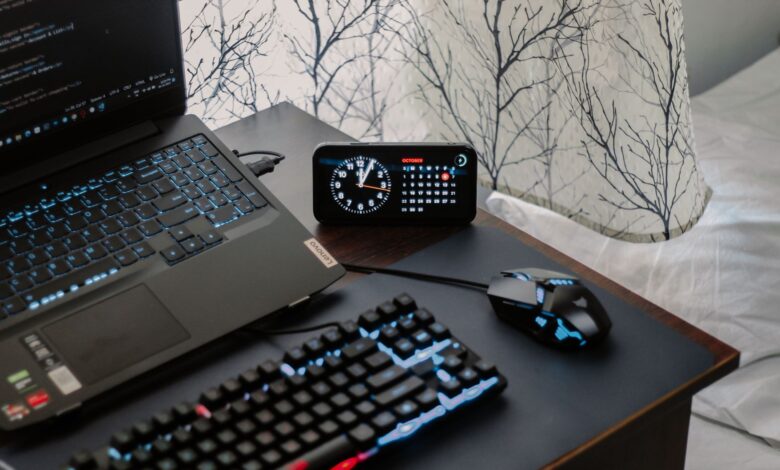
The only thing you can measure with a 60% keyboard is how wide your desk is. The rest of what people claim about 60% keyboards (more keystrokes per second, better accuracy) is either a feature of a particular keyboard model or not proven at all. Based on HyperX’s published dimensions, a 60% keyboard is typically 296 mm (11.7 in) wide; therefore, the only physical benefit you gain by switching to a 60% keyboard over a larger one is the additional space on your desk that the 60% keyboard frees up.
The space gained depends on where you have your keyboard placed on your desk and what side of your keyboard does your mouse operate on. Additionally, switching to a 60% keyboard does not come without cost; switching from a Full Size keyboard to a 60% keyboard also means moving the function keys (the F1-F12 row), the 8 arrow keys and all navigation keys to a secondary layer, accessed via modifier keys (like Shift, Ctrl, or Alt). So the question isn’t really how “good” a specific layout is — the real question is how this new layout will function within your work environment.
When does a 60 percent keyboard help with gaming?
To keep your mouse from overlapping the rightmost edge of the keyboard, removing the numpad, nav block and arrow cluster together when you buy a 60% keyboard needs to happen as a unit; that’s it. Removing these components from the keyboard will reduce its overall width, thus freeing up space on your desk for you to use your mouse comfortably.
The width difference of a 60% keyboard compared to others is not a generic number—it’s specific to the exact model you choose. Here are three US-layout boards from a single manufacturer’s own family, so the comparison isn’t mixing vendors — the 60 percent figures come from the specification page linked above, and the rest from HyperX’s pages for the Alloy Origins 65 and the tenkeyless Alloy Origins Core, all verified September 18, 2026:
| Model (US layout, black) | Published width × depth | Width saved vs. the tenkeyless | Dedicated keys it gives up |
|---|---|---|---|
| Alloy Origins 60 (4P5N4AA#ABA) | 296.0 × 105.5 mm | 64 mm | Function row, arrow cluster, navigation block, number pad |
| Alloy Origins 65 (56R64AA#ABA) | 315.06 × 105.5 mm | About 45 mm | Function row and number pad; keeps arrows, Page Up/Down, Home and Delete |
| Alloy Origins Core (4P5P3AA#ABA) | 360.0 × 132.5 mm | Reference model | Number pad only |
Width differences are based on arithmetic principles of the published information, not actual measurements taken during our testing process.
64 mm = approximately 2.5 inches. This is a considerable amount of desk space and will provide usable space for a mouse if your keyboard’s left side does not move when you switch keyboards. If you centre your new smaller keyboard in front of your monitor, you are sharing the amount of usable space gained from this change between the two sides of the keyboard (approximately half of the additional usable space will be available on the side of the keyboard you were previously using). If you rotate your new keyboard or use a wrist rest or hit the edge of your mouse pad before hitting the edge of your desk, then the amount of usable space gained will decrease again.
The only way to gain additional usable mouse space is if your keyboard’s left side is in its original location when you switch keyboards; therefore, this one factor determines how much additional mouse space is created by the additional width of the case.
Compact keyboards do not condense the size of the keys you will be using. This misconception is so popular that the HHKB has a section in their website dedicated to clarifying how the keyboard works by stating, “We have combined many of the less-frequently-used functions from a full size keyboard layout onto one key, it does not mean the keys have been reduced to sizes that require you to twist your fingers in order to reach all of them.” The biggest argument about hand size with keyboards is about where you want to put the keys, i.e., how far out they will go from the center (where the keyboard is placed) rather than how close to each other the keys will be (if they are touching) or [shrinking all of the keys].
A second argument is based on the same principle that the first one was built upon. In order to support this second argument, you will need to find evidence that shows that fewer width buttons will provide you with a better ability to aim better. You will likely only find articles or websites that are selling keyboards based on this argument, but you won’t find any published measurements supporting this claim. While a 60 percent gaming keyboard may eliminate the need to have something blocking your view, the only way to verify if this actually improves the ability to aim is by checking your own desk for the obstruction that is blocking you from seeing clearly.
Missing arrow and function keys: will your keybinds still work?
Every command still exists. The question is what it costs to press.
On a conventional 60 percent layout, these are the groups that stop having their own key and move onto a modifier layer:
- The function row (F1–F12) — quicksave, quickload, and the menu and slot bindings that sit up there in older titles and in games that assume a full keyboard.
- The arrow cluster — menu navigation in a lot of games, plus anything you’ve personally bound there over the years, from vehicle controls to secondary movement.
- The navigation block — Home, End, Page Up and Page Down, which matter less in play and considerably more the moment you alt-tab into a document.
- Delete, Print Screen and the number pad — small losses individually, and the ones buyers most often forget to check for before ordering.
The claim made by manufacturers is that their keyboards are lossless. For example, SteelSeries promotes their 60% boards with the claim that you “keep 100% of the capabilities of a full-size keyboard, and have side-printed secondary functions.” The important distinction here is that availability (the ability to produce a command) does not equate to convenience when you are already using your other three fingers for a movement key.
That distinction is exactly what ownership accounts argue about. On the specialist keyboard forum Geekhack, one former Poker II owner reported remapping everything for one game and wrote that he “missed the arrow cluster terribly,” while a reply in the same thread landed on the conditions instead: how suitable a 60 percent layout is “depends on which genres you play primarily, and if you like to have some ‘odd’ kinds of keybinds.”
These posts demonstrate that there is a genuine disagreement regarding the subject matter, and what the disagreement is about. However, they do not determine how to classify your library; a genre label will not decide this either. The determining factor will be which commands you personally will have to press in a time-constrained situation, and whether or not they occur outside of the base layer.
It’s natural to want to think that you can use software to fill in the gaps. In reality, that really isn’t true, for at least two reasons. As recently as June 8, 2026, Microsoft produced an updated document based on PowerToys Keyboard Manager which states that in most situations, the Fn (function) key cannot be remapped; remaps will work only while PowerToys is running in the background; and in both its Gaming FAQ and Known Issues list, it clearly states that you should not use Keyboard Manager while playing games, as intercepting your key presses will affect your frame rate.
There are three different types of remapping commonly called “remapping” – changing the binding within the game, changing the layer of the keyboard’s firmware, and intercepting keys using an operating system utility – with only the first two of those safe during a game. These operate completely without a background process, while the third is what Microsoft warns against using for games.
If the commands you would be remapping are ones you use frequently, then the solution is not a workaround. You need a layout that provides those keys in their original locations. The solution is to choose a 65% keyboard, which replaces both the arrow keys and the navigation keys that most buyers typically miss, and the same question of equivalent trade-offs exists in everyday work and warrants a thorough investigation of 75% keyboard trade-offs as covered in more depth later.
Input lag: check the model and connection, not the size
There is no information in a 60% keyboard case that says anything about how quickly the keyboard will report a keypress. Layout does not indicate the number of switches that will be present; it indicates how long you may have to wait for the circuit board, firmware and connection to complete their respective tasks to send a keypress to your computer. Compact models (60% cases) land anywhere along that entire spectrum.
When measuring keyboard latency, an independent source provides some certainty as to what the results mean. As an example, RTINGS uses its own keyboard latency measurement method. To determine keyboard latency, RTINGS uses a solenoid to physically press the key inside of a keyboard. This key press is intercepted by a Beagle 480 USB analyser; 200 samples (averaged) from the key press and the keyboard are then used to create a latency rating. RTINGS has tested compact keyboards and has published a rating for the compact ROYAL KLUDGE RK61 as having “high and inconsistent” latency performance. The effective update rate of the RK61 is 250Hz, which is effectively bottlenecked due to its rating of 1000Hz for polling. By contrast, RTINGS rates its top-rated compact pick as having a polling rate of 8000Hz, but uses the same layout as the RK61.
Two factors limit how far the results from these tests can be taken. First, RTINGS does not use the same test bench versions for each keyboard; some compact boards are sitting on Methodology v1.4.3 and others on v1.4.1. Therefore, results from one keyboard purchased and tested on RTINGS’ methodology should not be considered equal to the results of another keyboard purchased and tested on the same methodology. Second, RTINGS points out that the results from the tested unit were specific to the tested variant — RTINGS noted that it tested the wireless RK61 with blue backlighting and that it had hot-swappable RK Brown switches and that “the results are valid for the wireless variant only,” and that the 2.4 GHz version of the RK61 is listed as a different product.
That variety of interpretations is what defines the wireless aspect of the question at hand. For example, a 60% wireless keyboard may include a Low-Latency Receiver that utilizes 2.4GHz technology, or Bluetooth technology, or a combination of both – and a description that says only “wireless” does not indicate what conditions were used to perform the review. There is empirical evidence supporting this issue: in the comments section of the RK61 review, an individual discussing his RK61 has reported that both of his units began developing repeated and missed keypresses after the warranty expired.
A “best 60 percent keyboard” list should reflect only those models that were previously tested; this is not necessarily a characteristic of the layout. Thus, it is essential to cross-reference the exact model name, switch variant, and connection type with the review; otherwise, the reviewed sample cannot be related to the keyboard that you wish to purchase.
Check desk space and key access before buying
You can check the first two of the three things you would like to know for nothing, before you spend any money; however, the third thing cannot be checked for free, and it is helpful to know what the first two and third things are in order to avoid confusion later on.
- Mark the footprint. Take the published width and depth for the exact SKU — 296.0 × 105.5 mm for the Alloy Origins 60, for example — cut a piece of paper to those dimensions, and put it on your desk where the keyboard would sit, with your left edge in the same place it is now. Then play a few minutes with your mouse on the freed space and see whether your normal swing ever ran out of room to begin with.
- Read the keymap, not the marketing. Open the model’s manual or product page and find the secondary-function legend. Write down where F1–F12, the arrows, Delete and Print Screen actually go on that board, since manufacturers place them differently.
- Test those exact combinations on the keyboard you already own. Bind them temporarily, then play. If reaching a layered command while holding a movement key is awkward on a keyboard you’re comfortable with, a narrower case won’t fix it.
This guide provides a practical assessment method based on the case dimensions (size) and key legends (symbols) detailed below, rather than being based on a laboratory test or being certified.
A three-step assessment method (to be taken before purchasing) does not provide you with actual information; a rectangle of paper lacks the components necessary to convey any information regarding the feel of typing, actuation of the keys, quality of manufacturing, reliability of the firmware, or the latency time in milliseconds. Additionally, the rectangle of paper will not emulate how long it takes for the keycaps to be acclimated to the keyboard. The only two categories that you can confirm prior to purchase are fit and accessibility of keys; you will not find out how the keys perform and how you adapt to them. By keeping these two categories distinct from each other, you can ensure that the layout decision does not become confused with the performance decision.
The 60% Trade-Off
When selecting a keyboard, be aware that the layout can vary widely between any particular keyboard model (or its equivalent) and that both the key map and the physical dimensions (width) associated with a model can vary considerably as well. To find a specific keyboard model, go to the specific SKU specification page for that keyboard model to determine its width and key map. Also, find out if an independent laboratory with a documented test methodology has measured the width and key map of the keyboard you are considering. RTINGS has put together a list of recommended 60% keyboard recommendations based on their own testing and evaluation process; therefore, if you follow their advice without doing your own research, you are purchasing only a percentage of the dimensional information printed on the manufacturer’s box. By conducting the research to determine if the keyboard has been independently evaluated to determine both its width and key map, you will be able to determine which command functions will shift to a secondary layer and whether the additional width will be useful in your mouse-hand’s operating environment.
Frequently Asked Questions
Can you get into your PC’s BIOS without a dedicated F2 or Delete key?
Typically, the layer is managed via the keyboard firmware rather than through loadable software utilized by Windows. It is a widely asked question, as evidenced by the fact that a separate thread was created on Hard Forum to answer the question of how to create multiple keyboard layers. Before you require it, check your keyboard’s owner’s manual for the specific key combination associated with your keyboard model’s layers.
Does a 65 percent layout give back the arrow keys without giving back the desk space?
Generally, within HyperX’s own collection of keyboards, the 65% keyboard is approximately 19mm wider than the 60%, and it adds back some of the dedicated keys, including arrow keys, page up/page down, home and delete. However, it still lacks the function row and number pad, so make sure you check your F-key bindings too.
Will a remapping utility fix an inconvenient Fn layer for gaming?
Microsoft says its Keyboard Manager often can’t change the function of the Fn button, has to always be active in your computer’s background, and can lower your frame rate while playing video games. It is better to remap functions within your gaming software or through keyboard firmware if possible.
