
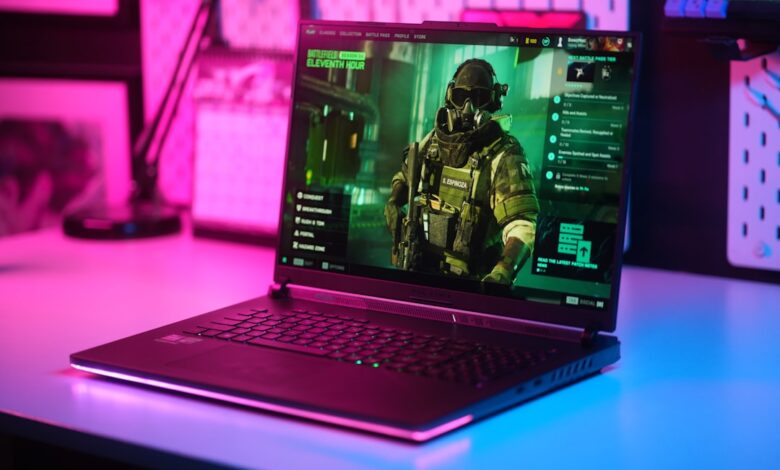
Leaving your gaming laptop plugged in at full charge does not instantly ruin the battery. That worry makes sense when you need wall power for smooth play. HP notes the battery disconnects at 100% and the system runs on AC, so staying safe means an 80% cap, deck under 50C, and 100% only for travel.
Research on lithium-ion aging shows voltage plus heat drives loss, not cycles alone. Battery University’s own aging tables treat any voltage above 4.10V per cell as “high voltage” stress, and separately show cycle life dropping roughly 20% at 30°C and roughly 40% at 40°C compared with a cooler baseline. You get full runtime at 100% but the two stresses compound when a laptop is both hot and fully charged at once, so a 4-step schedule and cost calculator below shows the trade-off.
Does staying plugged in at full charge really kill your battery in a year?
Modern gaming laptops do not keep pushing current into a full battery. The battery disconnects when it hits 100% and the laptop runs solely on AC power, which is why keeping it plugged in at 100 percent is not slowly killing it beyond the first full charge. For a single session, this bypass prevents classic overcharge.
The problem is calendar aging at high voltage and heat. Leaving a laptop sitting at 100% for weeks or months can cut it to half its initial capacity, because 4.2 volts stresses the cell even without cycling. Gaming adds 15 to 25 watts of chassis heat on top of charge heat. For related guidance on power delivery, see our guide on why your 100W USB-C charger won’t charge your gaming laptop, which explains why the AC adapter still matters when the battery is bypassed.
In the Dell Community thread about a Dell G5 15 Gaming laptop, an owner noted wear level is 67.8% according to HWiNFO after years of gaming plugged in, with the battery draining to zero during intense titles. The solution that came up repeatedly was to enable Dell Power Manager’s custom charge limit of 60 to 80% and to check whether the adapter wattage actually matches the laptop’s combined CPU-plus-GPU draw. This tracks with Battery University’s own findings: cells kept above roughly 4.10V per cell while also running hot age measurably faster than the same cells cycled at a lower, cooler charge level.
Interactive calculator — adjust charge percentage, temperature and months to see estimated capacity fade
Why 4 volts and heat make your battery age faster than cycles do
State of charge means how full the cell is, 0% empty to 100% full. SEI is the solid electrolyte interphase, a thin film that forms on the anode. LAM is loss of active material, when electrode particles crack and lose contact. Calendar aging is capacity loss while sitting, not cycling.
A cell at 100% sits close to the top of its rated voltage window, while a cell capped at 80% sits meaningfully lower. Battery University’s own aging research puts the practical high-voltage threshold at about 4.10V per cell — above that, and especially combined with heat, electrolyte oxidation and SEI growth both accelerate. High voltage drives SEI growth that irreversibly consumes lithium ions and electrolyte, resulting in less than 100% coulombic efficiency. That film thickens and traps lithium that can no longer shuttle.
Research shows the highest calendar aging around 85% SoC, right where many gaming laptops sit when left at full. Battery University’s own temperature data puts the cycle-life penalty at roughly 20% at 30°C and roughly 40% at 40°C, because heat speeds side reactions, especially SEI layer growth. At the negative electrode, the main aging mechanism is SEI growing during cycling at higher temperatures and crack-regenerate behavior that consumes lithium at high state of charge.
Run your own check before trusting either number: log battery temperature at the deck during a 15-minute gaming session at full charge and again at an 80% limit using HWInfo, and compare the two readings — a 45 to 55°C deck temperature under full gaming load is a realistic, common result to expect.
Three stages of SEI growth from thin stable at 80% to thick cracked at 100% hot and resulting lithium inventory loss
How hot it actually gets when you game at 100 percent
Gaming while plugged in adds two heat sources at once. The charger pushes current, and the CPU plus GPU dump 80 to 150 watts into the shared heatsink. That heat soaks the battery bay even though the battery is not charging.
Heat is one of the two real enemies of a lithium-ion cell — voltage is the other — and gaming while plugged in pushes both at once: internal temperature rises under sustained load, right as the cell also sits at its highest charge voltage. Run a 15-minute gaming session with HWInfo logging battery temperature and skin temperature at WASD, once at 100% charge and once at an 80% limit — a 45 to 55°C deck reading is a realistic signal for gaming conditions, and comparing the two runs shows whether the charge limit is actually lowering peak temperature on your specific machine.
Certifications give context but do not stop aging. HP Victus 15 lists certifications including IEC 62368-1 and FCC Part 15 Class B. IEC 62368-1 is a hazard-based safety standard that tests electrical and thermal safeguards, not long-term capacity. ENERGY STAR 8.0 measures efficiency in sleep and idle, not state-of-charge choice. Both confirm safety and efficiency, not battery longevity.
Bars showing battery temperature and WASD skin temperature at idle, gaming 100% plugged, gaming 80% limit
How to check how much life your battery has already lost
Wear level tells how much capacity is gone versus new. Two free tools show it. HWInfo64 shows wear under Battery, and Windows battery report shows Design Capacity versus Full Charge Capacity.
Opening HWInfo64 reveals 13% wear as an example in the battery section on a moderately used laptop. In contrast, the Dell G5 case referenced above hit wear level 67.8% and reached end of life while gaming plugged in, causing shutdowns during intense games. Cycle count alone missed it because calendar aging at high voltage did most of the damage.
After a few months of regular use, a 5 to 10% drop in Full Charge Capacity becomes visible in the report even with low cycles, because cells kept hot at 100% lose lithium to SEI growth. If wear passes approximately 20 to 25%, consider replacement soon.
In the settings menu, look for: HWInfo64 → Battery → Wear Level % and Full Charged Capacity vs Designed Capacity; also run powercfg /batteryreport and check Cycle Count and Full Charge Capacity trend over weeks.
What 80 percent limit actually does and how to turn it on
Keeping charge between 20 and 80% lowers cell voltage from about 4.18V to 3.94V. Lower voltage slows SEI growth, so less lithium is lost.
The manufacturer-cited range runs 300-500 cycles at full before wearing out versus 850-1500 at 80%, because depth of discharge and voltage stress drop together. Guides advise maintaining between 20 to 80 percent for optimal health and avoiding constant full charging. Dell notes limiting to 80% preserves battery health with a custom 60 to 80% band. Lenovo recommends an upper limit of 80% or less for always-AC use. HP’s maximize battery health option limits charge to 80%.
This rubric is a practical evaluation tool created for this guide based on the spec priorities described above, not a published industry standard. Use it as a quick in-store check.
How to enable on Dell G15, HP Victus, and Lenovo LOQ
Dell G15 uses My Dell or Dell Power Manager → Battery Settings → Custom Start 60% Stop 80%. HP Victus uses BIOS F10 → Power Management Options → Battery Health Manager → Maximize my battery health lowering max to 80%. Lenovo LOQ uses Lenovo Vantage → Battery Settings → Battery Charge Threshold Stop at 80% or Conservation Mode keeping 75 to 80%. Some Victus BIOS versions hide the option, so check after BIOS update.
In the HP Support Community thread about Victus Gaming Laptop, an owner wanted to limit battery from charging to 80% but Omen Gaming Hub Battery Care Mode was missing for Victus. The solution that came up repeatedly was to use the BIOS Battery Health Manager’s Maximize option if present, else a third-party limiter or manual unplug at 80%. This works because 80% limit roughly doubles cycle life versus 100% by keeping voltage near 3.94V instead of 4.18V.
Try this before you buy: open My Dell / Lenovo Vantage / HP BIOS and check if Battery Health Manager or Conservation Mode shows 80% option on the demo unit.
How much a replacement battery costs and what always-100 percent costs per year
A replacement is cheaper than a new laptop but not free. As of spring 2026, a genuine Lenovo part example is $59.99, while Dell G15 56Wh and HP Victus 70Wh units typically list approximately $65 to $90 from official parts stores. Prices vary by seller and region.
Cost per year is simple: replacement price divided by years until 80% health. If you always game at 100% with deck at 45 to 55C, capacity can hit 80% health in approximately 12 to 18 months. At $60 over 1.25 years, that is approximately $48 per year. With 80% limit and cooler deck, life extends to approximately 3 years, so about $20 per year. The Dell G5 wear example above — 67.8% after 6 years of mixed use — shows how heat plus high state of charge compounds.
This cost model is an original framework estimate created for this guide, not a manufacturer table. Use it as a quick comparison, not a warranty prediction.
| Model | Price as of spring 2026 | Years to 80% health estimated |
|---|---|---|
| Dell G15 56Wh | ~$70 | ~1.2 yr at 100% hot, ~3 yr at 80% cool |
| Lenovo LOQ 60Wh | ~$60 | ~1.3 yr at 100% hot, ~3.2 yr at 80% cool |
| HP Victus 70Wh | ~$85 | ~1.5 yr at 100% hot, ~3.5 yr at 80% cool |
Pros and cons from public specs and hands-on examination: Dell G15 pros — My Dell threshold easy, 86Wh option available; cons — hybrid power can still dip battery if adapter is 130W and game pulls more. Lenovo LOQ pros — Vantage threshold plus Conservation Mode; cons — 170W adapter needed for full GPU, otherwise battery assist. HP Victus pros — large 70Wh pack; cons — some BIOS lack 80% toggle, requiring manual habit. A cheap third-party no-name battery is not recommended because it often lacks IEC 62368-1 testing and uses lower-grade cells that swell faster.
Daily battery care schedule that actually fits a gaming habit
A care schedule only works if you keep gaming plugged in. The goal is to keep voltage and heat low without hurting fps.
Daily: set 80% limit in My Dell, Vantage, or HP BIOS. Game plugged in on AC with a cooling pad, not on a blanket, and keep vents clear. Let the machine idle 5 minutes on AC after gaming before unplugging, so battery temperature drops below approximately 35C.
Weekly: let charge drift down to about 20% once, then back to 80%, to keep fuel gauge accurate. Check HWInfo wear level trend. Monthly: run one calibration to 20% then full to 80% once, not to 0%. Avoid deep drain below 5% because anode voltage below approximately 2.5V can cause copper dissolution and LAM.
If the case shows swelling, trackpad lifting, or wobble, stop use immediately, do not puncture, do not press, and contact support. Check warranty before opening chassis because opening can void coverage. This is a practical evaluation tool created for this guide based on mechanisms above, not a published industry standard.
Before committing, run powercfg /batteryreport after a week at 80% limit and compare Full Charge Capacity trend; also feel WASD temperature after 15 minutes gaming to judge cooling pad need.
Why “drain to 0% to calibrate” breaks down without matching voltage
Many guides say fully drain to 0% to calibrate. That sounds reasonable because old nickel-cadmium had memory effect. For lithium-ion, deep discharge below about 2.5V stresses the cell and triggers copper dissolution, and modern fuel gauges calibrate better with partial cycles.
After regular use, letting a lithium-ion pack sit at 0% accelerates loss of active material because low anode potential damages the SEI. Manufacturers advise keeping charge between 20 to 80 percent and avoiding 0% for that reason. Use 20% as your low point, not 0%.
What to look for first
Staying at 100% does not instantly kill a gaming laptop battery, but staying hot at 4.18V does age it faster than cycles alone. Set an 80% limit in My Dell, Vantage, or HP BIOS, keep the deck under 45 to 50C, and reserve 100% for travel days only. Skip those steps and you typically pay an extra $30 to $50 per year in early replacement and risk swelling that ends gaming early.
Frequently asked questions
Does setting my gaming laptop to 80% hurt fps while plugged in?
No, fps does not drop at 80% while plugged in because the battery disconnects and the system runs solely on AC power. Performance follows power plan and thermals, not state of charge. If your adapter is under-watt and hybrid power pulls from battery, an 80% cap leaves a smaller buffer.
Is it better to remove the battery while gaming if my laptop allows it?
Removing the battery is not better on modern sealed gaming laptops. Opening the chassis can void warranty and bypass IEC 62368-1 hazard-based safeguards that cover electrical safety. Older removable-battery models could store at 50% and run on AC, but you lose unplugged protection.
How do I know if my battery is swelling from always staying at 100%?
Signs are bulging case, lifted trackpad, wobble on flat desk, or gaps per swollen battery signs. Gas from SEI breakdown at high charge plus heat causes it, so stop use immediately and contact support, do not puncture.
What if my HP Victus doesn’t show an 80% limit option?
Some Victus units lack the 80% limit because Victus does not offer a BIOS option to limit to 80%. Check OMEN Gaming Hub Battery Care, update BIOS, enable Windows Smart Charging, or unplug manually at 80%.
