
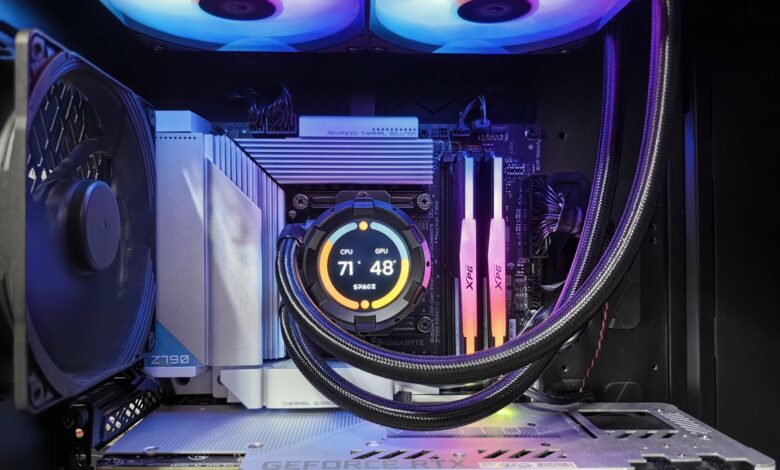
A hot gaming PC is not always an overheating one. The problem is real when three things happen together: your processor or graphics card reaches its own rated limit, its clock speed or power drops, and a stutter, crash, or shutdown occurs at that same moment. Intel says running at maximum temperature during a workload “isn’t necessarily cause for concern,” and that it is “difficult to tell purely from temperature alone” whether something is wrong.
So when you’re dealing with gaming PC overheating, record the problem before you spend money on fans, a cooler, a case, or a new machine. Rated limits are different for each chip, and many common causes cost nothing to fix. A short, repeatable log will show which part is failing.
Is your gaming PC actually overheating?
Start by finding your hardware’s own limit, not a number from a generic chart. The figure that matters is the Tjunction max (Tjmax), which Intel defines as the highest temperature a processor allows before its internal controls cut power and limit heat. When those controls kick in, the chip lowers its speed and power. That self-protection is called thermal throttling, and it can cost you performance. Intel describes two layers of protection: first throttling, then automatic shutdown if throttling can’t keep temperatures safe. Graphics cards work the same way. NVIDIA says its driver throttles a GPU that reaches its maximum temperature and shuts the system down if the temperature keeps climbing.
These limits vary from model to model, which is why a single “too hot” number can mislead you:
- The AMD Ryzen 7 7800X3D lists a maximum operating temperature of 192°F (89°C).
- The Ryzen 9 7950X, from the same product family, lists 203°F (95°C).
- Intel’s Core i7-14700K lists 212°F (100°C) for both its Tjunction and maximum operating temperature.
- On NVIDIA’s comparison page, maximum GPU temperatures run from 185°F (85°C) for the RTX 5070 to 199°F (93°C) for several RTX 30-series cards.
All of these figures were checked on 10/06/2026. Intel also notes that the throttle temperature can vary with BIOS settings, and that it doesn’t publish typical temperature ranges because they depend on system design and workload. Your exact model and your motherboard settings decide which number applies to you.
To find your number, identify the exact CPU and graphics card, then check the maker’s spec page. For Intel, Intel’s own guide says to search the processor on its specification site and open Package Specifications. AMD Ryzen product pages list “Max. Operating Temperature (Tjmax),” and NVIDIA’s compare page lists “Maximum GPU Temperature.”
A reading near your limit only becomes a confirmed thermal problem when the other two signals show up as well: clocks or power fall, or a throttling flag appears, and your symptom happens at the same time. If one of those pieces is missing, the right move is more evidence, not new parts. Intel’s own list of overheating symptoms reflects this. It includes shutdowns soon after booting, a lower-than-expected CPU frequency, evidence of throttling, general slowness, and loud fans. All of these are things you can see in a log, not just a single temperature reading.
Log the problem before changing any hardware
A glance at a temperature overlay can’t tell you whether a change helped. A time-stamped log recorded under the same conditions can. Independent case reviewers control those conditions on purpose. GamersNexus collects idle data for 10 minutes, runs its load for 1,400 seconds (about 23 minutes), “a period we’ve determined sufficient for achieving equilibrium,” locks the graphics card fan at 55%, and reports results as degrees over room temperature. KitGuru runs a combined CPU and GPU load for 30 minutes, averages the last 15 minutes, and subtracts room temperature, which was 66–68°F (19–20°C) in its tests. Those durations fit those test setups. They aren’t a universal rule. The idea you can borrow at home is simpler: run the same workload, in the same room conditions, long enough for temperatures to stop climbing.
Set up the log
HWiNFO is a free tool that can record sensor data over time. XMG’s support guide explains the steps:
- Start HWiNFO64 with “Sensors-only” checked.
- Click the green plus icon to start logging, choose where to save the file, and play.
- Click the red X to stop.
By default the tool records a reading every 2,000 ms (2 seconds). The guide recommends naming each file after its conditions and writing down the exact time the problem appeared.
The guide also warns that HWiNFO’s “Maximum” column shows only a single moment’s outlier, and that “Average” “completely depends on how long HWiNFO64 has been running.” The logged time series is what you should compare. The same guide lists the sensors most worth checking: CPU Package Power, Core Max (Intel) or CPU (Tctl/Tdie) (AMD), GPU Power, and GPU Temperature.
If you have a Radeon graphics card, AMD Software: Adrenalin Edition can log on its own. Press Ctrl+Shift+L to toggle logging, and set the sampling interval anywhere from 0.25 to 5 seconds. It records GPU temperature, GPU junction temperature, clock speed, total board power, fan RPM, stutter rate, and CPU temperature.
Use the game and scene that actually trigger your problem. That reproduces the real fault, and you don’t need a punishing synthetic stress test to diagnose a gaming issue.
The overheating diagnostic worksheet
Make a copy of the worksheet below for every run: first a baseline, then one copy per change. The first column lists what to record, and the last column explains why it keeps runs comparable.
| Field | What to record | Why it matters |
|---|---|---|
| Run and change | Run number, date, the one thing changed | Isolates a single variable |
| Room temperature | Reading near the front intake | Converts raw temps to “over room” |
| Workload | Game, scene, settings, FPS cap | Keeps the heat load the same |
| Session length | Minutes until temps flatten | Compares steady state, not peaks |
| CPU and GPU temps | Steady value, and steady minus room | Shows whether the gap shrank |
| Clocks and power | CPU/GPU clocks, package/board watts | Reveals throttling or power limits |
| Fans and pump | RPM for each, and whether they rise | Confirms the cooling responds |
| Limit flags | Thermal or power flags shown | Separates heat from other limits |
| Symptom time | Clock time of stutter, crash, or noise | Lines the symptom up with sensors |
The “steady minus room” column is the one that makes summer and winter runs comparable. It doesn’t correct for fans that changed speed between runs, so write down fan RPM too.
Use the temperature pattern to isolate the cause
Heat leaves a gaming PC in stages. It moves from the chip, through the thermal paste, into the cooler, then out with the case air, and finally into the room. Fan, pump, power, and clock settings control every stage. Manchester PC, a UK system builder, sums up overheating as heat being produced faster than your coolers and case fans can move it out. Your log shows which stage is falling behind. The patterns below are leads that tell you what to check next. On their own, they don’t prove anything.
Read the flags before the temperatures
HWiNFO’s limit flags show why a part slowed down. HWiNFO’s author explains that GPU “Performance Limit” flags show why the GPU lowered its clocks. “Utilization” means the GPU had little work to do. “Power” means it hit its designed power level. A power limit is not a thermal limit. For CPUs, he describes HTC (“Hardware Thermal Control”) as one throttling flag among several limiters that can slow a processor. If clocks drop while a thermal flag is on and the temperature sits at your model’s limit, heat is confirmed. If the drop comes with a power or utilization flag instead, look elsewhere.
Match the pattern to a stage
- Which component hits its limit first. If only the CPU reaches its limit and throttles, focus on the CPU cooler and the airflow around it. If only the GPU does, focus on the card’s fans and how much air reaches it. Case layout can push heat in different directions. In KitGuru’s NZXT H2 Flow tests, switching the front liquid-cooler radiator to exhaust raised the CPU to 122°F (68°C) over room temperature while the GPU stayed at 70°F (39°C) over.
- A very fast jump to the limit. On its own, this doesn’t prove a fault. Intel notes that turbo boost can make temperatures climb very rapidly to the maximum. A fast jump paired with throttling at stock settings, especially right after a build or a cooler change, points to installation. Intel’s checklist covers checking that the protective film on the cooler’s thermal pad was removed, that all mounting anchors are fastened evenly, and that the right amount of thermal paste was used.
- A slow climb that never levels off. This is the writer’s analysis of what that shape means. The labs’ equilibrium methods assume temperatures eventually flatten. A curve that keeps rising across a session suggests heat is building up inside the case or the room faster than it leaves. That points to the airflow test in the next section.
- High temperatures while fans or the pump stay slow. Check whether the cooling is responding at all. Intel tells liquid-cooler owners to make sure the pump cable and radiator fans are plugged into the right motherboard headers, and to inspect for pump failure, visible leaks, or fluid loss.
- A sudden shutdown. If the log shows temperature rising toward the limit just before the shutdown, that fits the protection behavior NVIDIA and Intel describe. If temperatures were normal right before it, move to the non-thermal checks below.
Test airflow restrictions without buying a new case
A side-panel comparison is the cheapest way to find out whether the case itself is the bottleneck. Run your baseline with the PC closed. Then repeat the same game, scene, and session length with the side panel removed, in a similar room temperature, and compare the “over room” numbers. A large gap points to the enclosure, its filters, or the fan layout. A small gap means the case probably isn’t your main problem.
Professional testing shows how much enclosures can vary. In a GamersNexus test of the restricted be quiet! Silent Base 601, the CPU sat about 113°F (63°C) over room temperature with the front panel on. With that panel removed and fans slowed to the same noise level, it measured 101°F (56°C) over. The reviewers described “a non-linear loss in performance as pressure is reduced against that panel.” The airflow-focused NZXT H2 Flow showed a smaller change: the CPU went from 117°F (65°C) to 110°F (61°C) over room temperature, and the GPU from 74°F (41°C) to 70°F (39°C), when the side panels came off. KitGuru called this “some restriction.” These are results from two cases tested under controlled conditions, so treat them as examples, not a forecast for your PC.
Real-world posts show what the test can and can’t tell you. One r/PcBuildHelp poster reported CPU temperatures of 185–194°F (85–90°C) while gaming. Re-applying thermal paste changed nothing, but removing the glass panel gave “a constant 68-70c” (154–158°F). Commenters noticed that the front radiator fans appeared to be blowing air out of the case. A tissue held near the fans confirmed it, so the fix was free: reverse the fans. In an r/pcgamingtechsupport thread, a parent said their son’s RX 6800 system crashed with the glass on and ran fine with it off and a house fan aimed inside. No temperatures had been logged, though, and one commenter suggested a non-thermal cause instead: powering the card with a single split cable. Without a log, a panel test can’t separate those two explanations.
Treat an open panel as a test, not a fix. Opening the case changes the airflow path the manufacturer designed, and GamersNexus notes that enclosed, silence-focused cases “may deal better with dust in many instances.” For a second comparison, run the same test before and after cleaning the intake filters. HP’s cleaning guide calls out dust filters and fan grills as areas that need attention. Power down and unplug before you touch anything inside, and leave the interior of the power supply alone.
Try the free and reversible fixes first
Intel’s checklist for an existing system that hasn’t changed works as a no-cost order of operations:
- Check for dust on the fans and vents.
- Confirm that every fan still spins.
- Undo any recent changes.
- Inspect the cooler’s mounting and thermal material.
- Load BIOS defaults or update the BIOS.
Change one thing per run and log a new worksheet each time. Otherwise you won’t know which change helped.
Clean and check fan direction
HP’s cleaning guide recommends these steps:
- Power down and unplug every cable.
- Use compressed air to blow out dust.
- Hold fans still while you blow on them so they don’t over-spin.
- Don’t use a household vacuum, because it can generate static.
Next, confirm airflow direction. Intel says to check that the overall intake and exhaust are balanced, and that a fan’s intake isn’t blocked by cables. The tissue test from the Reddit thread above is a simple way to check which way each fan blows.
Reset settings that add heat
Before you reset the BIOS, follow Intel’s tip and write down your current settings so you can undo the reset. Intel also says that if overheating continues on a properly cooled system, you should ask your motherboard maker whether it enables overclocking settings by default.
If you own a 13th- or 14th-Gen Intel Core desktop chip, Intel recommends its Intel Default Settings and a BIOS with microcode 0x12F or later (current as of 10/06/2026). For Ryzen and Radeon owners, AMD warns that damage from running its processors outside official specifications or factory settings is not covered under any AMD product warranty. Rolling back manual overclocks is both a heat test and a way to protect your warranty.
Cap the frame rate as a test
A frame cap reduces the heat being produced in the first place. AMD says its Radeon Chill frame-rate targeting is designed to reduce heat, noise and power consumption. One Reddit commenter said their RX 6650 XT drew about 160 watts uncapped and 40–60 watts when capped at 60 FPS on a 60 Hz TV. That’s one person’s report, not a measured standard. If a cap makes the symptom disappear, you’ve confirmed that heat output is involved. It still doesn’t tell you which cooling stage is weak.
Rule out problems that only look like overheating
If your log shows steady clocks, no thermal flag, and temperatures below your model’s limit when the stutter or crash happens, the heat theory is weak. Diagnose another part of the system instead of buying cooling hardware.
Memory running out. Microsoft explains that when a PC’s committed memory reaches its commit limit (installed RAM plus the page file), it can cause “freezing, crashing, and other malfunctions”. You can check both numbers on Task Manager’s Performance tab. If you’ve been wondering how much RAM a gaming PC should have, this check answers the more useful question for diagnosis: whether your current amount runs out during this particular game. In one HWiNFO forum log review, a helper noticed that the user’s FPS drops lined up with large changes in virtual memory rather than with heat.
Power limits. A GPU with the “Power” flag active is holding at its designed power level. That explains lower clocks, but it doesn’t mean the card is overheating.
Known CPU instability. Intel acknowledges Vmin Shift instability in some 13th- and 14th-Gen Core desktop processors. Crashes on those chips call for the microcode fix and a warranty check, not a bigger cooler.
Power cabling. The single-split-cable theory in the RX 6800 thread was one commenter’s suggestion, not a confirmed cause. It’s still worth checking your card’s connector requirement on the maker’s spec page. NVIDIA’s compare page, for example, lists the required power connectors for each model.
Replace a part only when the evidence points to it
Spend money on the stage your repeated runs identified, and only after the free fixes are logged. The list below is the writer’s synthesis of the checks above, not a manufacturer rule:
- A fan or pump won’t report or respond after you’ve checked its connection. Replace that fan or that cooler, and check its warranty first.
- The CPU throttles at stock settings with a fast jump, and fans and airflow check out. Re-check the mount, the protective film, the anchors, and the paste before you buy anything. If the cooler came off recently, or you’re not comfortable removing it, HP suggests professional help when you’re uneasy opening the case or the PC is under warranty.
- The mount is good, settings are stock, and the CPU still throttles. Check whether the cooler is rated for the chip. Intel’s minimum is a cooler whose TDP rating is equal to or higher than the Processor Base Power. The i7-14700K, for example, lists 125 W base and 253 W maximum turbo power. Intel calls that minimum a baseline. If you’re shopping for a larger cooler, the difference between those two figures is worth keeping in mind.
- Fans are correct and filters are clean, but the panel-off gap stays large. Then the case is the restriction. Improving intake or changing the case is justified. One Reddit user whose PC only ran well with the panel open said a new case with more fans let them close it again.
- The GPU is the part throttling. Opening the card itself is a different repair. A commenter in the same thread warned that repasting a GPU can void its warranty, so talk to the card’s maker or a repair shop first.
- No thermal signal lines up with your symptom. Don’t buy cooling hardware. Go back to the lookalike checks, and only consider the best gaming desktop PC under $1000 once you know the current machine can’t be fixed.
Check what’s covered before you pay. Intel’s extension gives eligible Vmin-affected processors up to five years of coverage from the original purchase date. If your PC is a prebuilt from Acer, ASUS, Dell, HP, Lenovo, or another system maker, Intel advises contacting that manufacturer about overheating rather than working through the do-it-yourself steps. If you see liquid from a cooler, power off and unplug the PC before doing anything else, then contact the cooler’s maker.
What This Means for Your Setup
A temperature number only means trouble when it reaches your chip’s own limit, the chip slows down or shuts off, and your symptom happens at the same moment. Tonight, look up the rated limits for your CPU and graphics card, log one session of the game that causes the problem, and fill in the first row of the worksheet. Then change one free thing at a time: dust, fan direction, BIOS defaults, or a frame cap. Skipping this step is how a reversed fan ends up “fixed” with new thermal paste, or a memory problem with a new cooler.
Frequently Asked Questions
Can overheating permanently damage my CPU? Intel calls overheating damage unlikely because of throttling and automatic shutdown. It adds that this built-in protection helps when the PC isn’t overclocked and runs within design specifications.
How often should I clean the inside of my gaming PC? HP suggests deep-cleaning internal components every 3–6 months, and more often if you have pets or a dusty room. Log temperatures before and after so you can see whether dust was actually the problem.
Can I use a household vacuum to clean out dust? HP advises against it because vacuum cleaners can generate static electricity that may damage components. Use compressed air with the PC unplugged, and hold the fans still.
My PC is a prebuilt. Should I open it myself? Intel recommends contacting the system manufacturer for overheating on prebuilt PCs. HP also suggests professional help while a PC is under warranty. Logging temperatures in software doesn’t require opening anything.
