
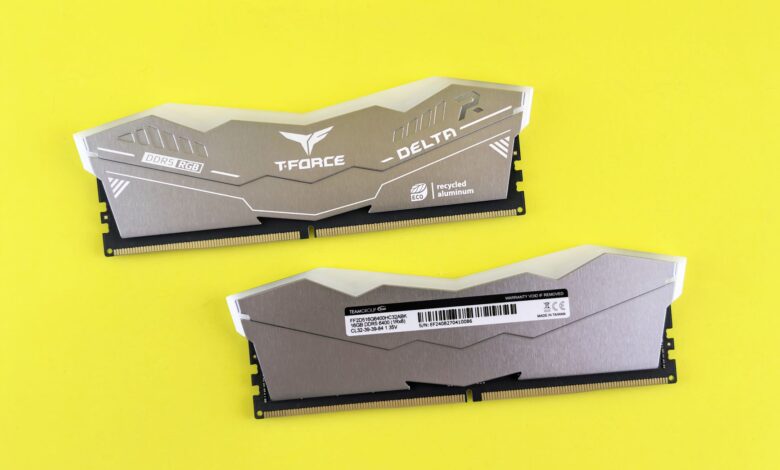
The motherboard will have already provided most buyers with the answer to whether they should purchase DDR4 or DDR5 memory. Because DDR4 and DDR5 use incompatible slots, a motherboard designed for either type of memory will not accept the other type of memory. Additionally, the processor that you select will generally determine which type of memory (DDR4 or DDR5) you can use in your build. Therefore, instead of asking whether DDR4 or DDR5 memory is right for you, the most valuable question is, “What type of motherboard do you own?”
The cost of memory is making the question much more complex in 2026. Memory has quickly risen to become one of the most expensive components to purchase when building a computer. This means that the price gap between the two generations of memory is larger than just the cost of two memory modules; it is now a whole platform cost — including the price of the processor, motherboard, and memory. There was a recent example on Tom’s Hardware Forum of someone who purchased a motherboard and DDR4 memory separately, only to find out after making their purchase that the motherboard only accepted DDR5 memory. So, always check what type of memory your motherboard will accept before you buy.
Is DDR5 RAM compatible with your motherboard and CPU?
The motherboard determines whether a system supports DDR5. DDR4 and DDR5 memory modules have their own uniquely placed locating notches, so they will not fit into each other’s sockets. Therefore, if a motherboard has been marketed by the manufacturer as a DDR5 motherboard, it will only accept DDR5 memory. The processor is limited in the same way by the motherboard.
The second limit is where much of the confusion regarding DDR compatibility comes from. The specifications for an Intel Core i7-14700K processor indicate that the processor can support up to DDR5 at 5600MHz or up to DDR4 at 3200MHz (depending on what type of memory is in the motherboard). A finished motherboard will provide only one of those two types of memory in its memory sockets and route the traces accordingly. As such, whatever flexibility the memory controller offered by the processor is lost the moment the user selects the motherboard. In order to use a higher generation of DDR after obtaining a motherboard that supports a specific generation, the user must obtain a new motherboard.
The newer sockets do not provide a second type of DDR compatibility. For example, the specifications of an Intel Core Ultra 5 245K processor state that it supports DDR5 at 6400MHz only; this processor does not support DDR4. Similarly, the specifications for AMD AM5 parts like the Ryzen 5 7600 indicate that they support DDR5 on both memory channels.
| CPU and platform | Memory the maker lists | What the board must be | What it means for you |
|---|---|---|---|
| Intel Core i7-14700K (LGA1700) | Up to DDR5-5600 or DDR4-3200 | A DDR4 board or a DDR5 board, never both | You pick the generation once — when you pick the board |
| Intel Core Ultra 5 245K (LGA1851) | Up to DDR5-6400 | DDR5 only | No DDR4 option exists on this socket |
| AMD Ryzen 5 7600 (AM5) | DDR5, two channels | DDR5 only | Moving to AM5 means budgeting for DDR5 |
The suffix at the end of the motherboard’s model number contains the information that actually determines compatibility, so it’s easy to miss when you skim over a product page. A Z690-A Pro WiFi DDR4 motherboard is not the same as a Z690-A Pro WiFi motherboard, even though they have similar model numbers. On the Linus Tech Tips forum, a user who builds computers noticed that his DDR4 RAM kit would not physically fit into his motherboard because the notch on the RAM wasn’t aligned properly with either orientation. He asked if all DDR4 RAM was physically compatible with all boards, and the answer was that his motherboard was actually the DDR5 version. After learning this, he returned to the retailer where he purchased the motherboard and received an exchange for the correct DDR4-compatible model.
You can prevent such confusion before ordering your components by going to the manufacturer’s website and finding your specific motherboard model. Once you have found your model number, navigate to the specifications for memory support and look for either “DDR4” or “DDR5”, as well as how many memory slots your board has. Keep in mind that the title of a retailer’s listing includes the model number, but does not include specifications for that product. (These tips are specific to desktop motherboards; laptop memory is needed for laptops and is formatted differently from desktop memory.)
After verifying which generation of RAM is compatible with your motherboard, you need to decode the numbers associated with your motherboard.
DDR4 vs DDR5: what bandwidth, latency, capacity, and power really mean
The memory listings we see in stores mostly consist of two main numbers: a 4-digit speed number, and then the number of CL (column latency) which is 2 digits long. However, neither of these numbers is really what the product’s packaging suggests.
In the case of speed, this speed is described in terms of megatransfers per second (MTPS), not megahertz (MHz). What that means is that with double data rate memory, data is transferred 2 times for every clock cycle; hence, Puget Systems’ memory-speed explainer points out that the industry moved away from indicating speed with MHz as they were always an effective transfer rate rather than the true frequency of the DRAM. To illustrate this point, if you buy a DDR5-5600 memory kit, the chips will actually operate at 2,800 MHz.
In addition to these speed numbers, every DDR5 memory module is a completely different technology than DDR4 because they are built to a separate standard. This standard for DDR5 was created by JEDEC through their JESD79-5D Specification, version 1.41, which was published on November 2025; this standard outlines the physical, electrical, functional, package and signals that all DDR5 devices must comply with. As a result, this means that DDR5 is not simply a faster version of DDR4, but instead, a completely different type of memory with its own rules to follow.
The way each module is structured has a significantly effect on bandwidth. With DDR4, there is a single 64-bit channel for each module. Conversely, as noted by Crucial in making its DDR4 vs. DDR5 comparison, DDR5 subdivides each non-ECC module into two distinct 32-bit sub-channels, effectively doubling the burst length from 8 to 16, which Crucial describes as a higher channel efficiency. This allows the controller to interleave two narrower streams instead of having to drive one wide stream, therefore, using through-put before the clock frequency actually increases. Additionally, the nominal voltage required by DDR5 drops from 1.2 V to 1.1 V and all power regulation has been moved from the motherboard to the module itself.
CL is another trap because it measures clock cycles versus time. Therefore, comparing CL values from differing data rates produces apples-to-oranges comparisons between the two data points. The method of comparing true latency from two value sets by employing the arithmetic presented by Crucial produces: true latency in nanoseconds = 2000/data rate * CL. This is illustrated by running the preceding mathematics on two of the kits most often cross-shopped. The DDR4-3200 CL22 results in a true latency of 13.75 ns while that for the DDR5-4800 CL40 is 16.67 ns, so the older kit wins, at least on paper. Continuing the preceding example using a DDR5-6000 CL30 results in a true latency of 10 ns.
While capacity is considered a platform ceiling rather than a generational ceiling, Intel provides a maximum capacity of 192 GB for the Core i7-14700K, while the Core Ultra 5 245K has a maximum capacity of 256 GB, and your motherboard and module types further limit those numbers.
When a workstation purchaser considers ECC, they don’t mean DDR5’s on-die ECC. ASUS makes this clear in their own technical documentation: the correction provided by on-die ECC is only applicable/works within the confines of the DRAM die and does nothing to correct errors that occur externally to the die, on the memory bus, or between the motherboard and memory controller. End-to-end ECC requires two DRAM devices for each channel or memory rank, plus a motherboard designed to accommodate them. If you were considering purchasing DDR5 memory because of server-class error correction capabilities, you now know better.
How much difference does DDR5 make in games and everyday work?
The best response is an aggregate from numerous sources, and therefore you will see that any percentage is a comparison to someone else’s build.
Latest matched comparison comes from TechSpot’s DDR5 vs DDR4 gaming test, which was published on December 5th 2025. Steven Walton created his test using 12 games running at 1080p using a Core i5-12400F with an RTX 5090, this was purposely constrained by the CPU, so that he could compare memory types correctly. He compared 32GB of DDR5-6000 (CL30) on an MSI MPG Z790 Carbon Wi-Fi against 32GB of DDR4-3600 (CL14) on an MSI MAG Z790 Tomahawk Wi-Fi DDR4, using the Windows 11 (24H2) operating system. His average of all twelve games gave DDR5 an average increase of 20% over DDR4 when tested using both medium and ultra preset settings. While the average is of interest, it is helpful to observe how wide the variance around that average is.
| Game (TechSpot, December 2025) | DDR5-6000 vs DDR4-3600 | Tested condition |
|---|---|---|
| Marvel Rivals | About 33% faster | Medium preset |
| Cyberpunk 2077: Phantom Liberty | About 33% faster | Ray tracing ultra preset |
| Baldur’s Gate 3 | About 30% faster | Medium preset |
| Rainbow Six Siege X | About 7% faster | Medium preset |
| Assassin’s Creed Shadows | Virtually no difference | Ultra High preset |
You cannot depend on average performance to forecast your gaming system. In the case of this system, a run showing 20% overall increase also showed about 1/3 greater performance per title compared to a run of equal time that had essentially no difference with one of the titles, both of which had reached these results by removing the graphics card as the limiting factor. However, when you play at higher resolutions on a mid-range graphics card that is already limiting, the performance improvements due to the greater generation of memory are less than the graphical performance listed in the chart.
One of the performance increases observed in this test is worth mentioning. TechSpot measured the difference in performance between DDR4-3200 Gear 1, which was 7-8% faster than DDR4-3600 Gear 2 in Counter-Strike 2, therefore, although the overall maximum performance reported in the comparison was higher for DDR4-3600 Gear 2, DDR4-3200 Gear 1 ultimately delivered the faster performance in that particular title.
DDR5 speed testing conducted by Puget Systems on the Core i9-13900K and Ryzen 9 7950X with each having 64 GB of RAM installed confirms that the optimum frequency always delivers a speed increase; the maximum performance increase from Puget Systems using Core i9-13900K was reported as 4% and 7% using Ryzen 9 7950X compared to their highest JEDEC frequencies.
According to Puget’s analysis of Epic’s comprehensive shader compilation in Unreal Engine, this was the most serious workload for the company, accounting for close to 12% of the workload in Unreal. The workload produced from CPU rendering did not have much of an impact, if any at all. Likewise, Puget dated this article to June 2023, and it also includes a note commenting on its age, so you should view it strictly as showing the general trend of what was happening rather than being a current number. Additionally, it’s important to note that Puget was not able to complete any of its benchmarking runs for the AMD platform using DDR5-6400 memory.
Why RAM capacity, DIMM count, and configuration can matter more than the generation
The importance of speed is only apparent when there is enough memory to store what is actually being executed. The investment of purchasing a faster kit that is too small in actual memory will likely be the most disappointing trade, and yet it is encouraged by the specifications.
- Settle capacity before speed or timings. How much you need follows from your workload and how much you keep open at once, not from the generation on the box — and no capacity number is universal enough to print as a rule.
- For a given total, two modules beat four. AMD publishes the penalty in the spec sheet rather than burying it: the Ryzen 5 7600 specification lists DDR5-5200 as the official maximum with two modules, single- or dual-rank, and DDR5-3600 with four.
- Buy a matched kit rather than assembling one. Vendors validate and bin a kit as a set and store one profile that describes the set; two separately bought pairs were never tested together, whatever the part numbers say.
- Check which slots to fill. Your board’s manual names the two slots to populate first when you’re running two modules, and that placement is part of what the board was validated with.
A builder using an X670E Gaming Plus WIFI motherboard, Ryzen 9 9900X and four 32 GB RAM modules with a rating of 5600 MT/s has reported on MSI’s support forum that his machine would only boot at 3600 MT/s when all four RAM sticks were installed. The user said, “If I add the other two sticks, the system won’t boot unless I lower the speed,” while with the two sticks that matched each other, the rated speed would work. There are no fixes documented in the forum which would allow for running all four sticks at their rated profile.
This information is about one user’s experience with his system and should not be interpreted as a generalization. However, AMD has previously published specifications for the same socket family, where the maximum supported speed for the Ryzen 5 7600 has decreased from DDR5-5200 to DDR5-3600 due to having four RAM sticks instead of two. Therefore, if your goal is to have a maximum RAM capacity, the way to achieve it is to use two RAM modules, as specified by the platform.
What DDR4 and DDR5 really cost when the whole platform is counted
The sticker price on the memory kit is the least expensive part of this decision to make.
In other words, switching generations on an existing system is not really a memory purchase at all; it is a CPU, a Motherboard and Memory, and all previous parts become spare parts. As it stands now, the difference from the 2026 December comparison on TechSpot showed that the Ryzen platform it tested had an approximate price difference of 27% in total cost for CPU, Motherboard and Memory compared to the Intel i5-12400F with DDR4 memory, while the Ryzen CPU was estimated to run around 41-45% faster than the Intel CPU when it was throttled at DDR4 memory speeds. The difference in prices represents the value you place on the platform as a whole — the most noticeable piece of the platform is the memory.
Memory has a high degree of volatility with regard to pricing, and it appears that for 2026, the pricing has only gone in one direction. According to Tom’s Hardware’s RAM Price Tracker updated on September 14, 2026, the lowest US price for a 32 GB DDR5-6000 Memory Kit was $409 compared to $190 for a 32 GB DDR4-3200 Memory Kit. Additionally, the Tom’s Hardware RAM Price Tracker also noted that in October 2025, DDR5 Memory Kits were being sold in the $100-200 range and that today, the lowest current pricing starts well above that range. Remember that the tracked low prices are taken from a website that shows changing prices throughout the day, and you should always verify the price before you make your final decision to purchase.
If you are on a limited gaming budget, the comparison between DDR4 and DDR5 isn’t really what you should be focusing on, rather looking at Memory versus everything else you can buy with the same amount of money. In TechSpot’s examples where the GPU was the limiting factor, we can see that the RTX 5070 using Ray Tracing Ultra (63 fps) created an environment where performance was limited due to the CPU and Memory not being the bottleneck anymore.
Longevity is a much more important consideration than the “slogan”. For example, the Core i7-14700K uses an LGA1700 socket, whereas the Core Ultra 5 245K uses an LGA1851 socket, and the Ryzen 5 7600 uses an AM5 socket. To determine which Processor your chosen Socket will still support, and how long the Motherboard manufacturer will continue to provide BIOS updates for that socket, you need to ask yourself how you will upgrade your current platform in the future.
It is important to understand the difference between replacing an existing DDR4 system to get DDR5 only, and buying DDR5 when you are already upgrading both your Processor and Motherboard. Only one of these options is truly about “memory”.
How to compare DDR5 kits, speeds, timings, XMP, EXPO, and QVL support
The advertised speed of a kit reflects a test result but does not indicate the speed at which the kit is packaged or shipped.
As an example, Kingston’s FURY Beast DDR5 32 GB DDR5 memory kit (Part Number: KF560C30BBEK2-32) specification includes both the test speed and the SPD (Serial Presence Detect). The SPD reflects the default voltage and timing settings that the motherboard will use when first powered on, which will be DDR5-4800 CL40-39-39 @ 1.1 V. The SPD contains the profiles stored in memory, which have been tested and certified at DDR5-6000 CL30-36-36 @ 1.4 V with AMD EXPO and Intel XMP certification.
Also included with Corsair’s Vengeance RGB DDR5 32 GB DDR5 memory kit (Part Number: CMH32GX5M2D6000C36) specification is both the test speed and the SPD for this kit: the test speed is DDR5-6000 CL36 @ 1.35 V and the SPD speed is DDR5-4800 CL40 @ 1.1 V. Both of these kits, when initially powered on, will operate at the SPD speed, which is the slower of the two speeds, until the user enables the higher speed using the appropriate method.
The distinction between these kits is why Part Number is more important than Brand Name. The Kingston kit has both the AMD EXPO profile and Intel XMP profile; For example, Corsair lists their CMH32GX5M2D6000C36 as having Intel XMP, as well as extended compatibility with a motherboard that uses either an Intel 600, 700, or 800 series chipset. By including the limitations both companies provide, it is clear that Kingston’s data sheet also indicates that there may be a subset of motherboard/system configurations which can prevent the Kingston Product from being able to function at the maximum rated speeds and timings, and Corsair also provides a disclaimer that their products may require BIOS configuration changes to obtain the same results as listed based on other components in a complete build as well as the motherboard/cpu combination.
That gives you a verification order worth following before you pay:
- Read the SPD speed, not the headline. The datasheet or tech-spec tab tells you what the kit does with no configuration at all — assume that’s your speed until you’ve confirmed the rest.
- Open the memory section of your exact board’s specification. MSI’s memory-support instructions walk the path on its boards: search the model, open Specification, open Detail, and read the Memory section.
- Search the support list by the full part number. MSI states that if a kit isn’t found, “it does not necessarily mean it is incompatible; it means the memory has not been officially tested, and compatibility cannot be guaranteed.” A listing is positive evidence of testing, not a completeness guarantee — and absence is not a verdict.
- Match the profile to your platform. An Intel-XMP-only kit on an AMD board, or the reverse, leaves you at the SPD default unless you configure it by hand.
- Check the physical numbers and the return window. Kingston lists the FURY Beast kit at 34.9 mm (1.37 in) tall with its heatsink — compare that against your CPU cooler’s published clearance, and confirm the retailer’s return policy before the kit ships.
This checklist was developed to use as an assessment tool for this guide based on the differences between SPD and profile, the memory support and qualified vendor list entries made by the board, and the limits of platform profiles as outlined above. The checklist is not a laboratory measurement or certified rating.
DDR4 or DDR5? Use this decision matrix for your PC
Everything above collapses into a small number of situations. Find yours, then confirm the condition in the third column before you spend anything.
| Your situation | Likely direction | Confirm first |
|---|---|---|
| Existing DDR4 system that just needs more capacity | Usually stay on DDR4 | Board’s supported type and free slots; whether the platform still suits the workload |
| DDR4 owner tempted by DDR5 for memory speed alone | Usually don’t replace the platform for memory | Full replacement cost against evidence for your actual workload |
| New build on a DDR5-only socket | DDR5 is the only option | Capacity and a supported, stable configuration before chasing profile speed |
| New build where DDR4 and DDR5 platforms both exist | Compare complete platforms | Hold CPU class, board features, capacity and workload target as constant as you can |
| High-refresh gaming where the CPU is the limit | DDR5 can be worth real frames | Game-specific evidence with its CPU, GPU and settings preserved |
| GPU-limited gaming or ordinary office use | Difference is likely modest | Whether the same money buys more elsewhere in the build |
| Memory-bandwidth-sensitive professional work | Favour the tested configuration your application benefits from | Published measurements for that application, not theoretical bandwidth |
| Very tight budget with reusable DDR4 parts | DDR4 can stay rational | That the saving is real and the platform isn’t a dead end |
| Choosing a high-speed DDR5 kit | DDR5, subject to validation | Exact SKU, support list, BIOS version, profile type, module count, fallback speed |
If your application has two rows, then the compatibility row is always the most important. If you don’t have a kit that your board will support, you will receive a refund. There’s no need to worry that a compatible kit that’s only going to be used with its default speed will not work on a computer that has no overclocked capability.
Before you buy
Typically, the socket you use picks the generation of memory for you. All you’re left to do is ensure that what you order matches up with what’s documented for your motherboard to run. You should open the memory support page for your motherboard and search for the exact memory kit you plan on ordering by the full part number — and use MSI’s walkthrough on memory support and QVL to help you find that information. If you do this, your worst case scenario will be that the memory kit runs at its default speed until you activate an XMP or DOCP profile. If you don’t do this, then your worst case scenario will be purchasing memory your motherboard could never utilize.
Frequently Asked Questions
Will a DDR5-6400 kit work in a board or CPU that lists only DDR5-5600?
Typically, the memory will run at slower speeds for backward compatibility. Memory is also clock rate backwards compatible, i.e., the memory of a faster kit will run at the platform’s clock rate unless the manufacturer states otherwise. In other words, while the memory may not run at its maximum possible operating speed, Crucial’s “backward-compatibility” note for their memory indicates that the maximum speed of the memory stick will be limited to what the platform supports.
My PC won’t boot after I enabled the memory profile — is the kit faulty?
Generally, if the board cannot train the profile, it will revert to the module’s slower SPD default. Use your board’s documented procedure to reset its BIOS settings to default speed and test two modules before testing four.
Why does one listing say 6000 MHz and another says 6000 MT/s for the same kit?
The only difference between a marketing term and a technical term is in how you express it; thus, both are “the same.” Double Data Rate Memory transfers data twice per clock cycle, so the “MHz” marketing figure is actually a representation of an effective clock rate. So a DDR5-5600 kit uses 2800 MHz DRAM. The correct unit of measure for a DDR module is “MT/s,” which is why most manufacturers are moving to listing MT/s on their specification sheets instead of MHz.
