
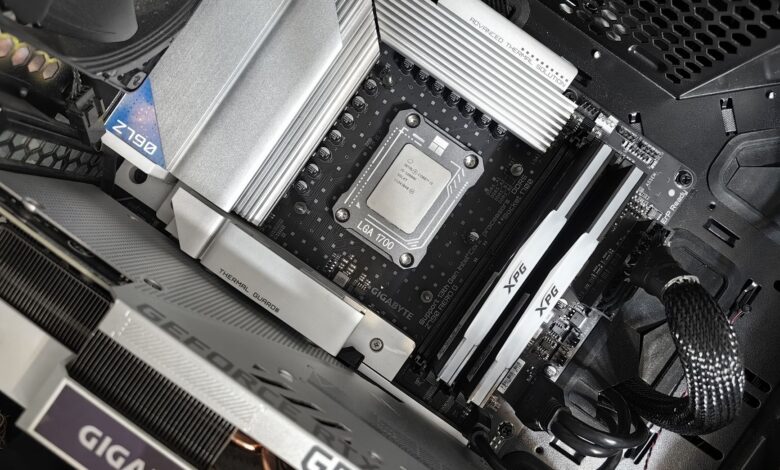
Installing a motherboard goes well when you treat it as five checks instead of one big job. Confirm the board fits your case and runs your processor, seat the processor gently, mount the board on only the spacers it needs, plug every cable where the board’s own manual says, then judge the first power-on by what you actually see. Do all hands-on work with the PC shut down and the power cord unplugged. ASRock’s pre-installation precautions warn that skipping this “may cause physical injuries and damages to motherboard components.”
Two caveats apply to everything below. There is no universal connector map, so your board’s manual outranks any guide, this one included. Spinning fans also don’t prove success: MSI’s no-display troubleshooting page is written for the case where the fans and LEDs work normally but the monitor stays blank. Start with two lookups that belong before any part leaves its box.
Before installing a motherboard, verify case fit and CPU support
The first lookup is size. Every consumer board has a form factor, such as ATX, Micro-ATX or Mini-ITX, and your case has to support that exact size. ASUS’s case-installation guide shows where to check: open the board’s Tech Specs page, find the Form Factor field, and confirm the case lists the same size (“If the size specification of the motherboard above is ATX, then the chassis must also support ATX”). ASRock’s manual says the same thing before its installation chapter: “study the configuration of your chassis to ensure that the motherboard fits into it.” Proprietary cases from prebuilt-PC makers may not follow these standard sizes, and this guide doesn’t cover them.
The second lookup is the processor, and this is where a matching socket can mislead you. The CPU socket is the mount on the board that holds the processor. A chip that physically drops into the socket still needs board firmware that recognizes it. AMD defines that firmware simply: “BIOS and UEFI are motherboard firmware that help a PC start up,” and its guidance (updated 08/12/2026) warns that “if the BIOS does not support the installed processor, the computer may fail to boot.” Intel says the same for one platform: 600 and 700 Series chipset boards “require a BIOS update to boot” 13th and 14th gen Core desktop processors.
Support is decided by your exact board model and its firmware version, not by the chipset family name, so look up your model on the board maker’s CPU-support list: ASUS, MSI, Gigabyte or ASRock. Note any minimum BIOS version listed next to your processor. These lists change as new chips launch, so check them on the day you build rather than trusting an old forum post. If you’re still deciding on a socket, the site’s guide to matching a CPU socket covers that buying-stage question.
If the list says your board needs newer firmware than it shipped with, settle that before first boot. AMD’s options are to ask the retailer about a BIOS update service, temporarily use an older supported processor, use USB BIOS Flashback if the board has it, or contact the board maker. AMD explains that Flashback-capable boards can update from a flash drive “even if the current BIOS on the motherboard does not have the software code to boot a new processor.” AMD’s loaner “boot kit” exists too, but it is available only for Ryzen desktop processors on compatible Socket AM4 boards, after the other workarounds have failed.
Here’s a worked example for anyone who searched “best motherboard for Ryzen 5 5600X.” AMD’s spec page lists that chip as Socket AM4, DDR4 up to 3200 MT/s, with “Discrete Graphics Card Required.” So the board needs an AM4 socket, DDR4 slots and a BIOS version listed as supporting the 5600X. You’ll also need a separate graphics card, and that matters again at first boot.
Prepare the board: seat the CPU in its socket and fit accessible parts
Some parts are easier to fit while the board sits flat on your table than after it’s screwed into a cramped case. Set it on a hard, non-carpeted surface. ASRock’s manual says to “NEVER place your motherboard directly on a carpet,” to use a grounded wrist strap or touch a safety-grounded object before handling parts, and to hold components by their edges.
Socket designs differ by platform, so follow the procedure for your exact socket in your board and CPU manuals. Intel’s LGA1700 installation guide, for 12th to 14th gen Core desktop chips, is a good model of the checks to make before closing the socket’s lever:
- Match the Pin 1 marker on the processor to the Pin 1 marker on the socket.
- Line up the notches on the processor with the socket’s keying features.
- Once the processor is in place, check that all four corners sit level.
Intel warns that improper installation “can damage your processor and make it inoperable,” and that closing the lever on a badly seated chip can bend the package corners. ASRock’s manual adds a rule for any socket: check for bent pins or a dirty CPU surface first, and “do not force to insert the CPU.” Keep the plastic socket cover. ASRock says it must be refitted if you ever send the board back for service. This guide doesn’t give alignment details for AMD’s AM4 or AM5 sockets, so use your board’s manual and AMD’s documentation for those.
Memory comes next if your case or cooler would make the slots hard to reach later. The ASRock manual warns that a memory module “only fits in one correct orientation” and that forcing it the wrong way “will cause permanent damage.” When it’s in, check both ends. ASUS’s troubleshooting guide lists “Confirm that the memory is fully installed” as its first memory check. Your manual will also say which slots to fill first when you’re using two sticks.
An M.2 SSD, the small stick-shaped drive that lies flat on the board, is also easier to fit now. Push it into a slot your manual says supports that drive type, then secure it. ASUS’s storage FAQ asks you to confirm “the M.2 screw is locked.” Some boards use a latch instead of a screw. Whether to mount the CPU cooler before or after the board goes into the case depends on the cooler’s size, its backplate, and how much room your case gives you, so follow the cooler’s manual.
Align the I/O shield and standoffs before securing the board
Standoffs are the small threaded spacers that hold the board off the metal case so its underside never touches the chassis. Cases often have holes for several board sizes, and some ship with standoffs already installed, so the ones in your case may not match your board’s holes. ASUS’s guide is direct about this: install standoffs only where the board has a screw hole, and “remove any standoffs that do not correspond to the motherboard’s screw holes to avoid excess standoffs touching the back of the PCB and causing damage.” Its example board has nine holes, but that number belongs to that board, not to yours.
The order matters, because one step can’t be fixed once the board is screwed down:
- If your board came with a separate I/O shield (the metal plate around the rear ports), snap it into the case’s rear opening first. ASUS says to install the shield “onto the rear I/O panel of the case, then install the motherboard.” Boards with a built-in shield skip this step.
- Compare the board’s screw holes with the case’s standoffs. Add any that are missing and remove any that sit where the board has no hole.
- Lower the board gently, line the rear ports up with the shield or case opening, and line the screw holes up with the standoffs.
- Drive in the screws until they’re snug. ASRock’s manual warns: “please do not over-tighten the screws! Doing so may damage the motherboard.”
A quick test before step 4: look along the rear ports from outside the case. Every port should sit cleanly in its cutout, with no shield tab bent into a USB or network port. If something is off, lift the board out and fix it now. That’s much easier than doing it after the cables are in.
Use the motherboard manual to connect power, front-panel headers, fans, and storage
From here on, connector names and pin positions really do differ between models, so keep the manual’s layout diagram open. Corsair’s front-panel guide puts it plainly: “the naming of these ports can differ from board to board,” so “you should read your motherboards manual.” It also warns that “incorrectly plugged cables can damage your motherboard.”
The table below lists each connection with its label in one specific manual, the ASRock B365M Phantom Gaming 4. It shows the kind of label to look for. It is not a map of your board.
| Connection | Comes from | Label in the ASRock B365M Phantom Gaming 4 manual (example only) |
|---|---|---|
| Main board power (24-pin) | Power supply | ATX Power Connector (ATXPWR1) |
| CPU/EPS power (8-pin, near the socket) | Power supply | ATX 12V Power Connector (ATX12V1) |
| Power button, reset button, case LEDs | Case front panel | System Panel Header (PANEL1) |
| CPU cooler fan | CPU cooler | CPU Fan Connector (CPU_FAN1) |
| Front USB and audio | Case front panel | USB3_5_6, USB3_4, USB5_6, HD_AUDIO1 |
| SATA drives | SATA data cable | SATA3_0 through SATA3_5 |
Power comes first. The 24-pin main connector and the separate CPU/EPS connector beside the socket both need to be fully seated, latch and all. MSI’s no-display checklist lists “Check whether the CPU’s power supply is properly connected” as a core hardware check.
The front-panel header is where look-alike pins cause trouble. It’s the small pin block for the case’s power and reset buttons and status lights. On the ASRock board above, the 9-pin PANEL1 header sits near the 9-pin COM1 header, which the manual says “supports a serial port module.” One Super User poster building on that exact board got no response from the case button. He later reported that the button lead was on COM1, and after moving it to the System Panel header, “the PC booted without problems.” The ASRock manual also warns that headers “are NOT jumpers” and that putting jumper caps on them “will cause permanent damage.”
Orientation matters for some front-panel plugs and not for others. Corsair explains that the power and reset buttons “will work either way” because they only bridge two pins. Polarity does matter for the power LED, the drive-activity LED and the speaker, so match the + and − markings the manual shows. Front USB plugs have a notch or a blocked pin so they fit only one way. Corsair advises looking closely at both the plug and the header before pressing.
Plug the cooler’s fan into the header the manual names for the CPU fan. On the ASRock board, a 3-pin fan goes on pins 1 to 3 of that 4-pin header. Case fans go on the chassis fan headers.
Next comes how to connect an SSD to the motherboard. A 2.5-inch SATA SSD needs two cables: a SATA data cable to a SATA port on the board and a SATA power cable from the power supply. An M.2 SSD needs no cables, but the slot has to support the drive’s type. In the example ASUS uses, the M.2_2 slot runs only PCIe drives, so a SATA-type M.2 drive placed there won’t be recognized. The same board shares M.2_1 with the SATA6G_1 port, which shuts off when both are used. ASRock’s manual describes a different rule for its board: “If M2_2 is occupied by a SATA-type M.2 device, SATA3_0 will be disabled.” Check your board’s storage table before choosing a slot.
Finally, think about where the monitor will plug in. If your processor has no built-in graphics, like the Ryzen 5 5600X, the monitor cable must go into the graphics card. ASRock’s manual says its board’s video outputs “can be supported only with processors which are GPU integrated.” Install the graphics card in the slot your manual names for it, with its power cables attached, and with the power cord still unplugged.
First boot: confirm POST and distinguish no-power, no-display, and no-boot-device issues
POST is the power-on self-test, the firmware’s startup check. Crucial uses the term when describing what a system has to finish before it can reach its setup screen. For a fresh build, the clear sign of success is the motherboard’s splash screen or its BIOS/UEFI setup screen on your monitor. Fan movement alone doesn’t count. The PCPartPicker first-time builder whose board showed “no signs of life” reported that “unplugging and replugging the CPU power connection seems to have solved the problem,” but at that point he had only seen the CPU fan come on. He was still planning to connect a monitor and keyboard “and see if I can get into the bios.”
Plug in the power cord, connect a monitor and keyboard, and press the case power button only to watch what happens. If you need to touch anything inside, shut down and unplug the cord first. Then match what you saw to one of these three cases:
| What you see | What it points to | First safe checks (power cord unplugged before touching anything inside) |
|---|---|---|
| Nothing at all: no fans, no lights | The board isn’t getting a start signal or power | Confirm the case power-switch lead is on the documented front-panel pins (MSI calls the header JFP1) and that both the 24-pin and CPU/EPS plugs are fully latched |
| Fans or LEDs run, but the monitor stays blank | The system has power but isn’t reaching a display | Check the monitor’s input setting and cable, whether the cable is in the graphics card when your CPU has no built-in graphics, that the memory is fully seated, and any debug light on the board |
| The setup screen appears, but no drive or boot device shows up | Storage detection or the boot path, not a power fault | Check the firmware’s storage listing, reseat SATA data and power cables, confirm the M.2 screw or latch, and check your manual’s slot-sharing rules |
For the blank-screen case, MSI’s checklist covers the display source, the video cable, the memory and the graphics card. It also suggests that a system with two or more memory sticks that won’t start should be tried with one stick, then the rest added back. Many boards also have diagnostic lights. On supported boards, ASUS’s Q-LED guide says a CPU, DRAM, VGA or BOOT light that stays on points to that area. MSI calls its version EZ Debug LEDs, and the ASRock manual describes a Post Status Checker that “emits a red light to indicate whether the CPU, memory, VGA or storage is dysfunctional.” What each light means varies by model, so read yours in the manual.
New DDR5 memory needs extra patience. Crucial reports that “a small number of DDR5 systems and motherboards” need a memory “training” period on first boot. During it the screen may stay black or pause on the splash screen, and it “in some instances has been seen to take up to 15 minutes.” If no specific error appears, leave the system powered on and let it finish before you start pulling parts.
For the no-drive case, ASUS’s storage FAQ starts by confirming the drive in the firmware’s Storage Information screen, then moves on to cables, seating and slot support.
Some manufacturer pages, MSI’s included, also describe shorting header pins with a screwdriver or clearing CMOS with a metal object. Those steps are outside a beginner installation, and this guide leaves them out. If your symptom doesn’t change after the checks above, the next step is your board maker’s support team. ASUS’s guides end with “please contact ASUS Product Support,” and AMD points boot failures to the motherboard maker for support or RMA (return) help.
Motherboard installation checklist
- Before you start: the case supports the board’s form factor; your exact CPU is on the board maker’s support list; any required BIOS version is handled; the power cord is unplugged.
- Board preparation: you’re working on a non-carpeted surface and have touched a grounded object; the CPU is seated per your socket’s markers with no force and all corners level; the socket cover is saved; memory is fully latched at both ends; the M.2 drive is in a supported slot with its screw or latch locked.
- Mounting: the separate I/O shield (if any) is in the case first; standoffs sit only under the board’s screw holes, with extras removed; the rear ports line up with their cutouts; the screws are snug, not over-tightened.
- Connections: the 24-pin and CPU/EPS plugs are latched; the case power lead is on the front-panel header the manual names, not a look-alike; LED leads follow + and − markings; the cooler fan is on the CPU fan header; SATA drives have both data and power; the monitor goes to the graphics card if the CPU has no built-in graphics.
- First boot: the splash or setup screen appears; if not, sort the problem into no power, no display or no boot device, and unplug before touching anything inside.
What to Check First
A build that seems dead is usually missing a step, and the step is usually one you can check by looking. Before suspecting a faulty part, unplug the power cord, then confirm three things: the case power lead is on the front-panel header your manual names, the 24-pin and CPU/EPS plugs are fully latched, and the monitor is connected to the right video output. Only the firmware setup screen tells you the board has passed its startup check. Fans and lights only tell you it has power.
Frequently Asked Questions
Do I need to reactivate Windows after replacing my motherboard? Likely yes. Microsoft says a motherboard swap means Windows “will no longer find a license that matches your device.” Link your Microsoft account to your digital license before the swap so the Activation troubleshooter can reactivate it afterward.
Can I install the I/O shield after the motherboard is already in the case? No. A separate shield snaps in from inside the case, so ASUS’s instructions have you fit it before the board. If you forgot it, unplug the PC, remove the board, install the shield, then remount the board.
Does the case power-switch plug have to go a certain way around? No. Corsair notes that power and reset switches “will work either way” because they only bridge two pins. Polarity does matter for the power LED, the drive-activity LED and the speaker, so follow the + and − markings for those.
Why does my Ryzen 5 5600X build show no picture from the motherboard’s HDMI port? That chip has no built-in graphics. AMD lists it as “Discrete Graphics Card Required,” so the motherboard’s video ports have nothing to output. Shut down, unplug, and move the monitor cable to the graphics card.
Do I need an anti-static wrist strap? ASRock’s manual offers two options: wear a grounded wrist strap or touch a safety-grounded object before handling components. It also says to never set the board directly on carpet and to hold parts by their edges.
