
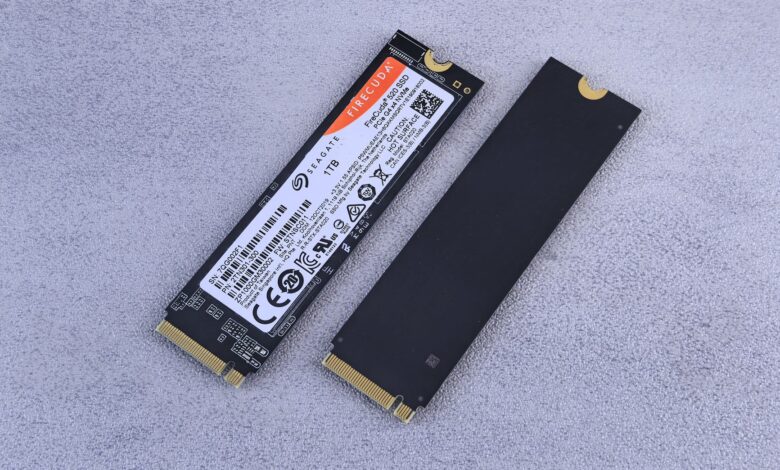
The installation of SSDs consists of two jobs, and it is typically the second that traps people. The fastest part of installing an SSD is physically getting it into your computer’s case, but much of the time you are trying to get Windows to recognise your new SSD will be an afternoon of frustration until you complete the process. Your new SSD may be seated properly in the motherboard (screwed into place, powered), and still won’t appear anywhere in your File Explorer until you complete the formatting process since, until you finish formatting, Windows considers the SSD to be a blank disk with incomplete information.
Before you even physically open the case to install your new SSD, you’ll need to determine which type of gum-stick SSD you are working with — there are many different brands and models, and Kingston would be the first to tell you that “M.2” refers to a form-factor (the shape of the SSD), but the actual drive itself may use one of two different types of communication protocols with your motherboard. Kingston’s M.2 SSD explainer is blunt that M.2 is only a form factor, and the drive under that shape may speak either of two different languages to your motherboard. Purchasing the wrong gum-stick SSD will result in it fitting perfectly into your motherboard, bolting down correctly, and appearing to be working properly, but it will not be recognised by Windows. The first thing you need to do before you grab a screwdriver to install the new hard drive is to check the communication protocol of the SSD.
Check the SSD type and your computer’s slot before installing
There are 3 compatibility factors that determine whether a computer can use a drive: The first factor is the shape of the drive, which includes having the correct “form factor”. The second factor is the length of the drive if it is an M.2 stick or card. The third and very important factor, which catches many purchasers off guard, is that the drive must have an interface that is compatible with the computer’s interface to the M.2 drive slot.
As stated in an article from ATP’s M.2 keys and sockets guide, the M-key only determines how the module will seat into the M.2 socket. An M-keyed socket can be wired either for PCIe NVMe only, SATA only, or both interfaces. If an M.2 SATA drive is placed into an M.2 PCIe-only socket, that drive will never be detected by the computer. The actual notch is designed to fit only into the M-keyed socket; it is not designed to guarantee the electrical characteristics of the interface. This is one of the reasons why a perfectly working drive can seemingly disappear.
Establish these four things before you buy or open anything:
- Form factor. A 2.5-inch drive is a flat metal box that mounts in a bay and takes two cables. An M.2 drive is a bare circuit board that plugs straight into the motherboard.
- Length, if it’s M.2. The size code is width then length in millimetres, so 2280 is 22 mm by 80 mm and 2242 is 22 mm by 42 mm. The standoff position on your board decides which lengths it accepts.
- Interface. Dell’s M.2 card and key reference separates the two buses plainly: a drive on the SATA bus runs at SATA speeds whatever its shape, while PCIe x4 drives use M keying because that’s the only key carrying four lanes.
- What the host supports. The slot’s own documentation is the only place that says whether it carries SATA, PCIe, or both.
The keys provide a rough indication of compatibility. Kingston’s explanatory notes say that if an M.2 drive has both M and B keys, it will be a SATA drive; if it has only M key it will be NVMe—a useful piece of information if a listing does not provide details, but it does not tell you anything about the wiring of your socket.
A compatible drive is not necessarily a functional drive. Before making a purchase, check your model’s specification page/specific service manual; find the Storage section, and read the supported interface and length of each slot.
Prepare the computer without risking data or hardware
Before you even have your hands on the drive, there are two things that can happen: you can lose data and you can experience hardware failure due to an unseen electrical discharge. It’s inexpensive to avoid either of these problems, but the cost of recovery is much higher than either prevention cost.
- Back up anything you’d miss. Copy files to an external drive or cloud storage — not because installation usually destroys data, but because the Windows steps later in this process permanently erase whatever disk you point them at.
- Find your model’s service manual. It names the panel, the screws, and whether the battery disconnects, and those details vary by model even inside one product line.
- Shut down fully, then unplug. Not sleep, not restart. iFixit’s device safety rules are blunt about it: the device should be physically unplugged rather than just switched off, and the battery comes out before disassembly wherever that’s possible.
- Drain the residual charge. With the machine unplugged, hold the power button down for several seconds. Capacitors hold a charge after the wall cord comes out.
- Ground yourself, then keep grounding yourself. Touch unpainted metal on the chassis before you reach inside, and again after you’ve walked across a carpet. Static you can’t feel is enough to damage a controller.
- Handle the drive by its edges. Never touch the gold contacts.
An additional requirement applies to many modern versions of Windows machines: Device Encryption. According to Microsoft’s Device Encryption Documentation, when users initially log into their machines for the first time using a Microsoft Account on the device (during setup), Device Encryption has also been enabled for that machine and a recovery key has been associated with that Microsoft Account. If you receive a recovery prompt after performing a major firmware update, then that recovery key will be what allows you to access your files.
To ensure you have access to this recovery key before making any changes to your machine, you need to check whether you can locate the key in the Microsoft Account that was used during initial sign-in. If you do not use a Microsoft Account to log in, Device Encryption is not automatically enabled according to Microsoft’s documentation.
Install the SSD in a desktop: M.2 and 2.5-inch SATA paths
Two distinct physical approaches exist when installing a desktop system. Mixing these up is typically the reason a first-time installation fails. The first physical approach involves a connector that is located at the board level (and is attached with a screw), whereas the second approach uses a mounted drive that requires connecting two separate cables.
Seating an M.2 drive
- Find the slot and clear it. Some boards cover M.2 slots with a heatsink held by one or two screws; remove it and peel the plastic film off any thermal pad underneath.
- Move the standoff to the hole matching your drive’s length if the board uses a movable one.
- Hold the drive by its sides, align the notch with the ridge in the slot, and insert at roughly a 30-degree angle. Crucial’s M.2 installation guide gives the same angle and adds the rule that matters most — don’t force the connection.
- Press the free end down flat and fit the retaining screw. Snug, not tight: Crucial’s guide warns specifically against overtightening.
- Refit the heatsink if you removed one, then close the case.
Mounting a 2.5-inch SATA drive
- Find a free 2.5-inch bay, or a 3.5-inch bay plus an adapter bracket.
- Secure the drive with the screws that came with the case or the drive.
- Run a SATA data cable from the drive to a SATA port on the motherboard.
- Run a SATA power connector from the power supply to the drive. HP’s SSD installation walkthrough lists these as two separate steps for a reason: they’re two separate cables.
- Check both connectors are fully home before the side panel goes back on.
You must remember this: The cables are not interchangeable; if there is data on your SATA drive but not enough power connected, it will be considered an electrically dead device by the system. The drive will not be listed in your firmware or Windows, in fact, it will appear as a completely failed hard drive, so make sure to verify both ends of both connections before jumping to any conclusions.
Install an SSD in a laptop only after checking the exact model
The existence of an M.2 interface on the bottom cover of a laptop does not indicate that it will necessarily be possible to upgrade the system to a bigger NVMe SSD later on. Different manufacturers may sell laptops with the same name and model number (e.g., XPS 13) under the same brand name, but there may be substantial differences between the different boards, including number of slots, sizes, and types of drives supported by each board.
Dell has published a very clear and straightforward document regarding the size and type of NVMe SSDs available for its laptops. According to Dell’s guide, “While two models of the same Dell product line may use different internal components…”, there are no guarantees that the M.2 connectors on two different boards within a single model will be the same size or compatibility. It also warns that “Visual inspection of M.2 connectors on laptops is not a reliable way to determine whether or not they will accept a specific size of NVMe SSD”, and that just because a connector has multiple screw holes does not mean it can accommodate all available lengths of drives, as the firmware or clearance on the motherboard may limit the maximum length of drive possible.
Before you order a drive, get the service manual or setup-and-specifications guide for your exact model and confirm:
- How many storage slots the machine actually has, and whether the spare one is already populated.
- The supported length for each slot, since the wrong length either won’t reach the standoff or will foul the panel.
- Whether each slot carries NVMe, SATA, or both.
- Whether the panel and the drive are treated as customer-replaceable parts at all.
- How the battery is disconnected, since many laptops no longer have a removable one.
The Dell guidance mentions that if a drive is short for its slot, it won’t line up to the retaining screw and that without securing the drive in place, it may not create a solid connection, which causes periodic discovery of the device instead of a complete failure. This is problematic because it creates false impressions of a failing drive.
Check whether BIOS or UEFI detects the drive
When powering on your PC, access the firmware setup prior to letting Windows boot. This branch determines what happens next. If the machine cannot find the drive through its own firmware, formatting the drive will not resolve the issue. You are experiencing a hardware problem.
Typically you can access setup by pressing either the Del key, the F2 key, or the F10 key at power on, depending upon the manufacturer. When inside of setup, look for a screen that displays the drive/storage information (as opposed to the boot menu), as these are two different lists. Also, a data drive without an operating system can legitimately show up in one list but not the other.
Although the motherboard drive-detection FAQ from ASUS deals specifically with their boards, you may want to read it even if your board is manufactured by another company, because it provides concrete examples of how the two-slot rule applies to many of the silent failures. In the illustrative example, the first M.2_1 port can accept both SATA and PCIe mode drives. The M.2_2 port only supports PCIe mode, therefore a SATA-based M.2 drive installed in the second M.2 slot can’t be recognized. In addition, in this board example, the use of the first M.2_1 port for a drive, will cause the drive plugged into the SATA6G_1 port to be “hidden” when the first M.2 slot is filled.
Just because a drive does not show up in the firmware listings does not mean that it is dead. ASUS explains in their FAQ that PCIe-mode M.2 drives appear in an older motherboards BIOS EZ Mode storage list due to the way the firmware was built; the ASUS FAQ further indicates that this behaviour is a normal occurrence. Therefore, be sure to check the advanced screens and/or refer to your motherboard’s manual before deeming anything a failure.
If Windows cannot see it, check Disk Management before changing BIOS settings
In the moment when the firmware detects the hard disk, it is time to boot into Windows. This is the most common point where users come to the conclusion that they have purchased something defective. There is an extensive record of this on an r/buildapc troubleshooting forum in which an individual writes about a newly purchased hard disk being shown in BIOS but not being present in Disk Management. The individual notes that the standard response to “Go to Disk Management to initialize your hard drive” is not helpful because there is no second hard drive listed there. The community provides the question and Microsoft provides the answer.
A hard disk that has not been initialized cannot be used as a usable storage medium in Windows. According to Microsoft’s Initialize New Disks procedure, when a new hard disk is added to Windows, it will not appear in File Explorer until it has been initialized, assigned a volume letter, formatted, and given a letter designation; therefore, until all four of these events occur, the hard disk is present in the system, but it is not visible to the user.
Run the sequence in Windows Disk Management:
- Right-click Start and open Disk Management, or press Windows + R and run
diskmgmt.msc. - Find the new disk in the lower pane. If it shows as Offline, right-click it and choose Online.
- Right-click the disk and choose Initialize Disk. Microsoft’s guidance is to use GPT on a modern system with UEFI firmware, and MBR only for older hardware that doesn’t support it.
- Right-click the unallocated space and choose New Simple Volume.
- Accept the full size, pick a drive letter, and format as NTFS.
Initialization removes all data on a selected disk. Initialization is also described in Microsoft’s documents as a process to start using a disk that currently contains no data, but initialization will remove all the data from a disk that is already being used. Double-checking the Disk Number before clicking the mouse is especially important when you have multiple drives connected because it will be easy to click on the wrong disk.
A simple practical check is: if the Disk Management screen appears to be short, there may still be additional disks on the screen, just out of view, below the bottom of the lower pane. You can create a larger Disk Management window by dragging the sides of the window up.
Treat a new boot drive as a separate installation or cloning job
Making a drive visible to Windows means that it is ready for use as a storage device. However, simply making a drive visible also does not make it the primary drive your computer will boot from. The reason many users experience this issue is because they confuse these two separate tasks; therefore when they complete an installation on a new SSD and then reboot, they are taken back to the previous (old) drive instead of their new drive.
If you intended to use your new SSD as a place to store only games, photos, or documents, you would have already completed that task in the preceding section. If it’s meant to replace the drive Windows lives on, you have two routes:
- Clone the existing drive. Kingston’s M.2 installation guide walks the sequence: install the new drive alongside the old one, run cloning software, choose source and destination, let it copy, then make the system start from the new drive — which in practice often means physically removing the old one so the machine has no alternative. Everything comes across, including whatever was already slow or broken.
- Install Windows fresh. You create installation media, boot from it, and set the drive up from nothing. It takes longer and you reinstall your applications afterwards, but you don’t drag a years-old installation onto new hardware.
The decision you made regarding the partition type of your disk during installation determines whether your PC will be able to boot from it. If you’re using a Dell NVMe SSD, Microsoft’s guidance on Windows 11 indicates that the only way to boot Windows 11 is through UEFI, which requires that the operating system’s disk use GPT partition style. This means that the partitioned drive you selected in Disk Management was an important factor, not just from a cosmetic point of view, because a drive that is set up with MBR cannot be used as the system drive for Windows 11.
What to check when the SSD is still not detected
At this point, you have an extremely important piece of information: what the last layer of the drive saw. This information is your diagnosis and it significantly reduces the number of potential causes to a small number.
You should begin your work from the location of the last layer where the drive appeared.
- Nothing anywhere, in firmware or Windows. Reseat it. Dell’s NVMe guidance lists the physical causes first — a drive not fully seated or not secured with its screw, the wrong length for the slot, or a slot that supports only the other interface. Reinsert at about 30 degrees, press flat, replace the screw, and retest before changing anything else.
- Firmware sees it, Windows shows nothing at all. Check the storage-controller mode and whether the slot is enabled in setup, and check whether the firmware itself is current, since an older release may predate support for newer drives. Change one setting at a time.
- Firmware and Device Manager see it, Disk Management doesn’t. This state has a specific documented cause. Dell’s guidance on a new SSD missing from Disk Management explains that where Windows Storage Spaces was already configured, Windows may add the new drive to an existing storage pool automatically, which stops it appearing as a standalone disk — and Dell states plainly that this doesn’t indicate a faulty SSD. Removing the drive from the pool restores it.
- Windows shows it as unallocated or unlettered. That isn’t a fault. Finish the initialise-and-format sequence.
- It works in another machine but not yours. The drive is fine; the slot, the firmware, or the configuration isn’t.
- It works nowhere. Now you have a returns conversation, and your receipt matters more than another setting change.
Confusion over which state to apply makes answering this question online very difficult. In the case of a highly viewed Super User Question about fitting an NVMe drive into an M.2 SATA port, there is an accepted answer that states that if a device fits within the socket, then it will work; however, there is a subsequent comment that flatly contradicts this. The specification resolves the confusion and provides an answer to the question by stating that the way the socket is keyed dictates how devices will fit into the socket, while the physical wiring within the socket determines what functions the device performs.
Run this checklist in order — it works for a first-time install and for chasing a drive that won’t show:
- Confirm the drive’s form factor, length, and interface against your model’s documentation.
- Back up your data and locate your encryption recovery key.
- Shut down, unplug, drain residual power, and ground yourself.
- Seat the drive — screw for M.2, data and power cables for 2.5-inch SATA.
- Check the firmware storage list before booting Windows.
- Initialise, partition, format, and assign a drive letter in Disk Management.
- Handle boot-drive migration separately, by cloning or clean installation.
- If it still doesn’t appear, diagnose by the last layer that saw it.
The checklist has been developed for this guide using real-life data. The data is based on the four detection states, outlined above, where you can check whether your physical seating, firmware detection, Windows disk visibility, and boot configuration are set correctly. The checklist does not provide a lab measurement or rating or any certification.
Once you have used up your documented firmware settings, you should not be changing firmware settings anymore. If you change your storage controller or your boot mode when you have completed your Windows installation, you may create a condition that makes it impossible to boot either your original Windows installation or any new installations. You must refer to your model-specific manual for information on which firmware settings are safe on your motherboard.
Making It Work
If an SSD does not show up at all, it is seldom an indication that an SSD has “died”, rather it is an indication that the drive is “stuck” at one of the four layers of the SSD, and knowing which layer the SSD is “stuck” at will inform your process of what to do next. Before purchasing the SSD, confirm what drive your machine actually supports by searching with Crucial’s Upgrade Selector by manufacturer, product line and model number. You can confirm the supported length and interface for each slot in your model’s service manual and avoid spending an evening trying to install an SSD that is not compatible with the slot it was installed into. After confirming compatibility, installing the SSD is normally the easy step.
Frequently Asked Questions
Can I put a shorter M.2 drive in a longer slot?
The only way to have a working NVMe drive is through correct sized hardware; Dell’s NVMe Guidance states if a NVMe drive is too short for the designated slots it cannot be secured by its retaining screw, and therefore will likely fail to maintain a proper connection. While adapter brackets are available, the proper length is safer than using them.
Do I need to update the firmware before a new drive is detected?
The first tip that any hardware manufacturer will give you is to check for updates. In the case of NVMe, Dell states on their own NVMe Configuration Guide that some newer SSDs will not be recognized on NVMe drives unless the system’s BIOS has been updated to support those new SSDs, and ASUS includes an “Update BIOS” link first in their Troubleshooting FAQs for NVMe. Therefore, to ensure that you obtain the latest BIOS version, go directly to the manufacturer’s official support page for your computer model.
Should I choose GPT or MBR when Windows asks?
Microsoft’s recommendations for using GPT regarding current computers are: use GPT when you have UEFI firmware and want the capability to use large drives (greater than 2TB) along with having more than four partitions; use MBR on older hardware or operating systems that do not support UEFI.
Does installing my own SSD affect a laptop’s warranty?
Make sure to check everything before opening your device; don’t wait until later. Be sure to read the warranty terms and lists of customer-replaceable parts published by the manufacturer for your specific model. You will find both in the warranty document and service manual that correspond with your particular model.
