
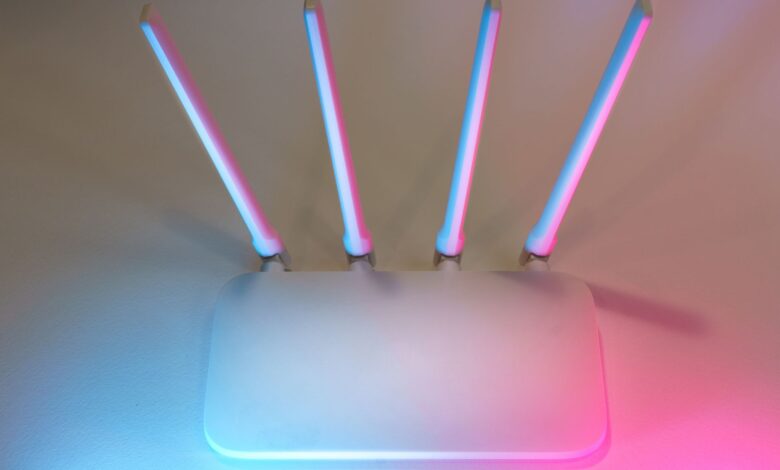
If you come across a smart lock or sensor which claims it requires an additional hub to function, do not assume that means an additional purchase; one example would be a hub that you currently have in your possession may fulfil that purpose. You simply must ensure that it is the same model as your smart lock or sensor has the appropriate frequency radio for communication.
The hidden component within the smart lock or sensor which allows it to operate on the Internet of Things (IoT) is referred to as the Thread Border Router (TBR). TBRs may be found within select smart speakers, streaming media devices, display screens, and mesh Wi-Fi products, but not every device manufactured by that company will contain a TBR. When purchasing TBR-enabled devices, you must ensure that your smart lock, IoT device, your home network, and your smart lock’s “keys” are all compatible with one another before attempting to use them together. It may also help to review the product packaging prior to purchasing.
How a Thread border router connects Thread to Wi-Fi or Ethernet
A mesh network is a low-power networking technology that connects devices to the Internet using Thread, a low-bandwidth mesh networking technology for small smart home devices such as motion sensors and switches. The Home Assistant Thread documentation states that “Thread is a low-bandwidth and low-power mesh networking technology built using the same IPv6 IP addressing scheme used by your laptop and mobile devices”. The primary difference between Thread and Wi-Fi is that Thread devices cannot connect directly to your Wi-Fi network; they must use a device that connects to both Thread and Wi-Fi.
This bridging or connecting device is referred to as a border router. According to the OpenThread Border Router documentation (updated Sept 28, 2026), a border router serves four essential functions if you have a Thread network and want to use it to connect to a wireless (Wi-Fi) or wired (Ethernet) network. These functions are: bi-directional IP connectivity between the Thread network and Wi-Fi or Ethernet; bi-directional Service Discovery, allowing devices to discover each other; providing merging of partitioned Thread networks combined with wireless or wired links (the merging of device communication on Thread with device communication on Wi-Fi or Ethernet); and enabling outside devices (e.g., a mobile phone) to connect (authenticate) with the Thread network.
The path looks like this:
Your phone or controller app → home Wi-Fi/Ethernet → border router → Thread mesh → your lock or sensor
While the border router is often described as a “translator,” this is not an entirely accurate description. According to the Thread Fundamentals documentation from Silicon Labs, the border router operates in complete transparency to the layers above the network layer, enabling applications to communicate directly over the network without the need for any translation at the application layer. Home Assistant states this as clearly as possible: “the border router does not look at what is inside the packets it forwards.” The only place where translation occurs is with the IPv6 packet format and the IPv4 packet format when a destination device only supports the IPv4 format; this is called NAT64 and occurs at the address level, not on the content of the message, i.e., “unlock the door” command. The Thread 1.4 white paper explains this conversion.
The step of discovering your devices is just as important as the step of configuring your devices. When you use a border router, it broadcasts its presence across your local network, but Home Assistant has no idea what your border router’s credentials are for accessing the devices connected to it. Just because you see a border router does not mean you will have access to add devices through it; this will be addressed later in this guide.
Thread router vs. border router vs. Matter controller
These labels are often used interchangeably and produce confusion, resulting in people purchasing duplicate hubs. The table below provides a breakdown of the different types of roles as explained by vendors on their various product pages linked to this section.
| Role | What it does | What it doesn’t do |
|---|---|---|
| Thread router (mesh extender) | Relays Thread traffic between nearby devices | Connect the mesh to Wi-Fi |
| Thread border router | Routes packets between Thread and Wi-Fi/Ethernet | Read or issue device commands |
| Matter controller | Adds, manages and controls Matter devices | Supply a Thread radio by itself |
| Wi-Fi router | Runs your home Wi-Fi and internet link | Talk to Thread unless it has a radio |
On its Google TV Streamer Thread page, Google explains that “Thread mesh extenders” are used to relay information between Thread devices, and that the mesh is connected to the internet via a separate border router, which can be connected to the internet via Wi-Fi or Ethernet. Amazon’s Matter documentation states that an Amazon Echo serves as the Matter administrator that discovers and connects devices: it states that “the Echo will discover the Matter-enabled devices on your network, then connect to them.” Home Assistant adds that the border router “does not control devices.”
Home Assistant provides the following example. The Nest Hub (2nd gen) is a smart display, Google Home controller, Chromecast target, and border router rolled into one product. If you would like to learn more about how the different types of controllers and hubs fit within a smart home, please refer to our Matter smart home setup guide. This article focuses exclusively on the network aspect.
How the standard and vendor layers fit matters too. The Thread Group writes the Thread specification and opened its Thread 1.4 certification program on 09/04/2024. But Home Assistant points out that setting up and configuring a border router isn’t part of the Thread standard, so Apple and Google border routers are set up through their own ecosystems. A “Thread” logo tells you which radio standard is inside. It doesn’t tell you how a vendor’s app handles setup.
The information above does not provide anything about privacy. The border router simply forwards packets; therefore it does not have access to the account creation, cloud usage, or data collected by the controller platform (Nest). Technical data collected by Nest, according to Google’s Nest Privacy FAQ, includes: device make and model; IP and MAC address; and detection of other devices connected to your network.Device to device and device to app communication will occur locally on your network, especially when the device is configured to operate as a border router. You should think of the border router as a piece of plumbing, not a promise about privacy. Therefore, you should read the privacy policy of the platform you are using.
You need one for Thread devices—not every Matter device
Matter represents a universal language of control over home electronic devices, and the Thread communication protocol represents one way to transfer data over Matter-enabled devices. Matter-enabled devices can connect to and communicate through Wi-Fi, Ethernet, and Thread. If a user’s only Matter-enabled devices operate using Wi-Fi, then a Wi-Fi hub is all that is required to control those devices; however, once an additional Matter-enabled device is added to the user’s network that communicates over Thread, then Google’s Matter hub guide recommends that the user also purchase a router capable of acting as a border router for that Thread device. Both Google’s Matter technical documentation and Amazon’s Matter specifications also say that in order for Matter-over-Thread devices to interact with each other and function properly, a Matter router must first commission the device through the border router prior to connecting.
To summarise how many Matter- and Thread-enabled devices require border routers from the information provided by Home Assistant, one must first look for the “Built on Thread: requires border router” logo on the packaging or the Home Assistant product page. The user is advised to check the Wi-Fi or Thread logo on the packaging or product page and be aware that the Matter logo on its own does not guarantee that there is a border router required for that device.
There is additional information available concerning older HomeKit accessories and their connection to Thread networks through the Apple TV 4K. The technical specifications for Apple TV 4K indicate that it supports Thread networks for use with HomeKit and/or Matter-enabled devices. Therefore, if an older HomeKit accessory does not come with a Matter logo on it, then the device still needs a border router to properly communicate with the Apple TV 4K.
Thread border router list: verify the exact model you own
The information in this list is compiled from the Apple, Amazon, and Google documentation. It’s not a ranked list of products and shouldn’t be considered a recommendation to buy any of the products listed here. All information was verified on 10/6/2026 from the US English support pages, however, with new implementations of hardware and firmware the information listed may change. Additionally, as per Apple’s own documentation, the Apple TV and HomePod products aren’t sold everywhere; please check your region’s product pages if you are located outside of the United States.
| Maker | Listed as a border router | Similar models not on that list |
|---|---|---|
| Apple | Apple TV 4K (3rd gen) Wi-Fi + Ethernet; Apple TV 4K (2nd gen); HomePod (2nd gen); HomePod mini | Apple TV 4K (3rd gen) Wi-Fi model |
| Google Home Speaker (2026); Nest Hub (2nd gen); Nest Hub Max; Nest Wifi Pro (Wi-Fi 6E); Google TV Streamer (4K) | Nest Hub (1st gen); Nest Audio; Nest Mini; Google Home Mini; Google Home | |
| Amazon Echo | Echo (4th Gen); Echo Dot Max (2025); Echo Hub; Echo Plus (2nd Gen); Echo Show 21; Echo Show 15 (2nd Gen); Echo Show 11 (2025); Echo Show 10 (3rd Gen); Echo Show 8 (3rd Gen); Echo Studio | Echo Dot; Echo Pop; Echo Flex; Echo Input; Echo Show 5; Echo Spot (2024); Echo Show 15 (1st Gen) |
| Amazon eero | eero 6/6+, 7, Beacon, Max 7, Outdoor 7, PoE 6, PoE gateway, Pro, Pro 6/6E, Pro 7 | None on Amazon’s Matter list |
An example of how the Apple TV has created confusion is the fact that Apple’s Thread device list (published on 1/13/2026) mentions that only the Wi-Fi + Ethernet version of the third-generation Apple TV 4K has “Thread Networking Technology” in its technical specifications; the Wi-Fi-only model does not have Thread Networking Technology listed under Technical Specifications, even though they are both considered to be the same generation (3rd generation).
Google’s hub guide to their hubs is much clearer and lists their hubs by groups (Wi-Fi Only Group, Wi-Fi + Thread Group). Because of this, Nest Hub (1st Generation) cannot replace Nest Hub (2nd Generation). Google also has an unresolved conflict between the lists they published for developers and Home Assistant which listed Nest Wi-Fi (the original model) as a Border Router, while their current consumer hub list only lists Nest Wi-Fi Pro as a Border Router. Google’s developer page and Home Assistant’s list both name the original Nest Wifi as a border router, but Google’s current consumer hub list names only Nest Wifi Pro. As of right now, the safest assumption would be to treat the Nest Wi-Fi (2019) as unconfirmed and not support it until it is confirmed on Google’s consumer pages (which means they will need to update their consumer page to reflect the Nest Wi-Fi of 2019).
Two separate lists were published by Amazon, but what’s important is the space between each list – that’s the lesson to be gained from it. According to the Matter documentation provided by Amazon (which was updated on May 1, 2026), all Echo Dots from the 2nd Generation through present are Matter-compliant devices; however, not one standard Echo Dot device has yet appeared on its list of built-in thread border routers. The only Echo Dot device that has appeared on the built-in thread border router list from Amazon is the Echo Dot Max. The same documentation page also indicated that the Echo (4th Generation) is classified as a Thread 1.1 compliant device, whereas all the other devices on the built-in thread border router list are classified as Thread 1.3 compliant devices. Additionally, the Manufacturer’s Specification Sheets for the Echo Show 8 as well as the Echo Studio include information about the Device Name, Generation, and Release Date, so be sure to match the exact device with the manufacturer’s designation.
The Manufacturer Specification Sheet only describes that a manufacturer has produced and delivered the hardware for a device; whether the device works as intended you must verify with the Manufacturer App. For example, on Apple’s Home App, the Home Settings option and the Home Hubs and Bridges option will show your current active Home Hub at the top of the page. Additionally, for a Google TV Streaming Device the manufacturer states that the Thread Network Switch option located in the Settings Menu under Network and Internet must be enabled to be used as a Border Router.
One border router is enough; shared credentials determine whether more help
One border router is all you need for setup. According to OpenThread, a border router is the only way for a Thread network to connect with other networks. The term “a” implies that there is no need for more than one border router. However, the additional border routers serve as a backup. As stated by Silicon Labs, a collection of border routers provides redundancy to eliminate a single point of failure should one router become inoperative.
The backup only works under certain circumstances, as stated by the Thread Group. Border routers that share the same Thread credentials form a single mesh network in addition to having shared redundancy and reach. Border routers that do not share credentials establish their own individual mesh networks. While devices from different mesh networks can still communicate through IP, the Thread Group states that most end-users will not experience any practical challenges associated with this limitation. Ultimately you will not have increased redundancy and reach, but you will still have access to your Thread networks.
It is also quite common in practice to see two or more separate Thread mesh networks in the same home. According to Home Assistant’s documentation, when you start using a particular vendor’s device(s), that vendor “created its own Thread Network.” This means that the same physical space could have Apple, Google, and Home Assistant Thread Networks existing next to each other with no way for devices from one Thread Network to communicate with devices from another Thread Network. Google Developer Help describes the reason for this behavior; in order for a new border router to join a network or to create its own network, it must use the credentials assigned to it through Google Play Services that are associated with a user’s Google Account. The Google TV Streamer page contains information that these credentials are stored in the end user’s Google Account.
It is also possible for your phone to confuse things. In one support thread on the Home Assistant Community forums, one of the members who helps answer questions stated that if you see the error message “The credentials do not match,” this typically indicates your iPhone already has outdated Thread credentials stored in its keychain and recommended deleting the old credentials and trying again. This is one documented example of this issue – not a comprehensive measure for how common it is. However, it does illustrate how a new box can’t assist you if your phone is configured to look for a different network (Thread network).
Thread 1.4 addresses this issue with the following stipulations: The Thread 1.4 white paper lays out a standardized way of obtaining network credentials through Sharing (Credential Sharing). Once you have successfully logged into your device through the Vendor Specific login the existing Border Router will provide you with a limited life 9-digit/QR code that provides temporary access to the Thread Network Credentials. Different vendors are rolling out this capability at different times. Matter Alpha posted that tvOS 26 beta suggests Apple TV is advertising support for Thread 1.4. They also reported that Google has migrated Nest Wifi Pro and Google Tv Streaming from Thread 1.4 and are currently testing it on Nest displays through preview firmware, but the standard Google Home application does not appear to permit entry of one-time use Thread Codes. As of its May 01, 2026 update to its website, Amazon’s List still listed Thread Version 1.1 and 1.3. The presence of a “1.4” label indicates that the product is capable of functioning with Thread 1.4, however whether or not the networks will combine to form a single network is dependent on the application.
Map your Thread path before buying another hub
The device list includes all the hardware you currently possess. However, the device map indicates whether or not that hardware will be in the appropriate position for the required functioning of your device. The following template serves as a practical reference to provide guidance about your device(s) based upon the routing, discovery, and credential requirements identified previously. This template does not provide evidence of being an established industry norm. You are to complete the device map template by entering one line at a time in the template. You should stop your entry when you’ve completed as many lines as possible before stopping at the line that you cannot continue to complete.
THREAD PATH MAP
1. Accessory network:     [ Thread-only | Wi-Fi | Ethernet ]  (check box logo)
2. Controller platform:   [ Apple Home | Google Home | Alexa | Home Assistant | other ]
3. Setup phone + account: [ phone model ] signed in as [ account that owns the home ]
4. Local network:         phone and border router on same Wi-Fi/LAN?  [ yes | no ]
5. IPv6 on home router:   [ on | off | unknown ]
6. Border router model:   [ exact model + configuration ] on maker's list? [ yes | no ]
7. Role active in app:    hub/border router shown as active or toggle on?  [ yes | no ]
8. Thread network owner:  [ Apple | Google | Amazon | Home Assistant | several ]
The lines presented below represent points where there was a recorded failure. With respect for number three above, Apple has recommended signing into your device with Apple ID from the original configuration of your Home app, specifically [a device signed in to the Apple Account that set up the Home app]. For number four, Apple suggests that if an Ethernet cable is being utilised for your Apple TV hub, then you must ensure that the device is using the same WiFi connection as the device you are configuring it with (i.e., your iPhone). Google’s troubleshooting instructions for their TV streaming devices state that you will need to verify that both devices are connected to the same network as the TV streamer device, [check that the streamer and your setup phone are on the same network]. Finally, as stated in the Home Assistant documentation, some mesh Wi-Fi solutions will limit the connectivity of your phone to the mesh routers (i.e., your phone may be unable to access the mesh routers).
You can see that last problem in a real case. In the same community thread, the original poster fixed the error after realizing the border router was plugged into the main router instead of the mesh system providing Wi-Fi. For line 5, Google warns that without IPv6, setup can seem to succeed, but control eventually fails.
Your finished map lands you in one of four states:
- Not needed: Line 1 says Wi-Fi or Ethernet. Any Matter controller from your platform can handle the device without a border router.
- Already present: Lines 6 and 7 are both “yes” and lines 3–5 check out. You likely don’t need new hardware.
- Present but not usable: The hardware qualifies, but an account, network, IPv6 or credential line fails. Fixing that line costs nothing. A new hub would probably hit the same wall.
- Absent: Line 6 is “no” for everything you own. This is the only state where buying a border router actually fills a gap.
Check for a Border Router You Already Own
Check products you are interested in before spending money- you want to verify the product’s compatibility with a Thread network. When inspecting an accessory’s packaging, look for the Thread logo or “requires border router” logo. Then, look for the same model number and configuration of your display, speakers, streamer or mesh routers in the manufacturer’s website to find the latest product listings. Lastly, open the app to confirm that your device is functioning as a hub or border router. A lot of the risk is in the fine details, such as knowing that you have a 64GB Apple TV rather than a 128GB one; or that the Echo Dot you already own is an Echo Dot Max, and so forth- it is the little things that can cause issues in a Thread or smart home/system.
If you need to purchase a border router, it is best to buy it from the same platform that you already use. This increases the chance that the credentials from that router will ultimately connect with the credentials from your other devices, rather than having two separate sets of credentials in two Thread networks. As an example, this guide was published on 10/06/2026 and the model specifications shown on this guide reflect the information from the manufacturers’ websites on this date.
Frequently Asked Questions
Can my iPhone act as a Thread border router?
Apple has stated that Thread accessories can be made to work through a Thread-interface equipped iPhone (i.e., an iPhone 15 Pro on iOS 18). A Thread-connected home hub or third-party border router is required for any automations, alerts, etc., as well as for remote access if you are not in the vicinity of your device.
Do Thread devices need the internet to work at home?
Google explains that Matter devices do not use the cloud to control devices, but rather operate over a local network (i.e., your home network). Google does not provide the ability to control your Matter devices from a remote location without the use of an appropriate hub; and, even then, some features may require the use of third-party vendors.
Can I turn off the border-router function on a device?
Yes, the Google TV streamer (the most recent model) does have a Thread network switch under “Networking & Internet.” However, Google recommends that you leave this switch ON to remain connected to various devices; although, the Thread credentials saved to your Google Account should remain intact.
