
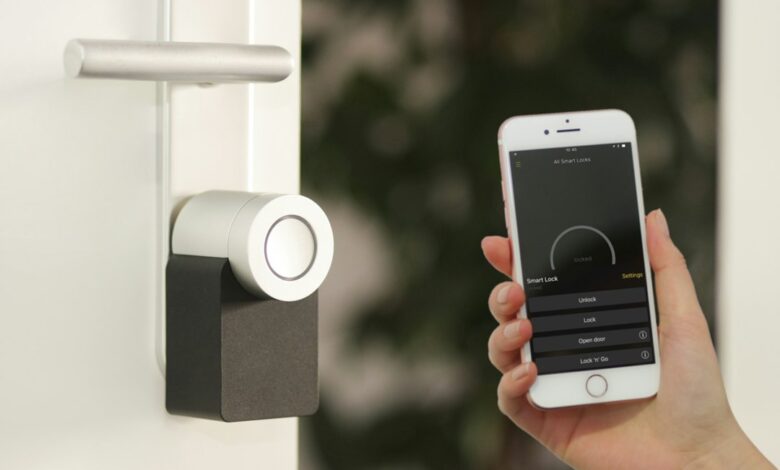
If you are currently using a small number of smart home products that connect to your Wi-Fi for power and operation (like smart bulbs, plugs, and other devices), then you most likely do not require another separate smart home hub. Any time you want to use Z-Wave devices in your market or if you want to be able to control battery operated sensors, smart locks and wall switches with Z-Wave technology, you will find this to be a worthwhile investment due to the fact that they will work even when you are not connected to the internet due to a network outage. The Z-Wave devices will never connect to your Wi-Fi network. Instead, they connect to a limited power, low band radio network that is operated through a controller device (hub). The devices that Amazon describes as Amazon Echo 2nd Generation and Amazon eero devices are Zigbee hubs; therefore, do not use either of these devices to serve as Z-Wave hubs.
The unfortunate thing is, companies that typically sell Z-Wave Hubs have become more difficult to find since the Z-Wave technology itself has become increasingly stringent in terms of standards. This has also meant that many companies have disappeared from the market place due to the increased competition generated by companies such as Samsung, who have recently released a SmartThings Hub that is not Z-Wave enabled. Consequently, it is vital to verify the radio frequency range, firmware version and radio device type of any smart home system you plan to purchase rather than simply purchasing based on the brand name on the box.
What a Z-Wave Hub Actually Does (Controller, Gateway, Hub — One Job, Three Names)
A Z-Wave Hub is the coordinator for your Z-Wave devices and is responsible for running the Z-Wave Network. All Z-Wave devices must join a Z-Wave Network that is managed by a Z-Wave Controller, so if you have Z-Wave hardware you must have a Hub. The terms “Z-Wave Controller” and “Z-Wave Gateway” are typically used interchangeably to describe the same type of device and functionality.
Samsung’s Support Documentation has a detailed explanation of what that primary function is. The SmartThings Hub is described as a Z-Wave Certified Central Static Controller, which can be used in conjunction with other manufacturer’s Certified Devices. Furthermore, the Support Document states that all non-battery-operated Z-Wave devices on the Network will act as Repeaters, regardless of brand. In other words, the Devices join the network, and not the brand.
Swapping out Hubs is more complicated than swapping out Routers. The SmartThings Support Document explains that Hubs contain their own unique Learning Mode, which allows the Hub to receive Network Information from other Controllers. There are limitations to the types of Z-Wave devices that will be added to the Hub. If there are Z-Wave devices present on a Network, those devices must be excluded before being added to the new Network. This further supports the necessity of selecting a Z-Wave Smart Hub with care at the outset, as opposed to just selecting one that looks nice in the App Store.
The First Step in this process is straightforward: if you currently have Z-Wave Devices connected to your home, you will require a Z-Wave Controller. The remaining decision will be which type of hub to purchase (packaged or radio adapter connected to a computer). The sections below will provide assistance in that area.
Controller, Gateway, Hub: Why the Words Don’t Change the Wiring
The certification catalog contains product categories such as controllers or gateways, whereas the listings in stores refer to those products using the same names. The Z-Wave Alliance’s Certified Product Guide announcement also includes both controllers and gateways together in its certification guide. However, the real-world products that fall into each of those categories all contain a Z-Wave radio as well as Z-Wave networking capabilities. Therefore, it would be more appropriate to compare radio generations, frequency regions, processing capabilities, and support before making a decision based on product labels.
The Radio Band Decides More Than the Brand Does
“”” Z-Wave uses a different radio frequency band compared to Wi-Fi. This one fact explains much about the advantages of Z-Wave and many of the traps buyers will fall into while purchasing Z-Wave devices. According to the Z-Wave Alliance’s technology overview, Z-Wave uses frequencies under 1 GHz (using international ITU-T G.9959 as its base standard) and can transmit data at speeds of up to 100 kbps. Z-Wave is listed as separate from Wi-Fi, Bluetooth and Zigbee, which all operate within the 2.4 GHz frequency range; therefore, Z-Wave does not share the same airtime as these competitors. The Alliance states that Z-Wave is “impervious” to these types of interference, however, this is simply a marketing term created by the trade association and should be interpreted as such, because the interference does not exist due to the fact that the radio waves of Z-Wave and other devices simply do not interfere because of their differing frequencies. “””
Within the United States, frequencies for Z-Wave are publicly available. The specification sheet for the Home Assistant Connect ZWA-2 indicates that the 902–928 MHz band is divided into two parts: the standard mesh network operates in the 908.42 and 916 MHz range whereas Long Range Z-Wave devices operate in the 912 and 920 MHz ranges, which are also included in the FCC rule 47 CFR 15.249.
For USB adapters, in addition to frequency, firmware should also be taken into consideration. Home Assistant’s Z-Wave adapter guidance advises users about issues with certain 800-series adapters that may cause their network to lose connectivity or for the adapter to become unresponsive. It recommends:
- Prefer SDK 7.23.x or newer. Versions 7.22.x and 7.17.2 to 7.19.x are acceptable.
- Avoid anything before 7.17.2, and avoid 7.20 through 7.21.3.
- Don’t buy a 700-series USB adapter. Home Assistant says it is “not recommended.”
SDK is the name given to the underlying software version running on the chip inside the adapter. The number indicated on the box may not match up with the SDK software number. According to Zooz’s ZST39 spec page, SDK 7.18.3 falls within the acceptable range for inclusion in Home Assistant. However, it is recommended that you verify what version of SDK is actually installed on the specific device you receive (spec page consulted: 10/06/2026).
Region-Locked Hardware: The Cheapest Hub on the List Is Often the Wrong One
The majority of Z-Wave devices available for purchase are versioned to work within a single geographic area. For example, Zooz offers the ZST39 at 908.42 MHz in the USA/Canada/Mexico, 921.4 MHz in Australia/New Zealand, and 868.42 MHz in Europe. When placing an order on Zooz’s website, customers are instructed to select their region before finalizing their purchase. Hubitat’s C-8 Pro is offered at $184.95 and ships exclusively to the 48 Contiguous United States (as of 10/6/2026).
Some products may not fit neatly into this categorization; the ZWA-2 is available in one adapter for every region and ships from the factory set to Europe, but Home Assistant will automatically adjust the region setting once it detects the location of your Hubitat controller. In some cases, customers using different home automation systems may be required to configure the region manually. The most important factor to remember when working with Z-Wave networks is that the physical location of a device must correspond to the location of your home’s Z-Wave controller. If you purchase an inexpensive imported Z-Wave device that is listing its frequency as 868 MHz, this indicates it is part of the European network, which means it is not compatible with any other Z-Wave networks.
Which Devices Belong on Z-Wave — and Which Should Stay on Wi-Fi
Ultimately, the decision of which technology to use is based on the amount of power required to operate and the amount of data to be exchanged. For example, Z-Wave technology works best with stationary devices that require minimal data (i.e., short “status” updates) and that are powered by batteries for multiple years. Conversely, for streaming video, Wi-Fi provides a significant advantage.
The importance of the power source can often be overlooked by consumers when selecting their home automation systems. For example, Hubitat’s troubleshooting guide states that the majority of Z-Wave devices that are either plugged into an outlet or wired into an electrical circuit will function as repeaters for the Z-Wave signal, while a battery-operated Z-Wave device will not. Additionally, SmartThings has stated that any Z-Wave device that does not operate on battery power will provide repeating functions. Thus, the outlets and switches you choose to install will ultimately become the foundation of your Z-Wave network, and will serve to enhance, not just control, your devices.
All devices can be categorized into these types using the repeater and bandwidth information found in the above table.
| Device type | Better fit | Why |
|---|---|---|
| Door locks, garage openers | Z-Wave | Must pair securely; S2 Access Control tier |
| Door, motion, leak sensors | Z-Wave | Battery-powered; Wi-Fi battery devices impractical |
| In-wall switches, dimmers, plugs | Z-Wave | Mains-powered, so they strengthen the mesh |
| Outbuilding gates, sheds, barns | Z-Wave Long Range | Alliance lists edge-of-property uses |
| Cameras, video doorbells | Wi-Fi | Video far exceeds Z-Wave’s 100 kbps |
| One or two plugs or bulbs | Wi-Fi | A controller adds cost without much benefit |
The information used to create each category is derived from many different sources. For instance, according to Hubitat’s troubleshooting guide, smart locks and garage door openers usually must pair securely or they will only function if paired securely. One Hubitat user has explained that Wi-Fi-powered devices consume much more power than their Z-Wave counterparts, making it impossible to effectively use Wi-Fi-powered devices relying on battery power. The Z-Wave Alliance’s Long-Range page identifies remotely activating gates or doors as a target use case; thus, the above table is intended as a reference point. To conduct an analysis on video data exchange (i.e., video cameras) utilizing images taken via the Z-Wave network, one would expect a much greater demand for throughput than could be supplied by the 100 Kbps Z-Wave RF signal.
Hubs do indeed have limits on the number of devices they can support, but these limits may not be expressed in the same format across the different products. For example, Aeotec has documented its SmartThings hub as supporting up to 100 Z-Wave devices and 100 Zigbee devices, but Hubitat’s support for “1,000+ devices” does not include any capacity limits as it is simply a count of all the compatible devices available for their platform. Before you proceed, you should create your own inventory list containing all of your current and future smart home equipment with a designation next to each item indicating if it is Z-Wave compatible, Wi-Fi only or battery operated, and use this list when following the decision tree below.
Security and Enrollment: S2, SmartStart, and the Pairing Rules That Change Behaviour
The method of pairing a device determines the level of security for that device and its access to the network. This means that two devices that look exactly alike can behave in different ways even when operating on the same hub. The Z-Wave General Information page states that any secure device connected to a Samsung hub requires the use of 128-bit AES encryption. Furthermore, as of 2018, all devices manufactured by the Z-Wave Alliance must support S2 (current security framework) as part of their design.
In addition, using S2 is one of the reasons you need to scan the QR code during setup. When using the SmartThings app, you either scan the device’s QR code or enter in the first five digits from the DSK (Device-Specific Key). Samsung states that all Z-Wave devices with S2 will have their DSK printed on the product label. If you added your device to the SmartThings Hub before QR code scanning was available, you will be able to continue using the S0 (older security standard) until you remove that device from the hub and add it back to the hub again. This is important to note because according to Hubitat, S0 can be significantly chattier than S2 devices tend to generate much greater amounts of network traffic due to frequent communication; thus, having many S0 devices in your network causes a significant amount of network congestion.
SmartStart allows for a “scan-ahead” method of pairing for Zigbee and Z-Wave Compatible Devices, and the company that manufactures the Z-Wave Chips is Silicon Labs. The inclusion documentation from Silicon Labs describes how to register the DSK for the SmartStart feature and indicates that when a Device is powered on, it will automatically join the network without having to be paired through a QR code. According to Silicon Labs, the SmartStart feature, along with the S2 security, is the recommended method for Z-Wave Plus V2 devices as well as any Z-Wave Long Range Devices. The Alliance’s Certification Guidelines indicate that every device type for Z-Wave Plus V2 must support the SmartStart pairing feature. In a thread on the Hubitat forums, one member stated, “SS with LR is a Z-Wave standard requirement.” The Alliance’s certification notes say every Z-Wave Plus V2 device type must support SmartStart. In a Hubitat community thread, one member put it bluntly: “Requiring SS for LR is a z-wave standards requirement.”
Removing a device takes hands-on access. Samsung says excluding a device requires physical confirmation on the device itself, usually a button press, and you have to be within range of the hub. Do this before you sell a device, move house, or migrate to a new hub. Before you buy, note which security tier and which pairing method each device supports.
The Three S2 Tiers and What They Gate
Samsung has classified three Groups for S2: Access Control, Authenticated and Unauthenticated. Unauthenticated Devices can be paired without scanning the QR Code or entering a PIN, although they still use some form of S2. Access Control Devices are associated with security and entry systems like locks and doors. When purchasing a lock, always check the packaging to see if it contains a DSK; not all locks come with a DSK printed on the packaging, and it could be very important that you only purchase a lock that has a DSK printed on the packaging.
Mesh vs Long Range: Two Networks, One Hub (and What Breaks First)
The standard Z-wave protocol uses a ‘mesh’ topology, whereby each powered device in the system receives and transmits communication between devices. The new long-range Z-wave (Z-Wave LR) devices use a star topology whereby all communications between Z-Wave devices and the central Hub are direct (hub to device). While capable controllers can operate both protocols simultaneously, doing so does not create a hybrid system, and the two mesh networks have no way of exchanging information.
The Alliance’s Long Range page says LR uses an expanded address space that supports up to 4,000 devices, with a maximum range of 1.5 miles (2.4 km) at full power. On the mesh side, Hubitat’s troubleshooting guide says messages can take up to four hops, for a maximum of roughly 600 feet (about 200 meters). It adds that your home’s layout can mean you still need repeaters even when devices are in theoretical range.
A common misconception regarding the new LR protocol is that LR devices will repeat messages, thus creating a more robust mesh network. Hubitat has stated unequivocally that LR devices [don’t act as repeaters] because they are not part of the mesh network. Therefore, a Long Range device placed in the garage would not contribute to extending the Z-Wave mesh network; nor would the addition of additional Z-Wave mesh plugs create an extended Z-Wave mesh link. Home Assistant’s ZWA-2 FAQ recommends that you consider using LR devices for any devices that are remote or are experiencing connection difficulties while using the mesh protocol for devices that are intended to be used to augment the existing Z-Wave mesh network.
Range numbers depend heavily on test conditions, so each figure below comes with its conditions:
- Home Assistant’s own tests reached 1.5 km (0.9 mile) with clear line of sight, 50–100 meters (about 165–330 feet) horizontally indoors depending on the end device’s antenna, and connections through several concrete floors.
- Zooz rates the ZST39 at up to 1 mile in open space on LR, and 1,000 feet (305 m) in open space or 250 feet (76 m) indoors on the mesh. These are the manufacturer’s claims.
- The Alliance’s certification program added range benchmarks of 75 m (246 ft) for regular Z-Wave and 700 m (about 2,300 ft) for LR.
Every “real home” is different. One Hubitat owner posted on a community thread that they had an LR leak sensor (located behind the washing machine) which would consistently be unreliable due to the presence of metal between the sensor and the Hub; however, they found that the LR mesh was better at rerouting signals around metal objects. Another Hubitat owner posted in the same thread about using an LR contact sensor on a side gate, located 140 feet (43m) from the Hub, which works flawlessly despite being enclosed by stucco and a chain-link fence. While there are only two reports, these examples illustrate how important hub placement and what is physically separating the Hub from each Z-Wave device can be compared to spec sheets or specifications.
What Breaks First in a Mesh — and the Standard Repair Order
When devices drop offline or won’t pair, Hubitat’s troubleshooting guide lays out an order that saves you from resetting everything:
- After any failed pairing attempt, run a general exclusion (any Z-Wave controller can do this), then try pairing again.
- Look for “ghost nodes,” the leftover entries from failed pairings. In Hubitat they show up in Settings > Z-Wave Details as rows with empty routes. Use Remove, or Refresh and then Remove. Pay closest attention to plugged-in devices, since they’re the likeliest troublemakers.
- Test range by pairing the device closer to the hub. If it only works up close, add plugged-in repeaters between the hub and the device’s permanent spot.
- Cut down on traffic. Turn off power and energy reporting you don’t need on plugs and switches, and avoid pairing large numbers of devices with the older S0 security.
- If the whole radio seems stuck, shut the hub down, unplug it for at least 30 seconds, and power it back on. Hubitat notes that a normal reboot doesn’t restart the Z-Wave radio.
SmartThings has a “Repair Z-Wave Network” feature available for users. Samsung cautions their users to refrain from using Z-Wave devices until the report has been confirmed as repaired.
Where a Wi-Fi-Only Setup Is Genuinely Enough
If you have several Wi-Fi controlling devices (plugs and light bulbs), and there are no battery powered sensors (e.g. motion detectors) or any devices located far away from the router, then adding a Z-Wave automation hub is not going to provide you with any additional functionality. Much of the hassle due to issues with remote access control of Wi-Fi connected devices is solved by shopping for Z-Wave controllers.
Speed is not a sufficient reason to support Z-Wave’s existance. For example, there was a Hubitat Community Forum thread discussing Wi-Fi speeds where one individual mentioned that the response times for his 36 local Wi-Fi plugs were “as fast as the Z-Wave & Zigbee devices”. However, this individual cautioned against using Wi-Fi plugs as the sole method for trigger devices because polling is required to determine the status of Wi-Fi plugged devices. This individual’s comment represents his experience; therefore, his observation serves as an example of the limitations of Wi-Fi.
Amazon has provided an answer for the voice-controlled speaker question. Both Amazon Echos and Eeros are 2.4 GHz devices, while Zigbee devices operate on 2.4 GHz as well. So, even though both Zigbee and Z-Wave Controllers have the same operating frequency, this does not mean that the Echo or Eero can function as Z-Wave controllers.
Router Capacity and the 2.4 GHz Bottleneck
Routers are limited as well; however, they are generally more capable than what most users realize. Netgear’s client-count guidance (last updated 09/17/2021, Netgear models only) puts them at:
- Nighthawk Wi-Fi 6 routers: at least 100 devices
- Other Wi-Fi 6 routers and dual-band Wi-Fi 5 routers: at least 50
- Single-band Wi-Fi 5 routers: at least 32
The separate issue is crowding. Wi-Fi, Bluetooth and Zigbee all share 2.4 GHz, and Z-Wave sits below 1 GHz. Moving sensors and switches onto Z-Wave keeps that traffic off your Wi-Fi entirely. If your phones, laptops and TVs already bring you close to your router’s limit, adding dozens more Wi-Fi plugs is the wrong purchase.
The Polling Gap: Why Wi-Fi Devices Report Late
One Hubitat thread contributor explained how a lot of Wi-Fi devices don’t send a message when their state has changed through manual control (e.g. pressing a button or turning on/off via a wall switch). The hub has to constantly query the device(s) (polling) to know if they’ve changed state or not, which adds additional load to the network. But while commands still happen instantly, automation that is triggered as a result of those devices may trigger with a delay. The same contributor mentioned that for the cases where Wi-Fi device manufacturer relies solely on its own cloud services to control those devices, if the company were to go out of business, then the devices would stop functioning locally as well. The following section outlines the risk associated with having only a manufacturer’s cloud as an option to control Wi-Fi based devices.
Platform Risk: What Happens When the Hub Behind the Radio Goes Away
There’s a ton of ifs associated with the Z-Wave standard, while their stability makes it the obvious choice for hub manufacturers (the companies that produce Z-Wave hubs). After a hub is no longer supported by a platform, the Z-Wave devices connected to that hub will continue to work on their radio. However, if the platform discontinue cloud features or disables all of the apps providing support to the device, they will no longer function.
Local processing is what protects you. Hubitat says the C-8 Pro runs automations locally, so they keep working during internet outages. Aeotec’s SmartThings hub is more limited: Aeotec says it works without internet only for “some limited automations”. The gap between those two statements is the gap in your exposure. Lights and sensors may keep working, while remote access and cloud features don’t.
There is also a very clear history demonstrating the pitfalls and risks both ways. For example, Wink’s failure to provide customers even 1 week’s notice that they would be charged a monthly subscription; therefore, customers were given 1 week’s time (the last time possible) to decide whether they wanted to subscribe, or their device(s) could not be used after May 13, 2020. Conversely, Insteon shut down its cloud servers abruptly without notice (April 1, 2022) and subsequently returned to business after a large group of Insteon owners joined together to revive and re-establish their company. While the devices worked through their own radio protocol, it was impossible for customers to access the device or program them using their respective apps or cloud services.
The SmartThings Exit and What It Signals
Aeotec has manufactured all SmartThings hubs for Samsung and therefore Aeotec’s Smart Home Hub 2 is the first SmartThings hub to be designed without an integrated Z-Wave radio. Aeotec announced that it will discontinue the older V3 hub (the last hub manufactured with a Z-Wave radio) by the end of 2026. On 04 September 2026, The Verge reported that Aeotec had approximately 10,000 V3 hubs left in inventory and estimates that it will have enough before they are gone at the end of 2026, and no further production of the V3 hubs will occur. Once all V3 units are sold out there will be no potential way to connect Z-Wave devices to a SmartThings home setup. As of the date of this publication (06 October 2026), there has been no Z-Wave radio manufactured in any of SmartThings’ hubs after the Smart Home Hub 2.
There is one implication that this has for SmartThings. One of the functionalities of the SmartThings Hub Replace feature allows users to transfer all devices from one hub to another hub as well as all associated Local Routines within 20 minutes of connecting a new hub. The Smart Home Hub 2, however, cannot receive Z-Wave devices due to the absence of an integrated Z-Wave radio. The changes in Aeotec’s SmartThings hubs show a change in product strategy by one company only and do not reflect on the overall decline of Z-Wave products.
Hedge Checklist: Local Processing, Backup, Migration
Before committing to a platform, check four things:
- Local processing: confirm in the vendor’s own documentation which automations run without internet, not just what the marketing implies.
- Subscriptions: confirm which core features, if any, sit behind a subscription, and assume the terms could change, as Wink’s did.
- Migration: look for a documented way to move to new hardware. Home Assistant, for example, says the ZWA-2 can migrate from most modern Z-Wave sticks.
- Standard devices: buy certified Z-Wave devices, which can be excluded and re-added to another certified controller if your platform goes away.
The Decision Tree: Does Your Home Actually Need a Z-Wave Hub?
Follow the order from the list of devices below for all questions listed below to determine what will work best for you, based upon the devices you already selected. Each “branch” will indicate what type of product to research but not which model it should be because it depends more on your house than it does on a ranking of models.
- Do you already own Z-Wave devices? If yes, you need a controller now. Go straight to question 5. If no, continue.
- How many Wi-Fi devices do you have, and what’s your router’s limit? Compare your total against figures like Netgear’s. If you’re well under the limit, have no battery sensors planned, and are happy with how your devices respond, stay on Wi-Fi and revisit later. If you’re close to the limit, put new sensors and switches on Z-Wave rather than adding more Wi-Fi clients.
- Do you need battery sensors, locks, or devices beyond Wi-Fi’s comfortable reach? If yes, go the hub route. For far-off devices such as gates and outbuildings, choose a controller with Long Range support, and remember that LR devices won’t strengthen your mesh.
- Does anything need to work when the internet is down? If yes, choose a controller whose own documentation says automations run locally. A hub that works offline only for “some limited automations” is a weaker fit.
- Do you want a packaged hub, or a radio adapter on a computer you manage? A packaged controller is one box with its own app and power supply. An adapter-plus-host setup, such as a ZWA-2 at $69 MSRP before tax (as of 10/06/2026) plus a Home Assistant machine, gives you more control but makes you responsible for updates and firmware. Home Assistant also recommends connecting the adapter over USB rather than using a plug-in module.
- Before paying for anything, run the checklist in the next section.
In the single case where a tree points away from a Z-Wave product, you would have a small house (all Wi-Fi) that does not have any battery-powered devices or devices that are far from the controller. In all other cases, a controller is a good choice.
The Certification and US-Frequency Checklist
Make sure you do the following five checks in this order before purchasing an item to minimize potential errors: investigate if there are competing products from other manufacturers claiming to be “compatible”; review competitors’ region import restrictions; check for known issues with the product(s); review if the manufacturer is still supporting the platform being purchased.
How to Run a Certification Lookup in the Certified Product Guide
Review the Certified Product Guide for a list of all Z-Wave products. An independent testing agency has certified all Z-Wave products in the Certified Product Guide, which is mandatory for all Z-Wave devices. Filters are available for each brand name, product category, protocol version, frequency region, command classes and firmware versions. Command-class filters will allow you to verify if the product(s) meet S2 requirements. When the 2026A update dated 06/30/2026 is available, you will have access to downloadable pdf versions of all entries from the Certified Product Guide.
Treat The Claim Of Z-Wave Certification As Unproven Unless The Product Has A Listing In The Product Guide. When Looking At The Guide, Keep In Mind The Two Dates The Alliance Uses When Evaluating Older Stock. For Certification Submissions Submitted To The Alliance After 04/15/2025, The Submitted Submission Must Include Certified Chips And Certified Software. Since 01/01/2025, Any Z-Wave Product Based On 500 Series Chips Cannot Receive A New Certification, Only A Recertification.
The Five-Item Pre-Purchase Verification List
- Find the listing. Search the Certified Product Guide by brand and model and save the listing PDF.
- Match the frequency region. In the US, look for 908.42 MHz. Zooz, for example, sells its stick in fixed regional versions. If the adapter sets its region in software, like the ZWA-2, confirm it’s set to the US.
- Check the security support. Make sure the listing shows Security 2, and for locks, look for a printed DSK, as Samsung describes.
- Check adapter firmware. For 800-series adapters, check the SDK version against Home Assistant’s acceptable ranges and avoid 7.20 through 7.21.3. Skip 700-series sticks for new builds.
- Confirm the platform is still sold and supported. Before you buy into an ecosystem, make sure its Z-Wave hub is still being sold and supported. Don’t make the mistake of buying into SmartThings for Z-Wave without knowing the V3 hub is nearly gone (checked 10/06/2026). For Long Range devices, also confirm both the device and the controller support SmartStart pairing.
Z-Wave Buying and Setup Checklist
When purchasing the controller, the recommended approach is to base your decision on local processing, migration path, and support status rather than brand. It is important to run the five checks outlined above not only on the controller but also on each device prior to paying for the device. After receiving the device, the recommended setup procedure is to locate the device in a central location, place it in an upright position without metal surrounding it, and establish a mesh before pairing the switches and plugs that will be plugged into the controller. While performing these steps, scan and photograph every QR code or DSK, utilize SmartStart for your Long Range devices, and ultimately remove any device from the controller that you intend to sell or transfer to another hub by excluding each device physically.
Frequently Asked Questions
Can I use a European Z-Wave device with my US hub?
“”” In most cases, the answer is ‘no.’ Most devices are sold only in fixed regional versions. Europe has a frequency of 868.42 MHz while the United States uses one of 908.42 MHz. Thus, the device will not connect with the hub or network. “””
Will my old Z-Wave Plus devices work with a new 800-series hub?
As long as both are certified, then yes. The Alliance states that all versions retain backward compatibility with older devices. Long-Range and S2 will not be added if not supported by actual devices; however, any that do will receive the update.
Is a Z-Wave USB stick as good as a full hub?
Yes, a stick will work as the radio; however, a computer must run software such as Home Assistant and firmware must be in a recommended range for proper function. With this you gain control, though less convenience.
Should I pair every Long Range-capable device as Long Range?
No, Long-Range devices do not repeat signals; therefore, a programmable device may be more beneficial on the mesh than a fixed one. Home Assistant suggests that Long-Range should be used for devices that have long distances or trouble-spot issues.
What happens to my Z-Wave devices if SmartThings stops supporting them?
The devices themselves remain standard Z-Wave hardware; however, you may exclude them and then re-add them to a different certified controller. However, once added, you would have to rebuild all automations within the new controller system.
