
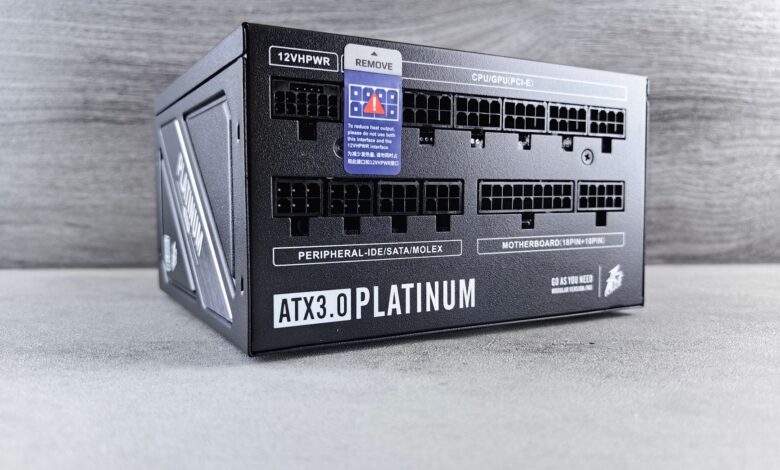
When changing out a power supply, the biggest concern isn’t what’s going to happen with all of the screws, but rather how all of those long cables will connect to the new power supply. All of the plugs that connect to your motherboard, drives, and graphics cards are all universal in nature, so they work the same across all brands, but the end of the cable that plugs into the power supply depends on the power supply manufacturer. According to the Seasonic cable compatibility guide, modular cables are not interchangeable between brands, and using the wrong cable can lead to dangerous damage or even fires.
In addition to this danger, there is also another, more subtle trap. Many people regularly talk about taking precautionary safety steps before opening up a case; however, some of these so-called ‘safety’ measures actually don’t provide the protection they claim to provide. The first step begins even before you get your screwdriver out, and it involves ensuring that you’ve purchased the correct power supply unit.
Sizing and Sourcing the Replacement PSU: Form Factor, Wattage, and Standards
Before considering wattage, a replacement power supply must pass three tests: whether its shape will fit inside the case, whether it will connect to the motherboard and graphics card correctly, and which version (standard) the unit was manufactured under. If the power supply does not meet all three tests, the number on the box is meaningless because the power supply will either not be able to mount in the case, or it will not be able to connect to the other components.
You start with a computer that has a power supply already installed, not from a shopping page. The power supply’s label provides the form factor and rated output, while the motherboard’s power header will say how many pins it has. The two pieces of information will answer most questions about compatibility in under a minute, without any money being spent.
A desktop computer from a large corporation like Dell may not accept a standard unit whatsoever. A user of the Dell Community forums who owned an OptiPlex 9020 purchased a 24-pin-to-8-pin adapter to connect a standard power supply to his proprietary motherboard header, and subsequently reported that he had two dead power supplies after attempting to do so. A forum Legend responded with the point that most people overlook: the EPS12V 8-pin connection does not mate with the 8-pin connection on that motherboard. If your motherboard’s main power header is not a standard 24-pin header, treat the replacement power supply as a proprietary part and consult the manufacturer of your computer for assistance.
Once the shape and the headers check out, the wattage question is a budgeting exercise rather than a guess. Work through it in this order and write each figure down:
| Step | What to write down | Where the figure comes from |
|---|---|---|
| 1. Processor | Sustained power for your exact CPU model | The processor maker’s product page for that model number |
| 2. Graphics card | Board power for your exact card, not the chip family | The card maker’s spec page for that SKU and suffix |
| 3. Everything else | Drives, fans, memory, pump, lighting | Each part’s own spec sheet or manual |
| 4. Headroom | Margin above the running total | See the load-window note below |
| 5. Connectors | How many CPU and GPU plugs the board and card need | The motherboard and graphics card manuals |
The worksheet provided is not a lab measurement or a certified specification, but rather an evaluation based on four inputs of the published power figures, connector counts, efficiency curve, and standard revision for that hardware. The worksheet acts as a reference guide for all of the information that you need to look up, rather than a way to score or rate the hardware.
Reasoning is important when discussing headroom. Modern graphics cards do not operate at a constant draw of their rated. Instead, they operate in spikes. The entire purpose of the ATX version 3 generation is to provide guidelines for power supplies to survive these spikes and prevent power supplies from tripping their protective features. These guidelines are outlined by Intel in their ATX version 3 design specification, document 336521, dated November 2023.
According to Aris Mpitziopoulos of Hardware Busters, reading directly from the v3.1 tables, the 12V rail for the motherboard’s PCIe slot has increased from a maximum allowable 5.5A to a maximum spike of 13.75A for 0.1ms, equating to approximately 165W at 12V, while the hold-up time required for full load has decreased from 17ms in v3.0 down to 12ms with the v3.1 revision, with the threshold level being above 16ms at 80% load. The changes mentioned are the actual v3.1 changes, and the amount of time has decreased, indicating a backward step in the standard that you should be aware of before assuming newer standards are always better.
The efficiency badge must also be viewed with suspicion. 80 PLUS tier certifications indicate that a power supply is efficient when tested with certain loads only and do not indicate how much noise a specific power supply will produce.
Cybenetics has a published test methodology approved by ISO/IEC 17025 for testing (including environmental testing) and ISO/IEC 17065 for product certification. The test methodology tests power supplies with ambient temperatures greater than 30ºC, uses more than 1,450 load combinations for all three outputs (12V, 5V, and 3.3V), and measures fan noise at a distance of one meter from the power supply in an anechoic environment. The ETA rating measures efficiency while the LAMBDA rating measures noise. Therefore, a power supply can have a good efficiency rating but be very noisy.
Power-Down and Residual Charge Discharge: Safe Preparation Before Opening the Case
Everything from here happens inside a machine that was carrying mains voltage a minute ago, so the sequence matters more than the speed. Run it in this order, every time:
- Shut the operating system down completely — a full shutdown, not sleep and not hibernate.
- Flip the rocker switch on the back of the power supply to the O position. This isolates the unit’s internals from the wall before anything is unplugged.
- Pull the power cord out of the wall socket, then out of the power supply. Physically unplugged is the only state that counts; switched off is not.
- Press and hold the case power button for about five seconds. With no wall power behind it, this drains low-voltage energy sitting in the board and its capacitors.
- Touch bare, unpainted metal on the case frame before you reach inside, or wear a grounding strap, so you aren’t carrying a static charge onto a connector.
Step 4 is the most overhyped step of the whole process (and there are a lot of walkthroughs that state everything about holding down the power button will drain the charge in the power supply caps). The device safety guidance from iFixit is much more cautious, as well as a hedge against the unknown; that is the point of it. By holding down the power button for approximately five seconds you will in some instances help drain those caps that otherwise hold a charge. This is a step you should take. However, this is not a guarantee and was never meant to be a means to make the inside of the power supply safe to touch.
This distinction is what creates a solid barrier to completing this job, as you should never open the metal enclosure of a power supply. As the iFixit guidance points out, a power supply for a typical desktop computer has caps that are capable of delivering a strong electrical shock and states that you should wait at least 10 minutes after unplugging a power supply before attempting to disassemble it. The guidance also warns to treat every large capacitor as though it is charged until proven otherwise. These two pieces of advice are completely independent of the replacement of a power supply unit. The replacement of a power supply is done with the power supply being treated as a sealed box that is simply unbolted, lifted from the case, and placed in the rubbish bin or RMA box. If you suspect a fault inside of the power supply, you should contact the manufacturer’s support channel or a trained technician to repair the unit, and definitely not repair the faulty unit at your kitchen table with a screwdriver.
The Modular Cable Danger: Why You Must Never Reuse Old Power Cables
The reason a physical-fit cable can still be incorrect depends solely on an asymmetry that exists between every PSU and the components being powered. The following statement is taken verbatim from Corsair’s own article on PSU cables, “Are PSU Cables Universal?” and refers directly to this asymmetry: On the component side, connectors are standardized and therefore each pin has the same wire configuration; however, on the Power Supply side, each manufacturer has free will to determine how they want to create that fit.
Because the connectors at the drives end are conforming to a public standard, whereas the connectors at the Power Supply end are not governed by anything other than that company’s internal business policies for that product line, this means that it is possible for a cable to be deemed as fitting into the connection, yet this same cable could still provide power from +12V to a pin that your new drive uses as a ground or +5V, as the shape of the connector never dictated the agreement.
That failure has a documented example. On the Linus Tech Tips forums, a builder who swapped an Enermax unit for an Antec one kept only the old SATA leads “just to test it” and found the machine would light up, then halt after a couple of seconds.
In a six-word response, the PSU reviewer (also known as jonnyGURU) indicated that the “pinout of Enermax and Antec are different.” The relevant part of the thread comes from the original poster’s follow-up post that confirmed that after swapping those SATA and Molex leads with the Antec’s, the unit powered up without an issue. Two separate people used different methods to reach the same conclusion, which confirms the location of a design flaw based on both accounts and also corroborated by the manufacturer documents provided above, which provide a clear explanation of what causes this issue to happen.
One of the common mistakes individuals make concerns the interpretation of the term “different type of power supply.” It is wider than most builders assume:
- A different brand is obviously a different pinout, and no two makers coordinate their socket wiring.
- A different series from the same brand can differ too — Seasonic’s compatibility tables mark its legacy X-Series KM, KM2 and FL units as incompatible with the cables its current CORE, FOCUS, VERTEX and PRIME units share.
- A different generation of the same series counts as different until the maker’s own chart says otherwise, which is exactly why Corsair labels its cable sets Type 3, Type 4 and Type 5 and tells owners to match the type.
- A partial reuse is still a reuse. Keeping the old SATA or peripheral run because it was a nuisance to route is the specific mistake in the forum thread above.
- The one genuine exception is the wall cord. Corsair notes that the cable from the socket to the unit follows a public standard such as IEC C13, so it can move from one unit to the next as long as it meets the new supply’s rating.
In the support documentation, ASUS states the following working rule: Always use the cables supplied with your power supply, as pinouts vary among brands and models — even from the same manufacturer — and using cables from different manufacturers or models may damage hardware. Discard the old cable harness as soon as you remove it from the previous unit. You should store it in a bag, label it with the model number of the device it was connected to, and keep it out of reach of the workbench.
Removing the Old Unit and Orienting the New PSU Fan for Proper Airflow
After removing all the cables from the PSU and taking pictures, you can remove the old PSU by taking out the four screws from the back of the case. When you’re doing this, hold the old PSU in place with one hand until the last screw is removed. If the PSU falls two inches onto the graphic card or memory slot, you can end a 15-minute project very painfully and/or cost-wise. After you have taken out all the screws and unplugged the cables, feed the cables around the shroud and drive cage instead of pulling the loom through them.
The most debated topic on the forums is how best to orient the PSU when it is installed. Corsair offers a simple one-line guideline on how to mount your power supply, which states: “If you can get airflow underneath the PSU, mount with the fan facing down; if not, mount with the fan facing up.” The reasoning behind this recommendation is thermal isolation, meaning that by orienting the fan downward, the power supply can draw in cooler air from the ambient environment, circulate that air through the unit, and vent it directly out the rear of the case in a closed loop, creating a thermal buffer between the power supply and the graphics card’s output air.
Work through the cases in order:
- Bottom-mounted with an opening underneath: fan down. This is most modern mid- and full-tower cases, and the vent usually carries a dust filter.
- Bottom-mounted with a solid floor, or too little clearance for the fan to breathe: fan up. It will draw warmer internal air, and as Corsair puts it, warm air is better than no air.
- Sideways, as in dual-chamber cases: fan facing outward against the side panel, never toward the motherboard tray.
- Top-mounted, on older chassis: fan toward the grill if there is one leading outside, otherwise facing into the case.
- Small-form-factor cases: usually one permitted orientation and usually an SFX-size unit, and a standard ATX supply may not fit at all.
Drive the four screws in finger-tight on opposite corners first, then snug them down. Leave the rear rocker switch in the O position while you wire everything up.
Connecting Motherboard, CPU, and GPU Power: Connector Pinouts and Safe Seating
The new unit’s power supply cable contains two plugs of identical width and in low light look very similar, but they perform different functions. The modular cable connection diagram provided by ASUS has an identification method that does not require you to read small, faded letters: the CPU connector is composed of two 4-pin segments that connect to form one 8-pin and the PCIe connector is composed of one 6-pin and one detachable 2-pin connector. Check the split layout first before looking at the printed label.
The pin layouts for these connectors were published by the manufacturers. Seasonic publishes the wiring and pin assignments, the 8-pin EPS12V pinout has four +12V circuits and four ground circuits. The 8-pin PCIe pinout has three +12V circuits and five ground circuits. Because there are different current capabilities and return paths, mating the two incorrectly creates a short circuit rather than an aesthetic issue.
| Connector | What it feeds | How to tell it apart | Seating check |
|---|---|---|---|
| 24-pin ATX | Motherboard main power | Longest plug on the board’s edge | Retention clip audibly latches over its tab |
| 8-pin EPS12V | Processor | Splits as 4+4; sits by the CPU socket | Both halves flush; clip engaged |
| 8-pin PCIe | Graphics card | Splits as 6+2; runs to the card | Full 8-pin for an 8-pin socket, 6-pin alone for a 6-pin |
| 12V-2×6 (16-pin) | High-power graphics card | 12 large pins plus 4 small signal pins | Fully home, no visible gap at the shroud |
| SATA power | Drives and some fans | Flat L-shaped plug, several per lead | Slides fully onto the drive’s L-key |
Connect in this order, so that the two connections most often left loose get done while the case is still easy to reach into:
- Seat the 24-pin ATX into the board’s main header and push until the clip snaps over its tab.
- Seat the EPS12V by the CPU socket — both halves if the board takes 8 pins, one half if it only takes 4.
- Run graphics power next, matching the card’s sockets exactly and using a separate cable run per socket where the card provides them.
- Add SATA and peripheral leads last, then route the unused cables out of the fan paths.
The 16-pin graphics port has its own safety mechanism – its current design was developed primarily to ensure that a loosely connected plug could not be attached incorrectly. Hardware Busters notes that with the transition from the 12VHPWR power connector to the new 12V-2×6 connector, the length of the power pins on the header was increased while the length of the four sideband pins were reduced, meaning that the signal pins will only connect after the power pins on the graphics card are correctly seated. Therefore, if the graphics card detects that both of the sense pins on the power connector are in the open position, it knows that the power connector is not correctly seated, and it cannot be powered.
This is not simply a fault; rather, it is an indication that the plug has not been fully inserted into the socket. The graphics card will typically remain “off” when the 16-pin plug is not fully inserted into the socket. To ensure that the connector is completely inserted into the socket, the user will need to click the latch into position. ASUS’s recommendation to avoid forcing the connector into the socket should be taken seriously, as a misaligned connection can lead to component failure and/or electrical shorts.
First-Boot Verification and Troubleshooting: What to Check if the PC Does Not Power On
The vast majority of PC power supply replacements that do not start on the first boot are due to simple issues as opposed to anything unusual or dramatic, so take care to check for the simple reasons first. Take a few minutes to do a “slow” inside lap of the case, refer to your photography of the interior and check that every wire you connected previously is again connected, all retention clips are locked down, and that nothing is leaning against a fan blade or causing it to block airflow. After you are satisfied that all connections are secure, plug the cord into the unit, plug the cord into a wall socket, and switch the rocker switch to the “on” position (position I).
If the power button does nothing, work down in this order rather than pulling the build apart:
- The switch and the socket. The rear rocker sits in O far more often than anyone admits, and a switched wall outlet or a dead surge strip looks identical to a dead computer.
- The two motherboard connections. Reseat the 24-pin and the EPS12V by hand until each clip latches. A CPU cable that is seated but not clipped is the single most common no-boot after a swap.
- The front-panel header. The thin power-switch leads at the bottom edge of the board are easy to knock loose while wrestling the old unit out, and the machine cannot respond to a button that isn’t connected.
- The behavior itself. A system that lights up and then cuts out after a second or two is not doing nothing — that is a protection circuit deciding something is wrong, and it points at wiring rather than at a dead unit.
Do not let your eagerness cause you to immediately check your power supply isolated test at the bench. The article by Puget Systems on how to test the isolation of a power supply is clear about what limitations exist: It requires that you disable the eco mode before you carry out the test, and also provides a warning about live pins while plugged in and that you will be unable to determine if the unit is overheating, has capacity or voltage problems.
The sound of the unit’s fan running may indicate that the unit is powered on, but it is not an indication of whether or not the unit is functional. If the unit has a zero-RPM mode, then even if the fan stops running, it may still be functioning. To obtain the proper answer regarding this unit’s status, it is necessary to use a dedicated hardware testing device that has its own limitations and procedures to follow when testing power supplies.
What to Check First
The determination of whether or not to buy this is determined by the cable issue—the ends of the components use a public standard, while the ends’ power supplies do not, and this difference in specification creates an asymmetry causing a short-swap of the supply into a dead drive. You will want to search for the exact model number in the Cybenetics power supply database, which lists supplies tested at 115V, then filter those results for an ATX v3.1 unit; also, measure the header of your board and case clearances to ensure compatibility with the specific model. If you do these two things, the installation will take approximately an hour and require only four screws to complete; if you do not perform these actions before installing the new supply, you will have a clear understanding of exactly how the new power supply will affect computer components that it was not designed to attach to.
Frequently Asked Questions
Can I keep the power cord that plugs into the wall?
That’s correct; the one cable that is excluded from being replaced under this guideline is the mains lead. According to Corsair, the mains lead uses a public standard (e.g., IEC C13), which means it can be used interchangeably between devices, provided that it meets the amperage rating of the new power supply. The remaining cables that connect to the other side of the power supply will all need to be replaced.
Is an ATX 3.0 power supply still fine, or do I need 3.1?
ATX v3.1 was officially released on 13 September 2023. The primary difference between the two versions of the ATX standard is that in ATX v3.1 the length of the connector’s (or header’s) four 16-pin power pins and the two sense pins have changed. The power pins are now longer and the sense pins are shorter than previous ATX connectors (v3.0). As a result, any partially inserted power plug that is not seated correctly will cause the power supply unit to output 0 watts to the card; however, any unit built per ATX v3.0 with a power plug fully and correctly inserted into the header will still function normally.
Does swapping the power supply myself void my PC’s warranty?
In the US, it is not automatic. On July 2024 warning letters, the US Federal Trade Commission (FTC) sent warning letters to eight companies, including PC hardware manufacturers, stating that linking warranty coverage to branded parts and using “warranty void if removed” stickers creates issues under the Magnuson-Moss Warranty Act. Be sure to review your own policies first.
