
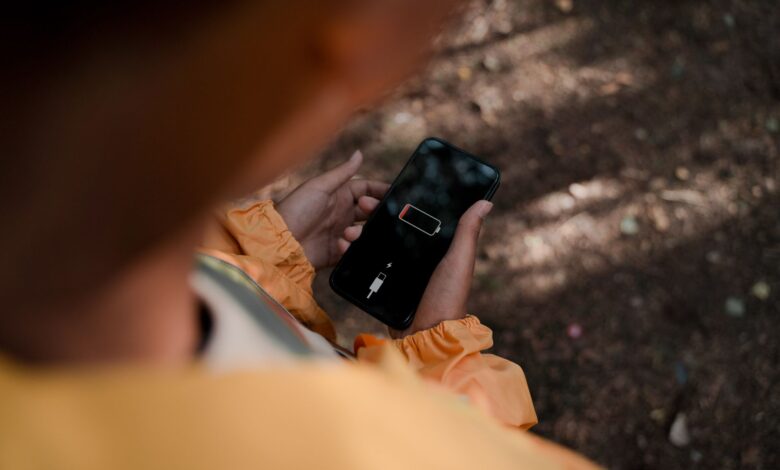
Your phone already has a list of the things that are draining your battery in a settings panel that most people never visit. Additionally, the category “fast” is not a number that you can search for; it is recorded as a comparison with how the device performed last week. That is why Apple’s battery-drain guidance tracks today’s usage alongside that of the last seven days instead of posting an average standard to measure against, and that is why Google’s troubleshooting on the Pixel is primarily focused on the last week’s use of a per-app basis rather than on rules or averages for applications.
Six issues can cause that same percentage to decline as observed on the battery percentage indicator. These issues include: a poorly functioning application, having the display brightness set too high, updates being processed in the background, weak signal strength, exposure to heat and the battery becoming exhausted. These six items all look the same on the percentage indicator, and only one is actually an issue you should invest in repairing. If you guess incorrectly on which item to repair, you’ll spend a weekend tinkering with your settings that were not the issue or you’ll buy yourself a new battery for a device that can be restored to functionality by simply deleting an app from the memory. The initial step should be to determine if any of these situations would be considered outside the normal range of usage for your phone.
How much battery drain is normal?
It is not possible to compare your performance against a fixed rate of progress, as no such figure has ever been published. Likewise, neither Apple nor Google provides that information because, among other reasons, the amount of time an app runs depends on brightness level, signal quality, temperature conditions, and the type of application running. Instead, both companies created tools within their mobile devices for users to track how well their devices work.
This makes the question you should ask entirely different than the question that many people seem to want to ask. The term “abnormal” does not denote a value; rather it describes something that is unusual or has changed because of the way that you are currently using your device. In other words, when your battery usage has increased significantly from what it was previously being used for, it is indicative of abnormal use of your device.
Three comparisons already live on your phone, and they answer different questions:
- Today versus your recent norm. iPhone’s Daily Usage chart compares today’s usage against your previous seven days and tells you whether you’re using more, less, or about the same. That’s your fastest read on “is this actually unusual.”
- Onset. Tap back through earlier days. Drain that starts on one specific day points at an app update, a system update, or a change of location — not at chemistry, which degrades slowly.
- Age, in cycles rather than years. Apple designs iPhone 14 and earlier batteries to keep 80% of original capacity at 500 complete charge cycles, and iPhone 15 models at 1,000. Google’s Pixel battery documentation rates Pixel 3 through Pixel 8 Pro and Pixel Fold at about 800 cycles to the same 80% mark, and Pixel 8a and later at about 1,000.
The advice given for a phone’s lifespan makes the mistake of thinking about how many cycles the phone has had. The Google calculator does not count partial cycles the same as complete cycles. For example, if you use your phone from a full charge down to 50 percent, and then back to a full charge, that is only half of the cycle; on average you would need to charge your phone twice a day (three percent a day) to reach one complete cycle.
If you have a two-year-old phone, there is a good chance that you have not yet reached the expected number of cycles, so do not assume that “it’s just getting old.” Be aware that website pages for affiliate stores and repair shops list a flat rate of “300 to 500 charge cycles” based on the manufacturer’s guidelines, but this figure is now in direct contradiction with both the manufacturer’s own published cycle counts and the split-ups within the model of phones.
One final thing to consider: do not compare your phone’s screen-on time with others. The discussion regarding OnePlus Community’s screen-on time was widely read but breaks down each of the components that affect one’s own. Brightness levels, type of connection, applications, ambient temperatures, and background running apps will vary from person-to-person and make comparing them irrelevant. The only screen-on time that is accurate is your own for the last seven days.
How to find out what’s draining your battery
The screen you want is in Settings, under Battery, on every platform — but what it shows, and what the numbers mean, differs enough to matter.
Read the screen in this order
- Open the right screen for your device. On iPhone: Settings > Battery, then View All Battery Usage for the last eight days of data. On Pixel: Settings > Battery > Battery usage, then View by apps. On Galaxy: Settings > Battery > Battery usage, where you can switch between Since last full charge and the last 7 days.
- Check the version gate before you go hunting. Apple’s Daily Usage chart needs iOS 26 or later. Google notes that some of its battery-drain steps only work on Android 14 and up, and Pixel’s Battery diagnostics panel exists on Pixel 6 and later. Samsung’s Galaxy battery troubleshooting guide warns that available screens and settings vary by service provider, software version, and model — so if a menu isn’t where a guide says it is, the guide is probably describing a different build.
- Read what the entries actually mean. Apple’s user guide separates On screen (the app was open and visible), Background (directions, music, syncing photos, fetching mail), and Cellular coverage (the app was used in a low-signal environment). Android splits the same list between apps and system entries, with a toggle to show or hide the system ones.
- Route to the matching cause. A single app dominating the background points to the app section below. “Screen” on top with heavy use points to display settings. System entries near the top, with no single app standing out, usually means the work is spread across many processes — not that the operating system is broken.
This Routing Order is an editorial tool specifically created for this guide using the four different evidence signatures described throughout the sections below; where the percentages fall, when the drain began, whether the device felt physically hot, and what model Health Check displays. It is not a lab or certified measurement nor does it provide a rating or score your device or what condition your current model is in.
Now for the part that leads to the majority of the most needless panic. The battery statistics are a share of what has already been utilised with respect to charge, not battery percentage shares. The Ars Technica forum thread that goes over reading Android battery screens did the math publicly; one poster had shown that his “Android System” had reported 84 per cent overnight, meaning 84 per cent of the total had been utilised during the evening. Therefore, 84 per cent of 90 on a drain of 96 percent to 6 percent during the evening equals approximately 76 per cent of the total battery. If one single percentage shows the same 84 percent over a drain of just 8 percent one would then see less than 7 on the battery counter. Same fear-inducing number, completely different issue.
So prior to acting upon any given entry one must first look at two items; the percentage that is displayed and then look at the percentage drop of the battery while the percentage was accumulating. The dominant share of the small drain on the battery is basically just routine care.
When an app is the cause
The evidence signature here is specific: one app you barely opened, sitting high in the list with most of its usage marked as background rather than on-screen.
Google publishes an escalation order for exactly this, and the order matters because each step costs you more than the last:
- Restrict first. On Pixel, open the app from Battery usage and change Allow background usage. Android’s three states are Unrestricted, Optimized (the default), and Restricted, which fully prevents background work — and can stop notifications and syncing from arriving as expected.
- Force stop as a test, not a habit. Google’s Pixel battery-drain guidance uses force stop to confirm a suspect, then uninstall if it’s confirmed. That same page warns that force-stopping essential apps will stop your phone working correctly, and that Google Play services can’t be force stopped or uninstalled at all — which is why the folk remedy of killing it never works.
- Isolate with safe mode if no single app stands out. Safe mode loads only the software your phone shipped with. Samsung applies it directly to battery drain in its own troubleshooting flow; Google’s safe-mode troubleshooting steps document the logic — if the problem goes away, a downloaded app is likely causing it — then has you remove recent apps one at a time, restarting between each.
This last item should be addressed very clearly, as it conflicts with advice given on Google’s consumer-facing websites. On Android.com, users are instructed to close any applications that are not currently being used as this can maximize battery conservation; the troubleshooting flow on Google’s other websites lists the ‘Force Stop’ option as a step in the troubleshooting process and links its actual solution to background activity settings. In other words, by swiping apps off the recent list, there is not a way to conserve battery life. A single force stop action can be viewed as a test, while the underlying solution is through background settings.
In addition to the definition provided above, Android’s engineering documentation further defines excessive partial wake lock as the situation where the application keeps the processor awake for a minimum of two cumulative hours over a 24-hour period, which prevents the device from reaching its low-power states. The Settings menu does not reference this figure—this is a developer’s metric—but it provides insight into what Google considers “too much background activity.”
This information will also provide the basis for determining which apps to install. As of March 1, 2026, the excessive wake lock metric has been promoted to core Android vitals; therefore, any applications demonstrating bad behaviour will not only be removed from high-visibility locations but will also contain a warning message informing end-users that their battery life may be affected. If you find an application at the top of your usage list, be sure to review the information provided in its Play listing, as announced in the Android Developers announcement.
When the screen is the cause
According to Google on their own Android website, one of the largest drains on your phone’s battery is its screen. So if “Screen” shows up at the top of your usage list, this isn’t a mistake — this is a normal outcome of using your phone. The problem arises when the settings associated with that use are set incorrectly or configured poorly.
The levers differ by platform, and each one has a different payoff:
- Brightness. The single biggest one. iPhone surfaces High Brightness as a battery suggestion, alongside prompts to turn auto-brightness and auto-lock back on if you’ve disabled them.
- Timeout. Pixel suggests picking a short screen timeout, such as 30 seconds. Every second the panel stays lit after you stop looking is spent for nothing.
- Refresh rate. Pixel’s Smooth Display and Samsung’s Motion smoothness both raise the panel’s refresh rate; both can be set back down, and Samsung’s own path reduces it to 60 Hz.
- Always-on display. Available to switch off on both Pixel and Galaxy, or set to appear only on a schedule or a tap.
- Dark theme — but only on the right hardware. Android’s battery-saving guidance scopes the saving specifically to OLED panels, where individual pixels turn off to display black. On an LCD phone the backlight stays on regardless, so there’s nothing to save.
Dark mode is the biggest discrepancy between tips and the studies/research behind those suggestions and there is research to diminish that gap with a new standard. In the study conducted by Purdue University, the researchers that developed the per-pixel OLED power model found that, when switched from a bright mode (light mode) to dark mode, the average power savings was approximately 3% to 9% when looking at 30%-50% brightness (like what you’d typically use indoors with auto-brightness) and 39%-47% savings at full brightness. This work was completed in 2021 and consisted of measuring activity for 60 seconds in 6 apps on 4 different Android phones, so please use this information as a guide to get an idea of what to expect rather than a specification for your phone. Purdue’s dark-mode study summary.
The takeaway is: dark mode is most effective outdoors at full brightness. While it does earn its reputation there, in your living room, at a 40% brightness level, it results in only a small fraction of the power savings, meaning that if your phone is losing 1/3 of its total charge before lunch, switching to dark mode will not improve your chances of having it all day long.
After an update: why drain spikes and when it should stop
When an Update has completed, this is expected to occur and is an acceptable condition with the two manufacturers giving you a deadline for this condition.
Apple recommends waiting a few days following an update before assessing your device since specific tasks related to the update continue to run in the background and influence both battery and temperature levels until they finish. When running in the background, iOS will show you an Insight status of Ongoing iOS Update or Ongoing Device Setup in blue above Daily Usage.
Google’s Pixel Battery Drain Recommendations are the same; after a software update, it is typical for a Pixel battery to use up more power than normal as the device optimises the new software. Google asks those who notice that excessive battery drain continues for more than a few days to contact them.
There is a much more extended period between getting an entirely new device from a manufacturer (or after performing a factory reset) and when Adaptive Battery optimization is able to take full advantage of the phone’s battery capabilities. Google states that it can take between a few days to a couple of weeks to see optimised battery performance on a new device. Samsung also mentions that there is an increase in both battery drain and thermal activity when a person restores a large amount of data to their device at once.
The difference in timeframe mentioned above can make a significant impact on how people perceive their battery performance. For example, one Pixel owner, who purchased and activated their new phone late September, updated their device shortly afterward, and compared the phone’s performance against a baseline taken just over a week ago. This was an example of two different settling periods being used during the comparison of phone performance. The Product Expert posting on this same thread concluded that isolating the exact cause of battery performance issues may be extremely challenging due to the variability of the timeframes described above.
So time-box it rather than panic-resetting:
- Updated an existing phone? Give it a few days, then re-read your Daily Usage comparison.
- Set up a new phone, or restored from a backup? Give it a few weeks before you judge, and expect the first days to be the worst.
- Still abnormal after that window? The update has stopped being the explanation. Go back to the usage screen and work the app, screen, signal, or health branches instead.
When weak signal or 5G is the cause
The reason for this issue is not immediately apparent, as it does not originate from an application; rather, it comes from a different type of technology: the radio.
Apple specifically identifies this usage category as (no mobile coverage, low signal) indicating your device was searching for either Wi-Fi or cellular network service, or was used in an area with a weak signal. In addition to the likely high frequency of these occurrences, Apple’s recommendations mirror the mechanism: users should always choose Wi-Fi over cellular connections and should only use the phone where the network signal is strong. To reduce battery drain in areas where there is no coverage, it is also advisable to turn on Airplane Mode. Android recommends a similar course of action for the same reasons (i.e., to stop the phone from constantly searching for a signal).
Another aspect of 5G technology adds an additional level of power consumption and Samsung explains this concept in plain English for consumers. According to Samsung’s Galaxy battery support web page, a 5G device will maintain a connection to the 3G/LTE network in addition to the 5G network; therefore, calls, messages, and other data will still be received reliably due to the dual connection; therefore, users may experience greater drain on their batteries when using 5G devices and the devices may run hotter than they do when only on 3G/LTE networks. A device that has two radio systems working simultaneously is simply going to be working harder than one that only has one.
How much battery life is consumed with 5G as compared to 4G-LTE? According to the findings of Ookla’s 2023 Speedtest Intelligence report, reported by ISPreview, on ISPreview’s website, there is an estimated 6-11% increase in battery consumption for 5G users as compared to 4G-LTE users. The Snapdragon 8 Gen 2 chipset had the least amount of battery drain out of all chipsets tested, showing a 31% battery drain on 5G versus 25% on 4g-LTE. The study looked at the battery usage on 5G and 4G-LTE devices only once daily at 100% battery life, measuring the usage from day to evenings. The study also did not account for display brightness or screen on-time. The data is accurate but limited; therefore, it would make no sense to multiply the usage values of the Snapdragon 8 Gen 2 chips against the total usage figures of all smartphones for either 5G or 4G-LTE.
Two settings act on this, and the first is a test rather than a fix:
- Airplane mode for ten minutes, somewhere you know coverage is poor. If the drain rate visibly slows, the radio is doing the work. That’s the cleanest isolating test in this whole article, and it costs you nothing but ten minutes of missed calls.
- 5G Auto, which Apple offers on iPhone 12 models and later and iPhone SE (3rd generation) under Cellular Data Options. It drops to LTE when 5G isn’t delivering a noticeably better experience.
One of the unique features to Android is that WiFi scanning occurs in the background, so there is a WiFi scanning process that keeps waking up the CPU to do scans of WiFi networks in range. According to Android’s developer documentation, this can cause a significant drain on battery if there are too many background scans being done by apps. It can be found in the Location settings for your device (under Location), instead of having its own Battery setting, which means that it can remain active even after all other apps are cleaned up. Band support, 5G mode availability and carrier provisioning vary outside the US market. To check whether or not your specific carrier supports these items, please refer to their documentation; you cannot expect that the configuration of the US will be exactly equivalent to that of any other country.
When heat is the cause
The heat produced by electronic devices is the only factor that can be detected manually instead of with a thermometer or heat graph, as well as the only factor that could result in significant and occasionally permanent impacts on available battery capacity.
The way Apple reports on the heat data associated with their iPhone product line indicates the “normal” range during operation between approximately 32° and 95° F (or 0° C and 35° C); whereas the ambient temperature range for storage of iPhones is reported as -4° and 113° F (or -20° C and 45°C). Apple clearly states that using an iOS device in a very high ambient temperature environment drastically reduces the iOS device’s overall life; specifically, the typical environment for parked vehicles where the ambient temperature often exceeds the reported temperature ranges, is a perfect example of this impact. Similar to Apple, Google also provides battery care recommendations, which include advisories against exposure to elevated ambient temperatures for an extended period (greater than 6 hours at temperatures higher than 95° F (or 35° C), as well as recommending charging an Android device around 78° F (or 25° C). The information provided by Android regarding battery care states, simply, that battery health diminishes at high ambient temperatures very quickly.
The fact that an Android device is discharging may also be related to the Android device “protecting itself”. According to Google, when Google Pixel devices determine that the device is in a high ambient temperature environment, Google restricts the following functions of the device: processor performance is limited, charging speed is reduced, camera flash is disabled, the camera is disabled, mobile data is turned off (partially or completely), Wi-Fi is turned off (partially or completely), ent going into low battery mode.
Apple has also documented these same types of warning signs: charging stops, dimming of the screen, temperature warnings, and the closing of some apps. If a temperature warning screen is displayed, the user may be unable to use the device until it cools, although they may still be able to make emergency phone calls.
If a phone is hot while sitting idle or unused, that indicates a problem with the phone; however, if the phone heated up due to prolonged navigation, that would be an expected result due to physical laws. The heat generated from charging a device is another matter altogether and should be covered in the guide regarding the heat generated during charging. Therefore, this section will concentrate on heat developed during usage only.
The third item mentioned relates to battery swelling — there will be an indication that the battery is swollen since the back cover will bulge, and/or the touch screen will either partially pull away from the frame or lift upwards. In this instance, Google’s recommendation is that you do not attempt to press the touch screen back down or pry the device open, but instead contact an authorized repair facility, and do not dispose of the device in your household waste. This is a case of an instance where it should be sent to a professional technician rather than trying to fix it yourself, regardless of any advice given by a forum.
Battery health: when age is the cause
When it comes to honesty, there is essentially one branch where the only correct response is “spend”. People check their behaviour against a model that might not provide them with accurate data – making a good check will involve a document that the vast majority of mobile phones won’t have. When you check the behaviour of a mobile device against a benchmark, it may be that you could be searching other sites that the device doesn’t come equipped to find.
Find the reading your model actually reports:
- iPhone. Settings > Battery > Battery Health on iPhone 15 and later; Settings > Battery > Battery Health & Charging on iPhone 14 and earlier. You’ll see maximum capacity relative to new, and on current models the battery’s cycle count and date of first use.
- Pixel. Settings > Battery > Battery health, which reports a status of Normal or Reduced rather than a percentage, with estimated capacity a tap further in. This exists on Pixel 8a and later only — Google states that Pixel 6a, 7, 7 Pro, 7a, 8 and 8 Pro don’t indicate a battery health status at all. Cycle count sits separately under About phone > Battery information.
- Galaxy. There’s no capacity percentage in the built-in settings. Samsung’s route is the Samsung Members app: Support > Phone diagnostics > Test all, which returns a battery status. Device care > Diagnostics reaches the same tests on Android 12 or later.
The gap in information related to Pixel products may create a misunderstanding surrounding the Pixel 7A’s battery capacity. One Pixel 7A user claims his device has been using almost all of its battery capacity by mid-day due to its system apps taking up nearly half of the storage space. He asked the community of Google to determine if his battery may have been defective, despite the fact that Google does not provide a method for determining whether a Pixel 7A battery is defective.
As opposed to Google’s vague “Reduced” status message and cycle count guidelines, which simply mean that battery capacity has decreased (defined as being 80% or less), Apple’s documentation specifically states when the device needs to be replaced. Once the battery is displayed as “substantially degraded”, Apple warns consumers that it does not pose a safety hazard but advises contacting an authorized service provider.
When considering whether to replace a battery based on a status message or cycle count, consumers should consider the device’s battery health and the specific advice provided by the manufacturer rather than simply reacting to an apprehensive percentage of remaining battery life. For example, a device displaying 83% battery life with no status message and a normal cycle count would be classified as having reduced runtime versus that of an unserviceable battery.
There are two important things you should be aware of before making a payment. First, Apple’s one-year warranty covers a defective battery, but in Türkiye it lasts for two years instead. If your iPhone battery is out of warranty, you’ll have to pay for the replacement. Google states that defective batteries are covered by the warranty while the Pixel is still within the warranty period. Because of the technology used on a Pixel device, Pixel owners can also expect to see a gradual decline in battery life – Google states that the Battery Health Assistance feature will gradually reduce the maximum charge voltage of the battery in stages from 200 cycles up to 1,000 cycles. According to Google, this gradual reduction in maximum charge voltage will produce slight reductions in runtime, and this feature cannot be turned off for Pixel 9a and later.
As for the second thing, many resources recommend running your phone’s battery flat, then fully charging your phone, as a “recalibration.” Google’s Android Battery Guidance suggests that you do not need to teach your phone the capacity of its battery by using a full discharge/recharge cycle, but also recommends that you do periodically drain the battery below 10% and charge it overnight. The general battery advice from Google for the Android platform is that charging a phone between 20% and 80% is optimal.
Apple has used the term “battery calibration” the most clearly of the three. iOS 14.5 was released by Apple in an attempt to alleviate inaccurate estimates of battery health for the iPhone 11 models. The iOS 14.5 “recalibration” of the battery calculates what the gauge says, not what the battery actually holds. This is why people who have used this feature have stated that their battery percentage increases immediately, and it does not prevent apps from keeping the processors awake.
The Diagnostic Path
One of six reasons is responsible for a battery draining quickly. From your Battery screen, you can see the top listed reason; the start date on the Battery screen for when the battery drain began; and the temperature of the device in your hands are three ways to identify which cause of the battery drain you need to work with first. Before changing your phone’s battery settings, you should first work through that branch of the fast drain issue. You should set aside money to purchase a battery replacement after you have determined your battery condition (Reduced, significantly degraded, or at cycle replacement limits), but before you do, you should book a replacement battery service directly from Apple’s iPhone Battery Service page, Google’s Pixel Repair Page, or Samsung’s repair centres. If you skip the previous steps, you may end up paying for a replacement battery for your phone when the real issue causing your battery to drain quickly is one specific app.
Frequently Asked Questions
Will a third-party battery change what the health screen shows?
According to Apple, when your iPhone displays the message, “This iPhone cannot be verified to have a genuine Apple battery”, the information provided in Battery Health may not be correct. Therefore, if you have a budget replacement battery, you’ll probably be unable to access the battery health information you were trying to see.
Do these battery screens need a particular software version?
It is likely the case that in many instances, yes. The Apple daily usage chart requires iOS 26 or newer, Google states that certain steps to fix battery drain issues can depend on a device running Android 14 or newer, and Pixel’s battery health status is only available for devices that are Pixel 8a or newer, so if you do not see a menu option usually associated with this feature, there is most likely a versioning issue and not an issue with your phone being defective.
Does Low Power Mode do more than dim the screen?
Yes. Apple describes Low Power Mode as reducing background activity — including Mail fetch and Background App Refresh — and it switches off automatically once you charge above 80%.
